
Speed Dial Admin
The Speed Dial Admin tab empowers facility administrators to configure and manage pre-programmed speed dial entries for inmate communication devices. Staff can assign approved contact numbers to dedicated speed dial slots, ensuring inmates can only reach verified, pre-authorized parties. This centralized control reduces unauthorized call attempts and streamlines compliant inmate-to-family communication.
Slot Management
Create, edit, and delete speed dial slots across all inmate communication devices from a single admin panel.
Approved Contact Binding
Link each speed dial slot to verified, pre-approved contact records from the inmate’s approved contact list.
Access Control
Restrict speed dial configurations by housing unit, classification level, or individual inmate to enforce facility policy.
Audit Trail
Every speed dial change is logged with officer credentials and timestamp for compliance and accountability reviews.
Step-by-Step: Configuring Speed Dial Entries
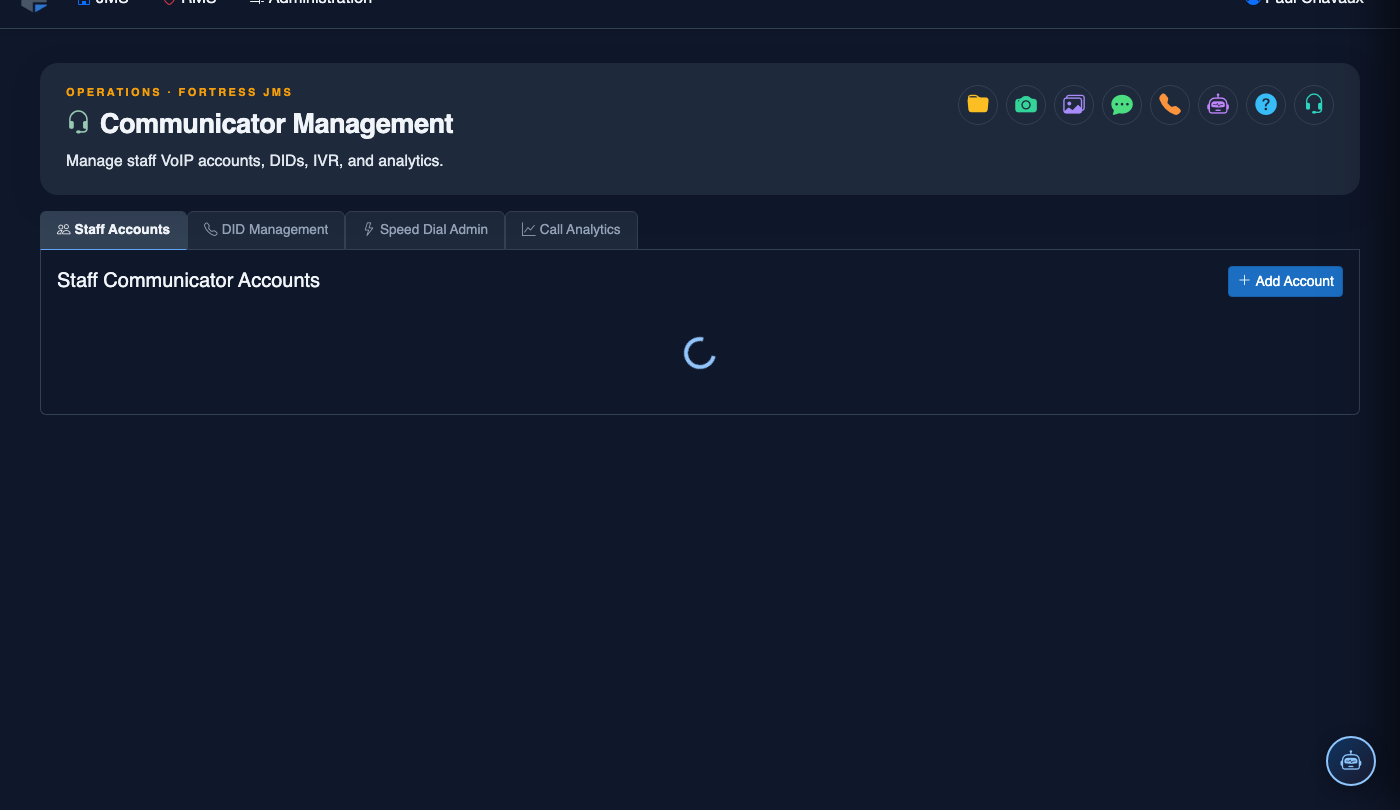
Navigate to Communicator Management
From the main navigation, select Inmate Communicator and click the Communicator Management module. Once loaded, click the Speed Dial Admin tab at the top of the page.
Select the Target Inmate or Housing Unit
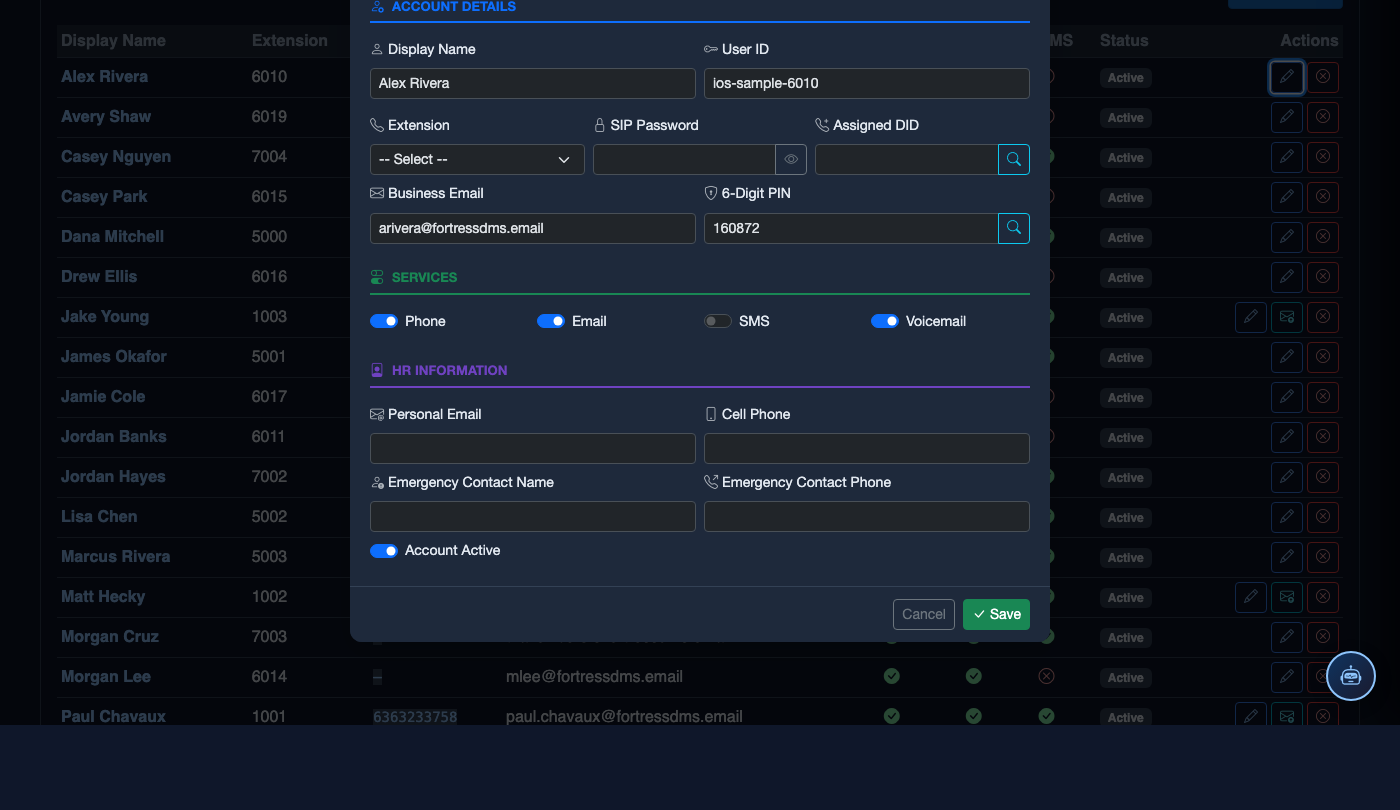
Use the Search Inmate field to locate the individual by name or booking number, or use the Housing Unit dropdown to apply speed dial settings to an entire block or pod.
Add or Edit a Speed Dial Slot
Click + Add Slot to create a new entry, or click the Edit icon beside an existing slot. Assign a slot number (1–9), enter the Display Label (e.g., "Home — Mom"), and select the approved contact from the dropdown list.
Verify Contact Approval Status
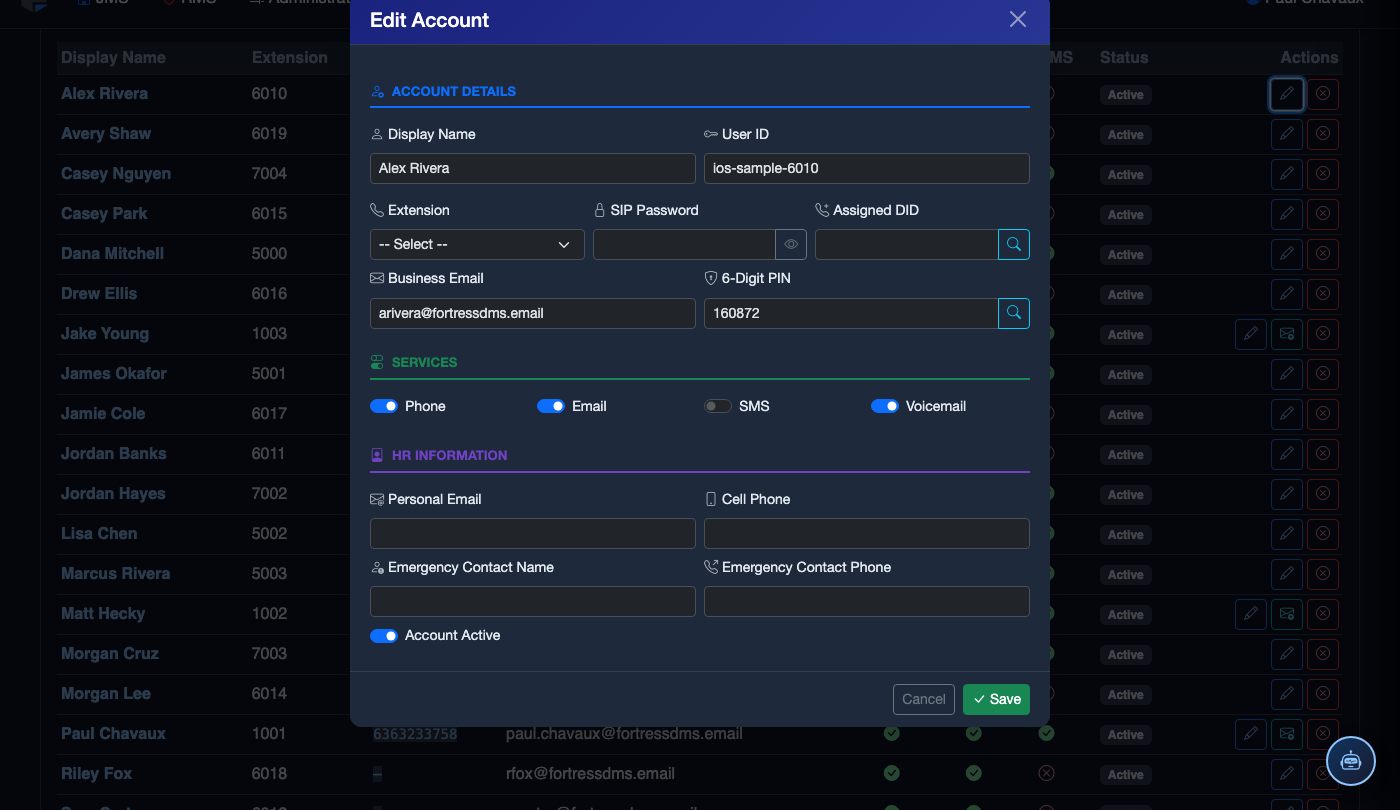
The system automatically validates that the selected contact is on the inmate’s Approved Contact List. Contacts flagged as Restricted or Pending Review cannot be assigned and will be grayed out in the dropdown.
Set Calling Restrictions
Toggle optional restrictions per slot: Time Window (limit calls to specific hours), Max Daily Calls, and Recording Required. These override the inmate’s default calling profile for this specific contact.
Save and Push to Device
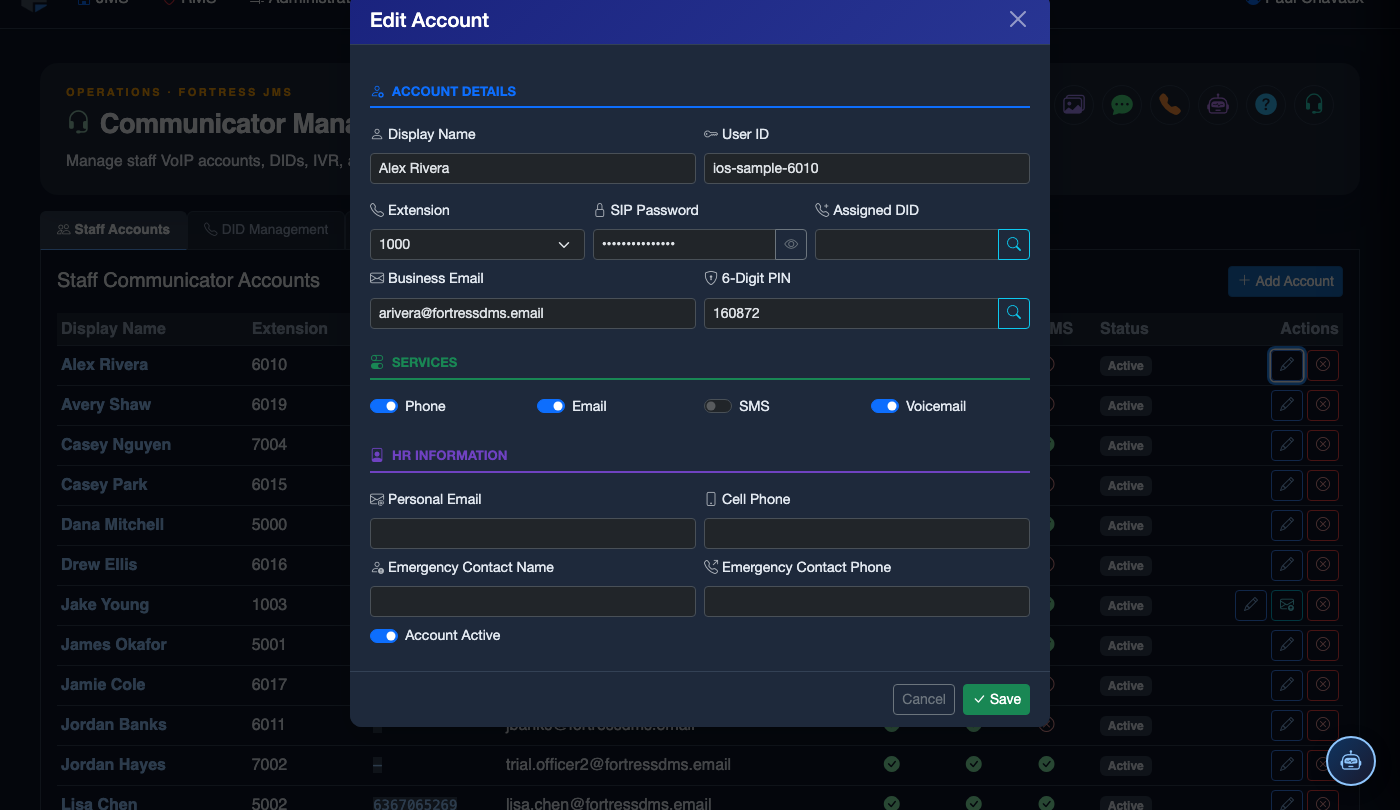
Click Save Changes to commit the configuration. Select Push to Device Now to immediately sync the updated speed dial layout to the inmate’s assigned communication terminal, or schedule the push for the next Maintenance Window.
Confirm via Audit Log
Review the Recent Changes panel at the bottom of the tab to confirm your changes were recorded. Each entry shows the officer name, timestamp, affected inmate, and slot number modified for full accountability.
💡 Pro Tips
- Use housing-unit bulk assignment when onboarding an entire pod to save configuration time — individual overrides can still be applied afterwards.
- Slot 1 should always be reserved for the facility’s legal aid or public defender line to ensure unimpeded attorney access per constitutional requirements.
- Regularly audit speed dial assignments against the approved contact list — contacts can be removed from approval without automatically clearing associated speed dial slots.
Mobile View — Speed Dial Admin
FortressDMS is fully responsive. Officers can access the Speed Dial Admin on a phone or tablet directly from the field — no app install required.
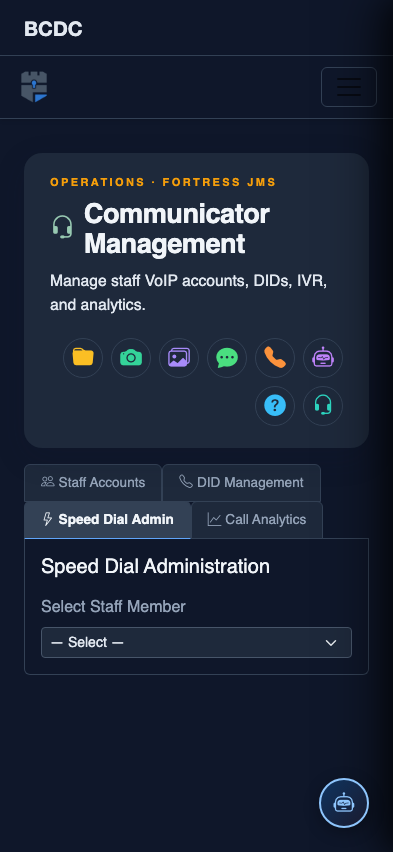
Tab view with data rows
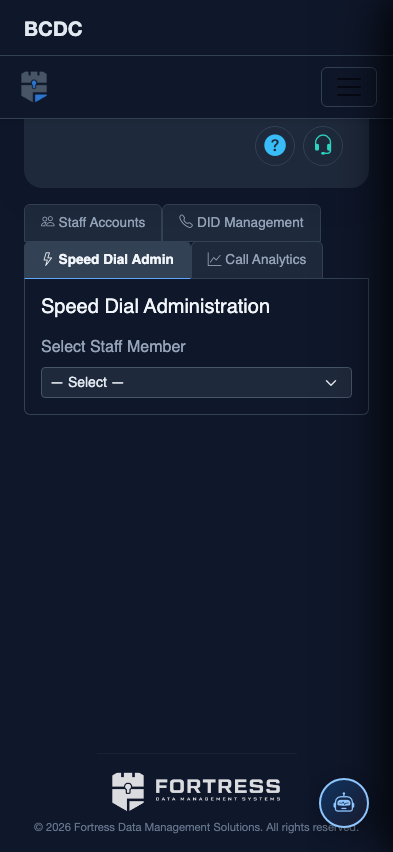
Scrolled / detail view