
Dental Records
The Dental Records tab within the Medical & Screening module lets correctional medical staff document, track, and manage inmate dental history, examination findings, and treatment plans. Accurate dental documentation supports continuity of care, inmate rights compliance, and supports claims processing during and after incarceration.
Dental Intake Assessment
Capture initial dental condition at booking, including existing restorations, missing teeth, and active pain complaints.
Treatment Plans
Create structured dental treatment plans with prioritized procedures and scheduling notes for facility or off-site dental providers.
Appointment Linkage
Link dental records directly to Medical Appointments for seamless scheduling and follow-up tracking.
Historical Record
Maintain a longitudinal dental history for each inmate, visible across housing transfers and multiple incarcerations.
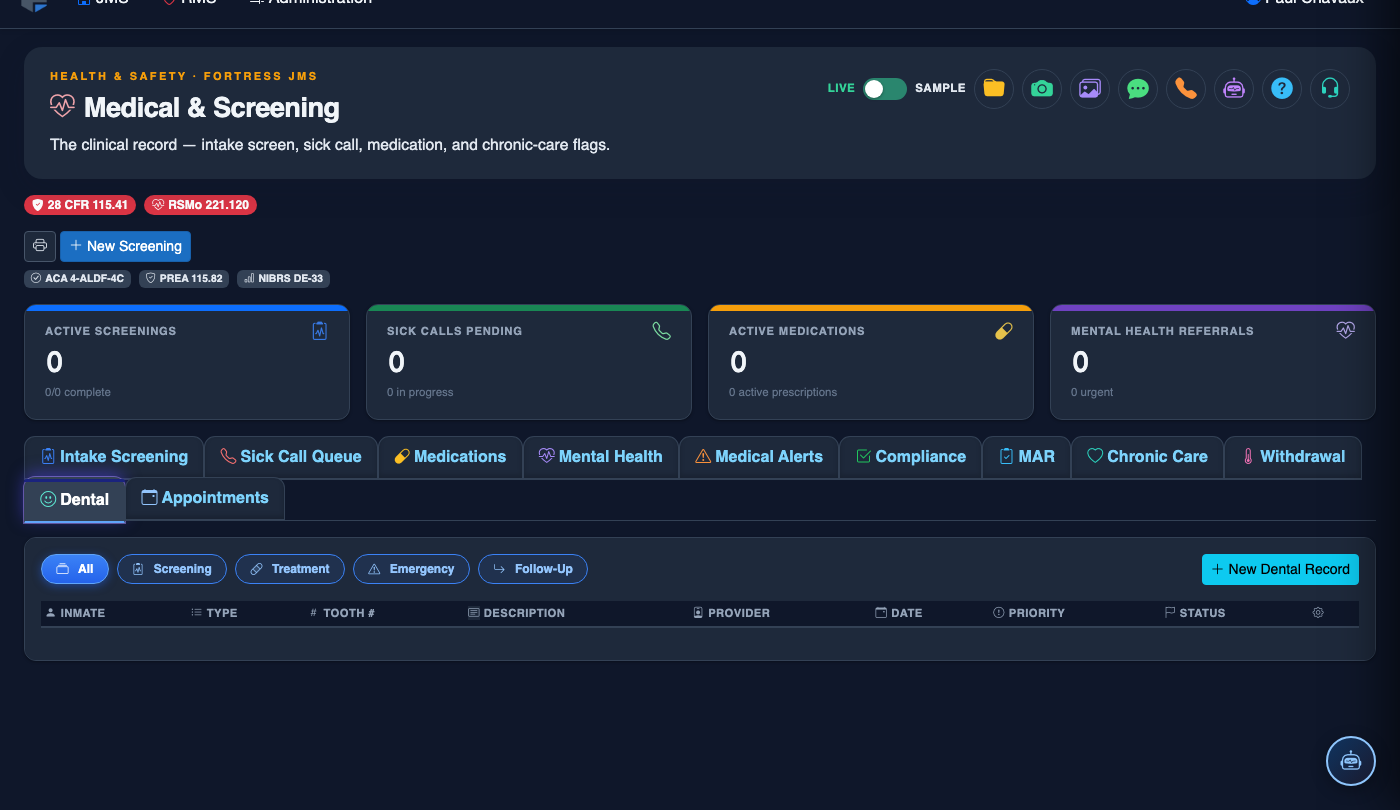
Step-by-Step: Dental Records
Open the Inmate Medical Profile
From the main inmate roster, locate the inmate by name or booking number. Click the inmate row to open their profile, then select the Medical & Screening module from the left navigation panel.
Navigate to the Dental Records Tab
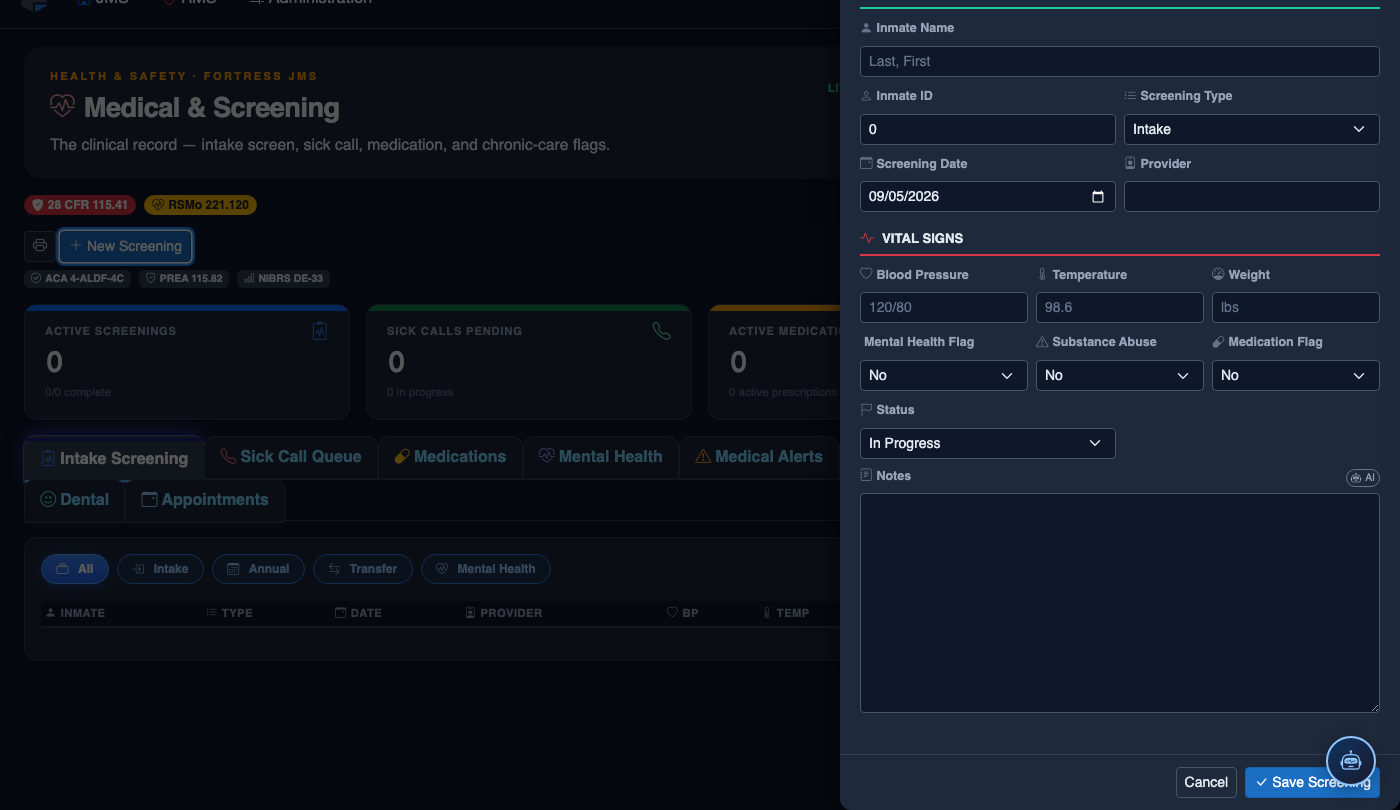
Within the Medical & Screening module, click the Dental Records tab (tab 10). The tab displays the inmate’s complete dental history in reverse-chronological order.
Create a New Dental Entry
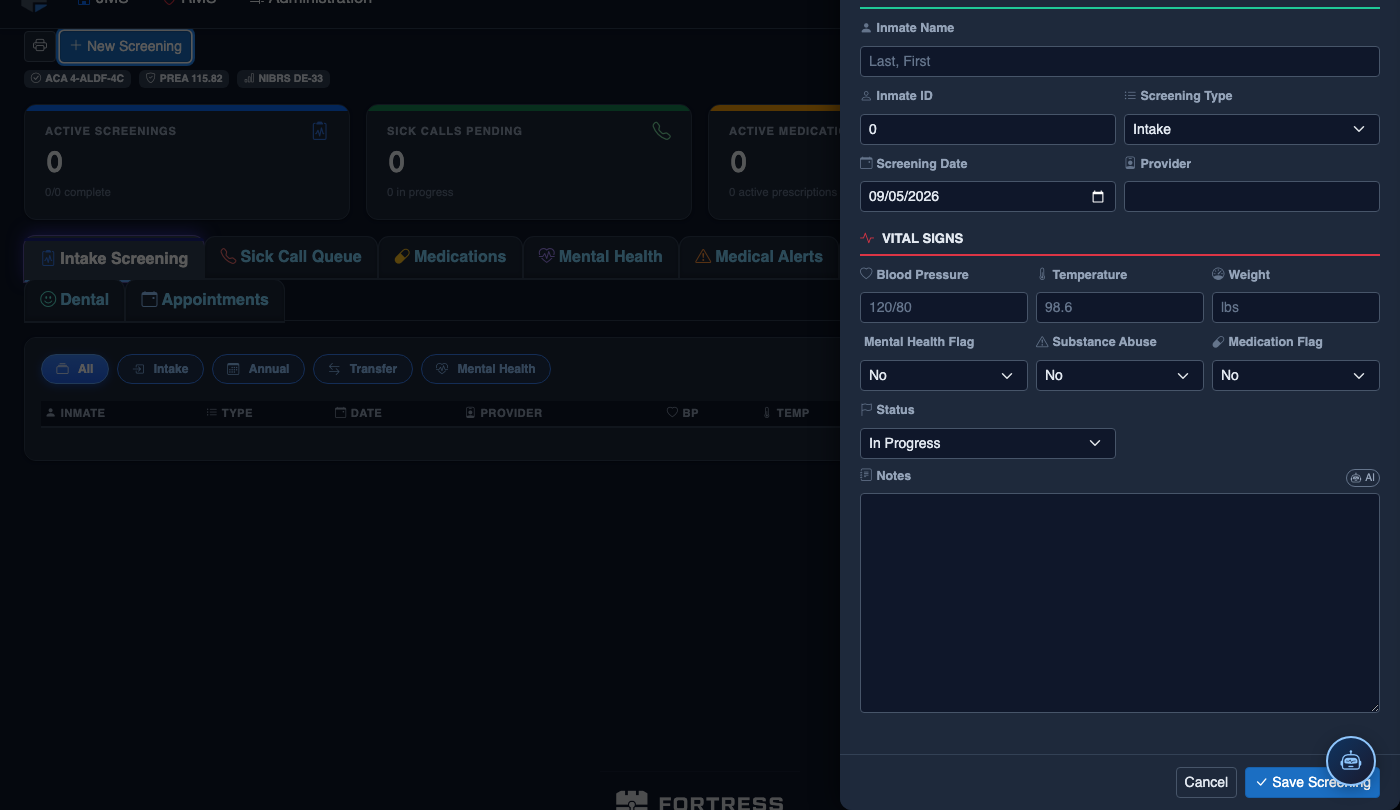
Click Add Dental Record in the upper-right corner. The entry form opens with fields for Exam Date, Examiner, Chief Complaint, and Clinical Findings. Fill in all required fields marked with an asterisk.
Document Clinical Findings
In the Clinical Findings section, use the tooth diagram or free-text area to record conditions such as caries, extractions, periodontal disease, or prosthetics. Attach supporting X-ray images using the Attach File button if digital imaging is available.
Enter a Treatment Plan
If treatment is required, expand the Treatment Plan accordion and enter recommended procedures, urgency level (Routine, Urgent, or Emergency), and estimated scheduling window. Assign a responsible provider.
Link to a Medical Appointment
Use the Schedule Appointment shortcut to create a linked entry on the Medical Appointments tab, pre-populated with the dental treatment type and inmate details.
Save and Confirm
Click Save Dental Record. The entry appears at the top of the Dental Records list with a timestamp, examiner name, and status badge. Staff with audit access can view the full change history via the record detail view.
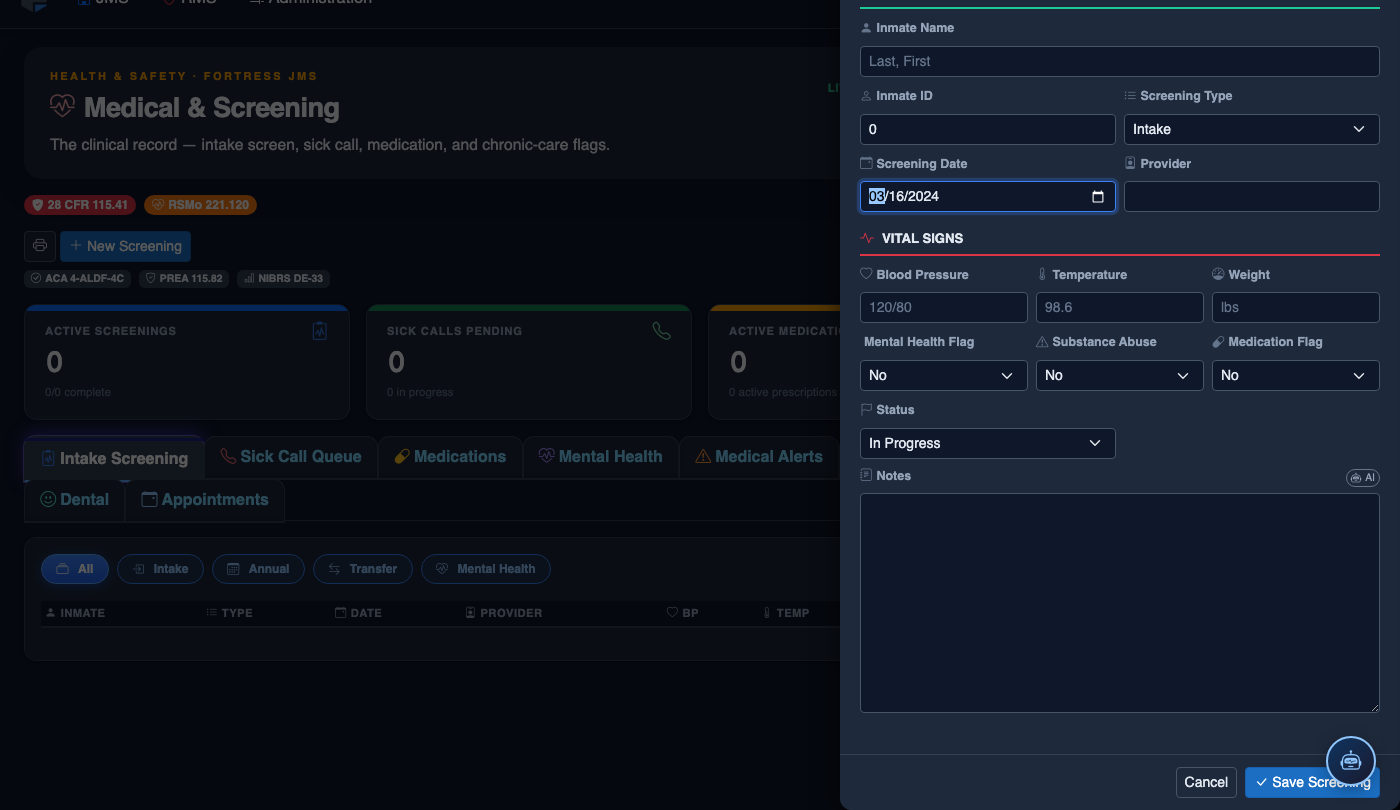
Create a New Medical Record
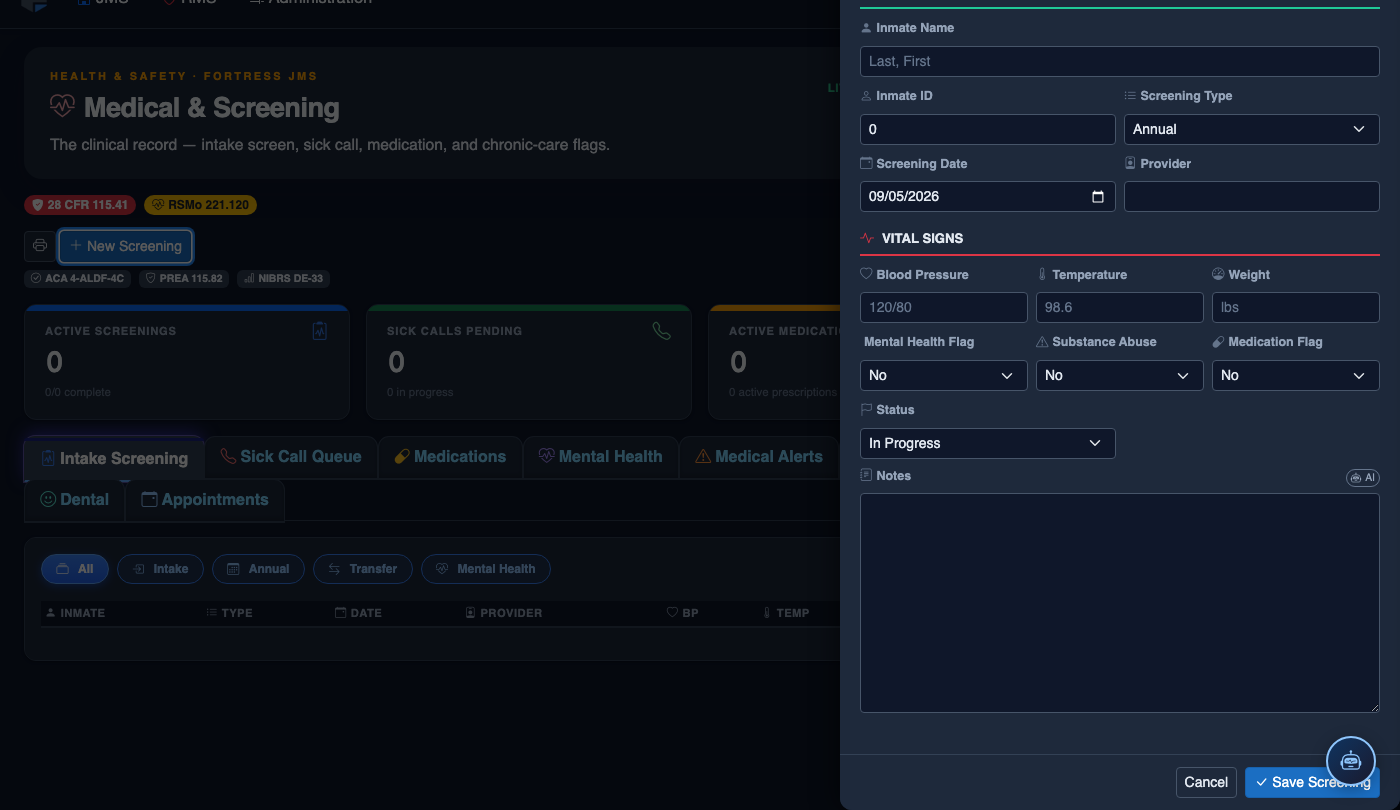
Click New Screening in the module toolbar. Complete the medical form:
- Inmate — search by name or booking number.
- Visit Type — Intake Screening, Sick Call, Scheduled Follow-Up, or Emergency.
- Priority — Routine, Urgent, or Emergent; Emergent pages on-call provider immediately.
- Chief Complaint / Findings — document symptoms, vitals, and objective observations.
- Provider — assign the clinician or nurse conducting the visit.
- Disposition — Treat and Return, Infirmary Admission, Hospital Transfer, or No Action.
- Add any Prescriptions, Follow-Up Date, or Restrictions.
- Click Save Record. Alerts fire automatically if vital signs are out of range.
💡 Pro Tips
- Use the Urgency flag on any treatment plan entry to automatically surface high-priority dental needs in the Medical Dashboard.
- Dental records are automatically retained and linked to the inmate’s master identity — housing moves or releases do not break continuity.
- For off-site dental appointments, attach the transport authorization number in the Notes field so escort officers have full context.
- Encourage providers to upload digital X-rays directly; Fortress JMS accepts JPEG, PNG, and standard DICOM-exported images.
Mobile View — Dental Records
FortressDMS is fully responsive. Officers can access the Dental Records on a phone or tablet directly from the field — no app install required.
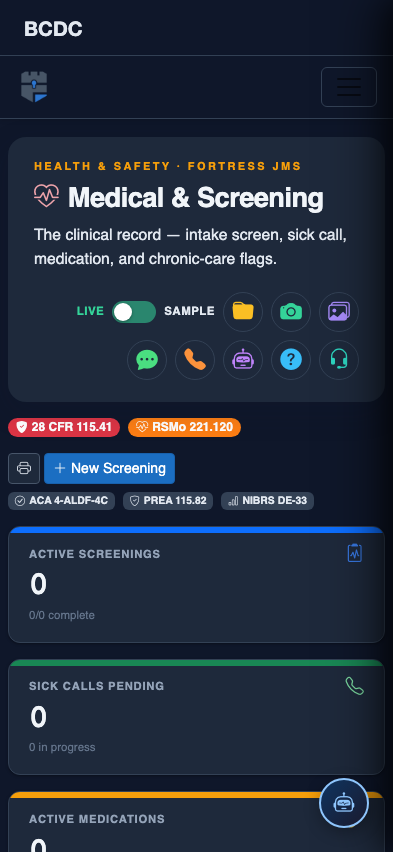
Tab view with data rows
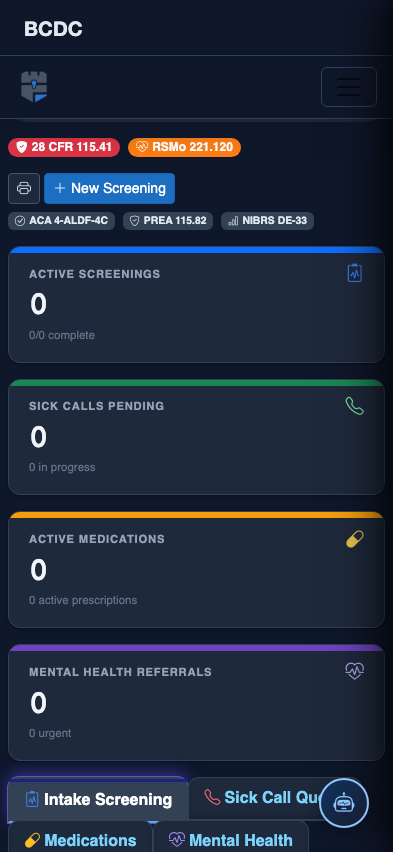
Scrolled / detail view