
Scoring Instrument
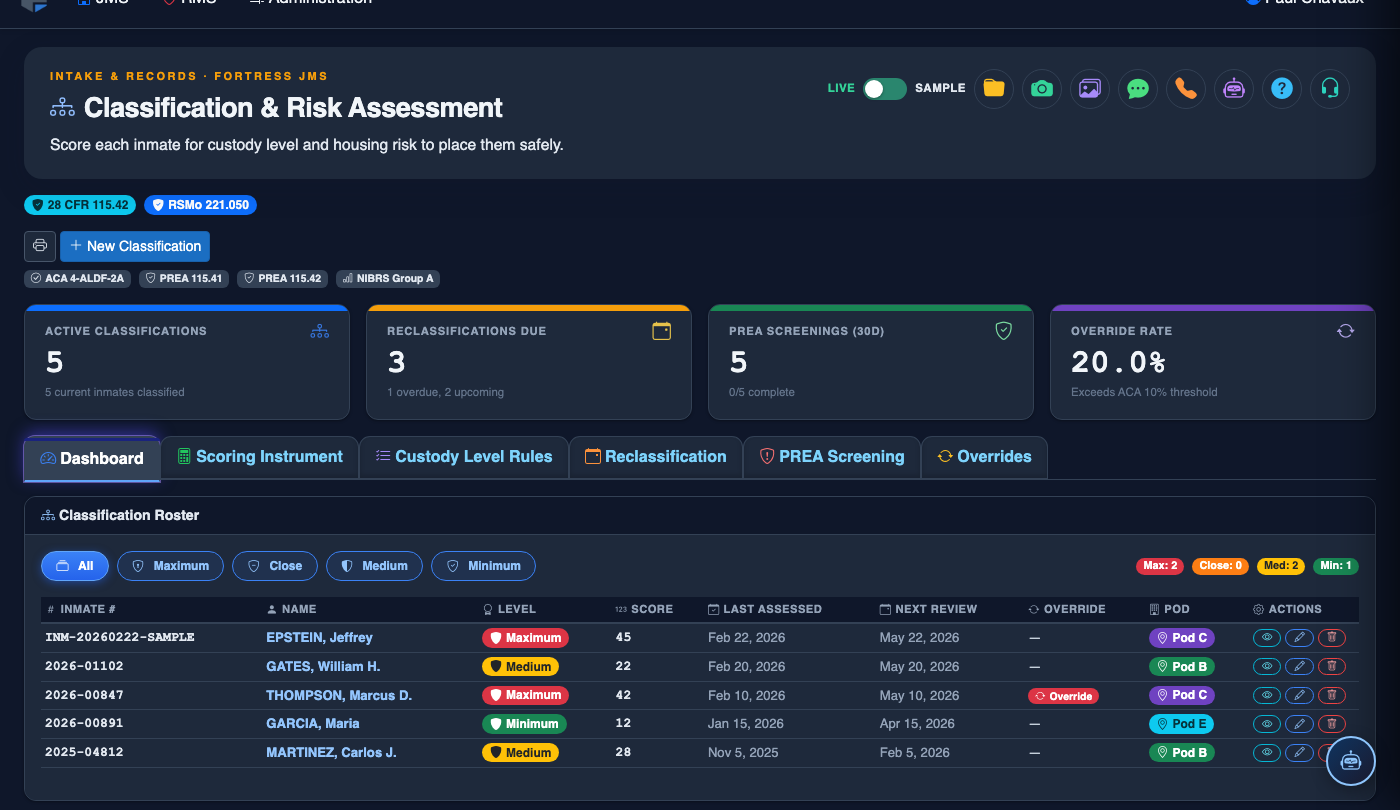
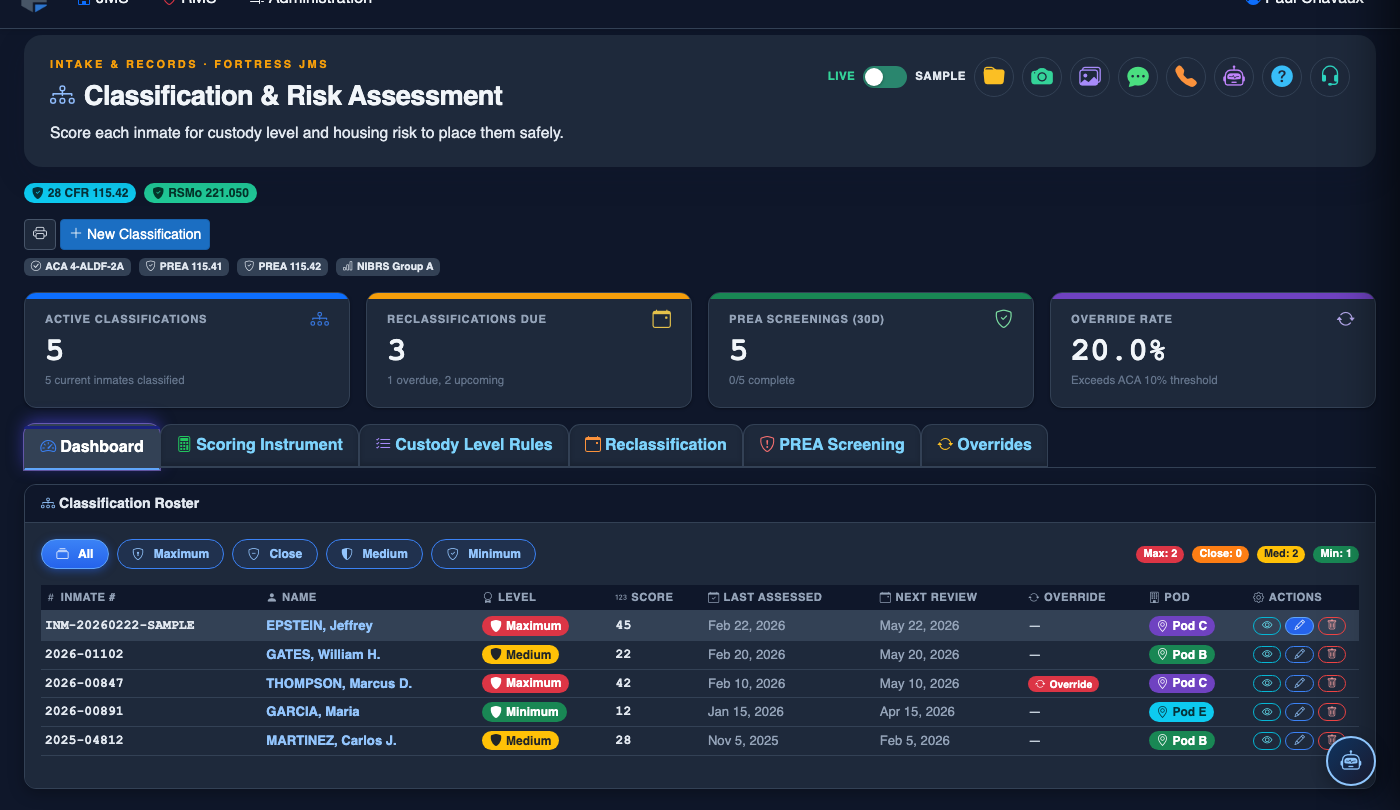
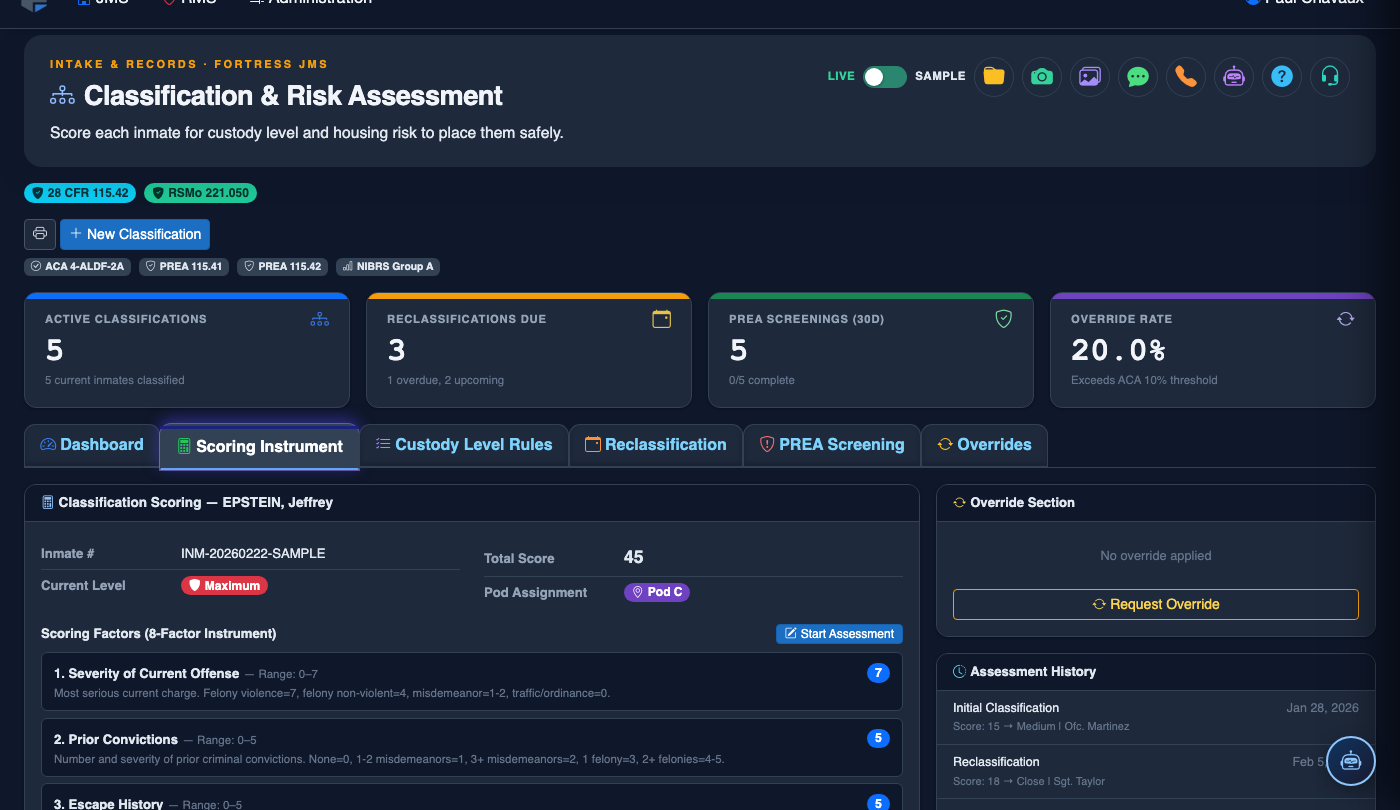
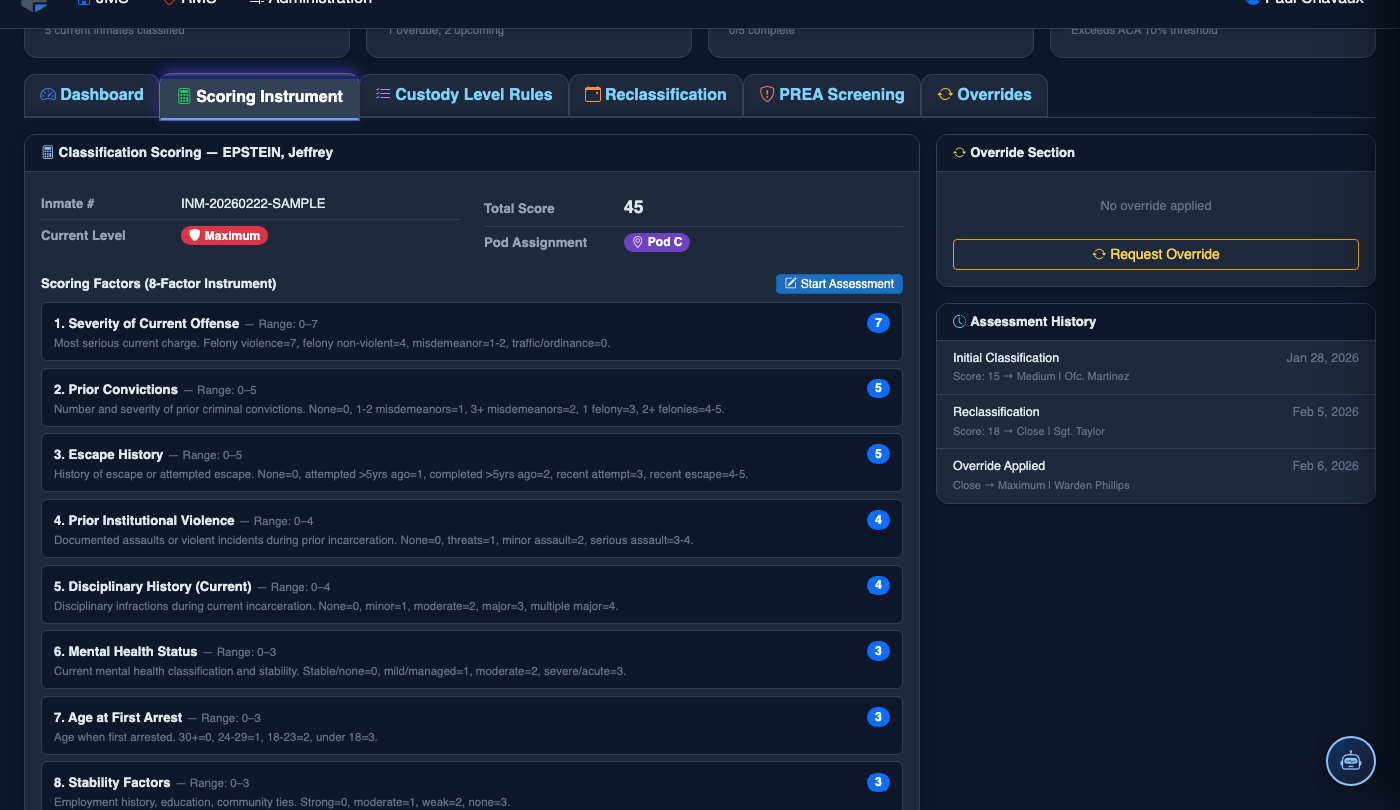
The Scoring Instrument tab is where classification officers conduct the core risk assessment for each inmate, working through a validated, structured questionnaire that evaluates criminal history, current charge severity, institutional behavior, and special risk factors. Scores are calculated automatically as each section is completed, producing an objective, defensible custody level recommendation that replaces subjective officer judgment with evidence-based criteria. Every answer, score, and recommendation is permanently recorded for audit and appellate review.
Automated Score Calculation
Point values are applied automatically as each question is answered, eliminating manual arithmetic errors.
Multi-Section Structure
Organized into discrete sections — Criminal History, Current Charge, Escape Risk, Institutional Behavior, and Special Factors — for systematic evaluation.
Custody Level Recommendation
Final score maps directly to a Minimum, Medium, or Maximum custody recommendation with supporting score band thresholds displayed.
Override Justification Capture
When overriding the score-based recommendation, officers must enter a written justification that is permanently attached to the classification record.
Step-by-Step: Completing a Classification Scoring Instrument
Access the Scoring Instrument Tab
From the Classification Dashboard, click the inmate you are classifying, then select the Scoring Instrument tab. Verify the inmate name, booking number, and date displayed at the top of the form before proceeding.
Complete Section 1 — Current Offense
Select the Current Offense Category based on the most serious charge. Options range from Non-Violent Misdemeanor (0 pts) through Violent Felony with Weapon (8 pts). Reference the booking sheet to verify charge classification.
Complete Section 2 — Criminal History
Enter the number of prior felony convictions, prior violent offenses, and any juvenile adjudications. The system cross-references NCIC data if integrated with your state system, or you may manually enter values from the criminal history printout.
Complete Section 3 — Escape and Failure-to-Appear History
Answer questions about prior Escape Attempts, Walkaways, and Failure to Appear history. Each positive answer adds weighted points. Prior escape history from any jurisdiction must be included.
Complete Section 4 — Institutional Behavior (Reclassifications Only)
For reclassification reviews, this section becomes active. Enter the number of Disciplinary Reports, Serious Incidents, and positive Program Completions since the last classification. Program completions may reduce the score.
Complete Section 5 — Special Risk Factors
Answer PREA screening questions and flag any special management needs: Gang Affiliation, Known Enemies in Facility, Mental Health Alert, or Protective Custody Request. These flags trigger automatic housing constraint rules.
Review Total Score and Accept or Override
The Total Score and corresponding Recommended Custody Level are displayed in the summary panel. Click Accept and Finalize to apply the recommendation, or click Override and enter a mandatory written justification to select a different custody level.
💡 Pro Tips
- Never score from memory — always reference the official criminal history printout and booking sheet for each answer; classification errors are a leading cause of liability claims.
- The Special Risk Factors section is frequently incomplete during high-volume booking periods; assign a dedicated officer to verify these fields before final submission.
- For reclassification, document program completions even if you do not believe they should affect the custody level — the instrument rewards verified participation, and omissions skew facility-wide data.