
Custody Level Rules
Custody Level Rules define the scoring thresholds and criteria that determine where an inmate is housed within your facility. This tab allows classification supervisors to configure minimum, medium, close, and maximum custody bands based on validated risk scores. Consistent rule application ensures defensible housing decisions and reduces liability exposure for your agency.
Score-Band Configuration
Set numeric score thresholds that map directly to each custody level designation.
Mandatory Override Flags
Attach mandatory upgrade triggers for escape history, staff assaults, or sex-offense convictions.
Policy Versioning
Each rule set is versioned and timestamped so auditors can reconstruct the policy in effect at any past classification date.
Multi-Level Approvals
Rule changes require supervisor sign-off before taking effect, protecting against unauthorized policy edits.
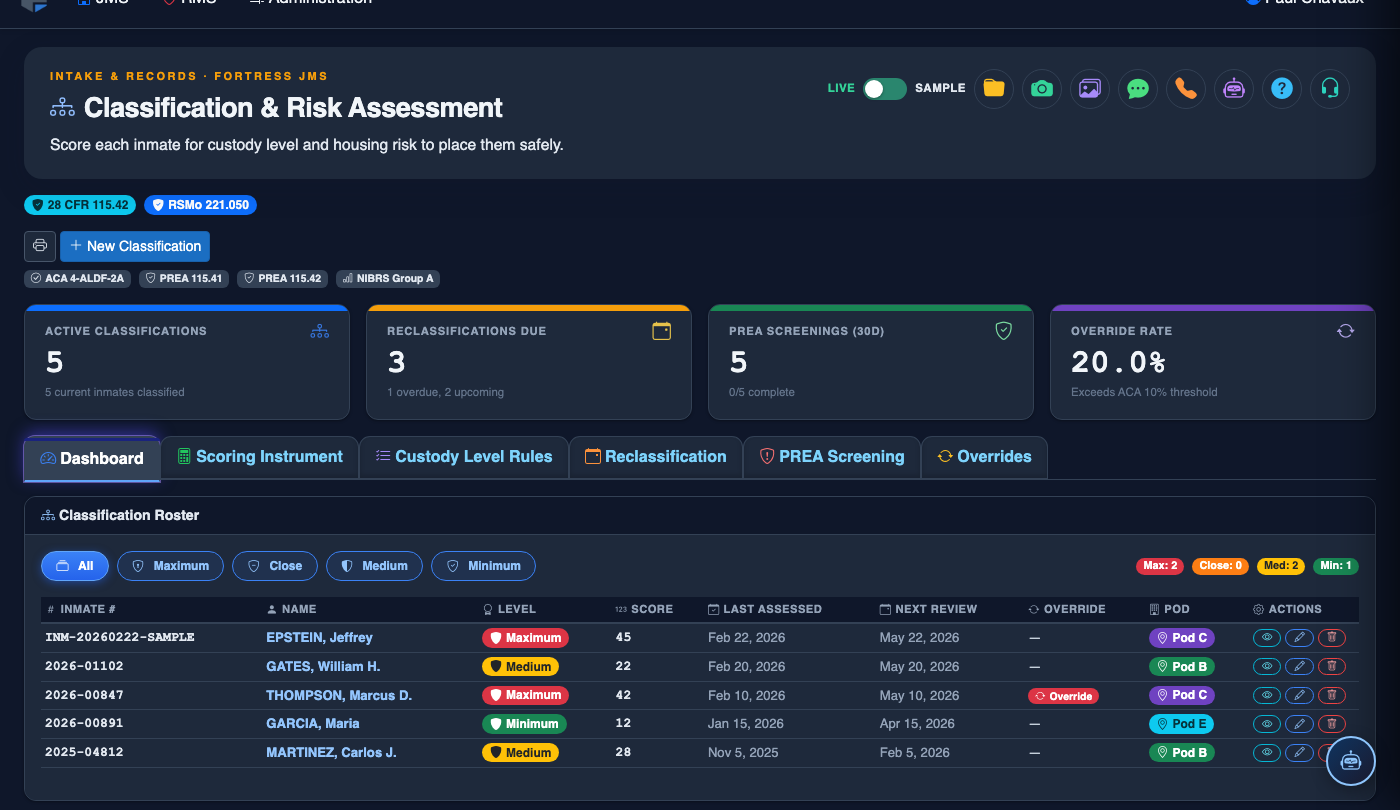
Step-by-Step: Configuring Custody Level Rules
Navigate to Classification & Risk — Custody Level Rules Tab
From the main navigation, select Classification & Risk, then click the Custody Level Rules tab (Tab 3). The current active rule set displays with its effective date and the supervisor who last approved it.
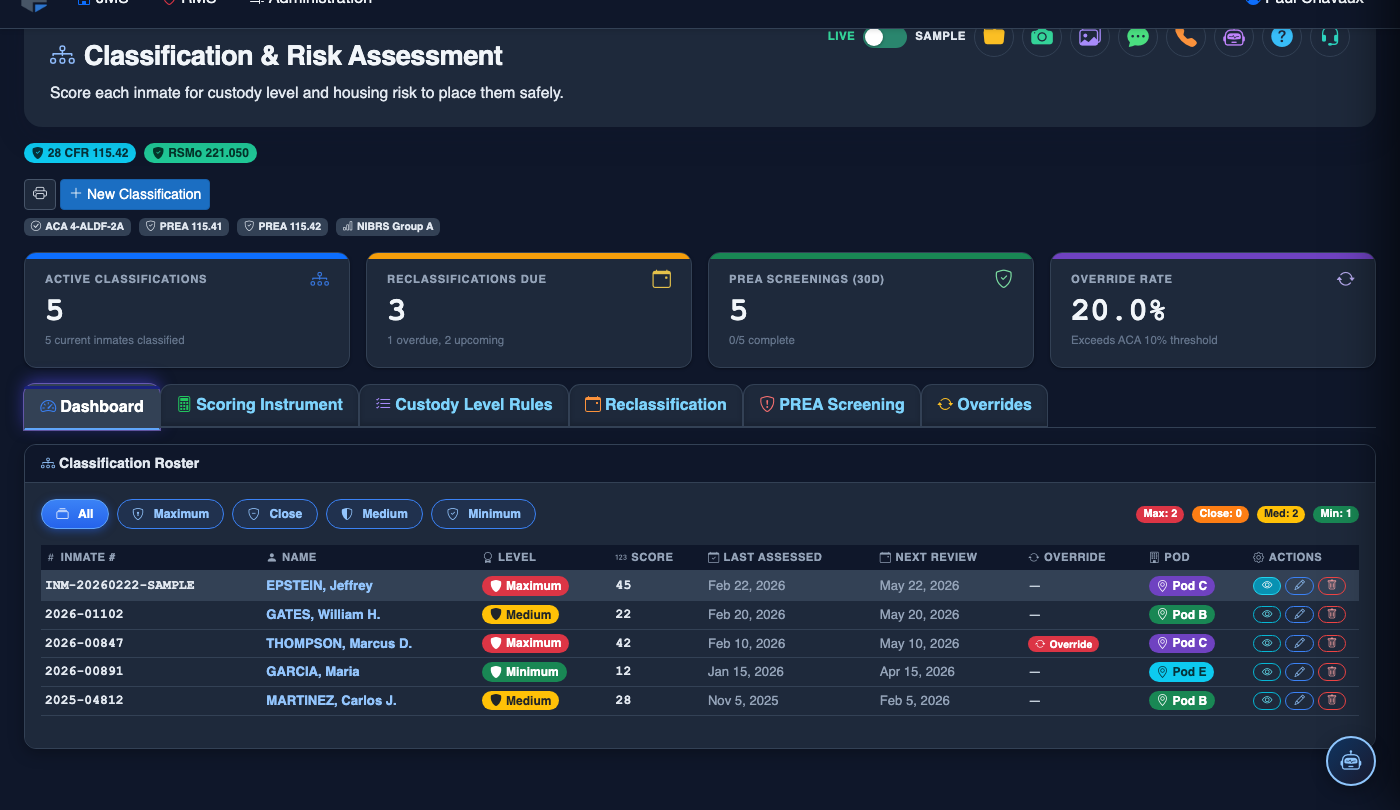
Review Existing Score Bands
The rule grid shows each custody level — Minimum, Medium, Close, and Maximum — alongside its configured score range (e.g., 0–9 = Minimum, 10–19 = Medium). Confirm the ranges align with your current classification policy before making any edits.
Click Edit to Draft a New Rule Set
Press the Edit Rules button to open the rule editor. The system creates a draft version so the live policy stays intact while you work. Enter the new Minimum Score and Maximum Score for each custody band.
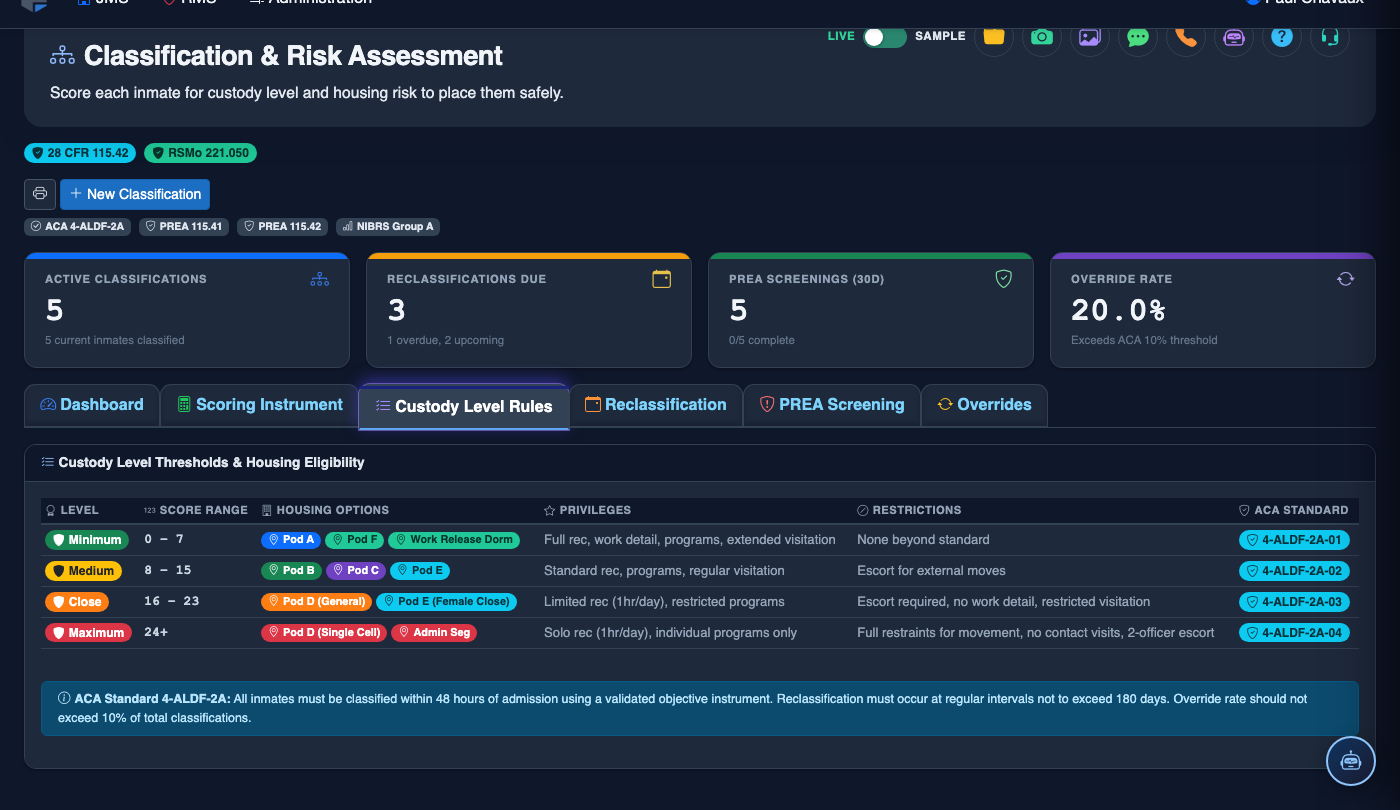
Configure Mandatory Override Conditions
In the Override Triggers section, enable flags such as Escape History, Staff Assault, or Registered Sex Offender. When flagged, these conditions force a minimum custody designation regardless of numeric score, and the reason is logged in the audit trail.
Validate Band Continuity
Before saving, the system runs a continuity check to ensure no score value falls into a gap or is covered by two bands simultaneously. Any validation errors appear highlighted in red with an explanation. Correct all errors before proceeding.
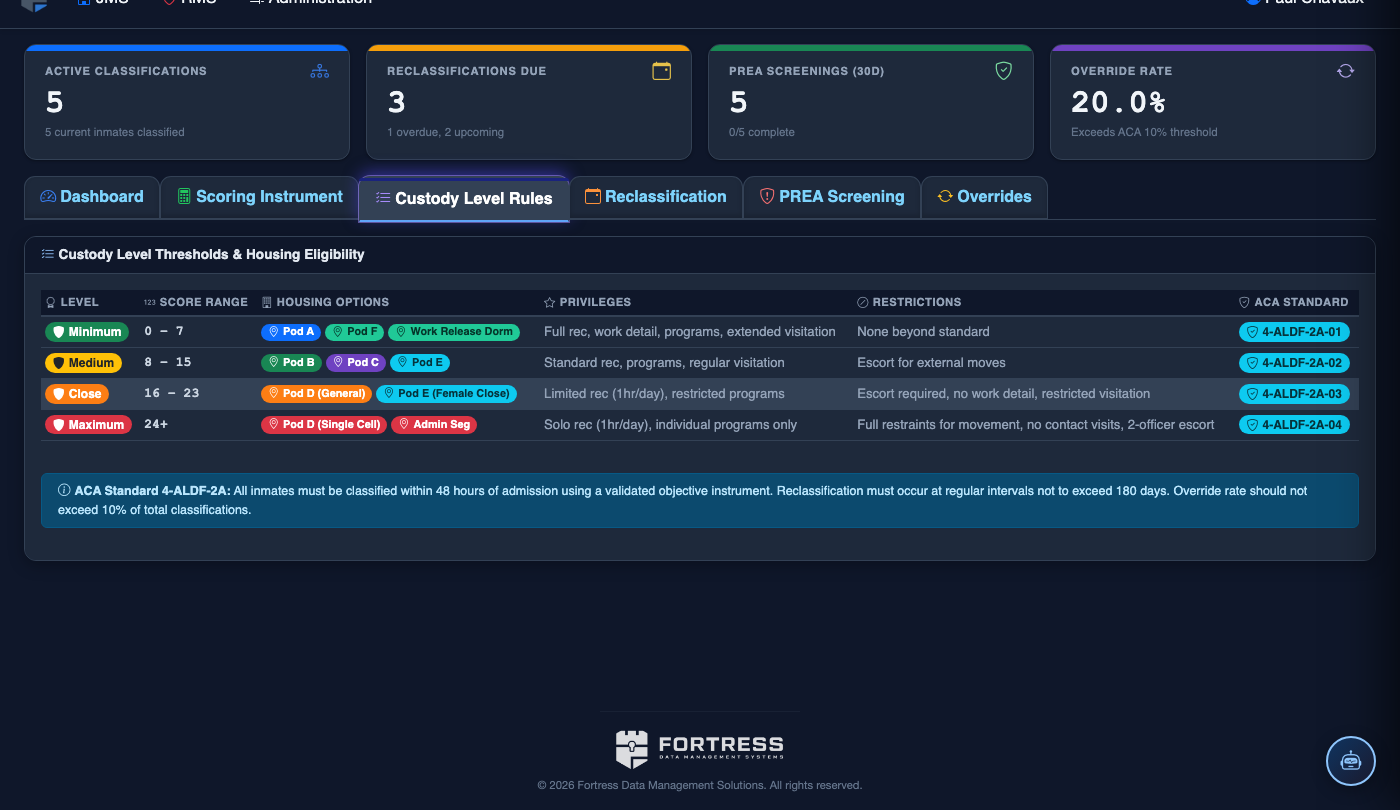
Submit for Supervisor Approval
Click Submit for Approval. A notification is sent to the designated classification supervisor. The draft rule set is displayed with a Pending Approval badge and remains inactive until approved.
Supervisor Approves and Activates
The supervisor logs in, reviews the draft, and clicks Approve & Activate. The new rule set becomes the active policy immediately. All subsequent automated classification scores are evaluated against the updated bands.
💡 Pro Tips
- Review your custody level rule set at least annually or whenever your state corrections authority updates its classification guidelines.
- Use the Policy History log to produce documentation for accreditation audits — each version includes who approved it and when.
- Mandatory override flags should be reviewed with your legal counsel before activation, as they constrain officer discretion and must be applied uniformly.
- Run the Impact Simulation tool before approving a new rule set to preview how many inmates would shift custody levels under the proposed bands.