
Reclassification
The Reclassification tab manages the periodic and event-driven review process that reassesses an inmate’s custody level after initial classification. FortressDMS automates due-date tracking, queues reviews for classification officers, and enforces your facility’s minimum reclassification intervals — ensuring no inmate stays at the wrong custody level due to an administrative oversight. Each reclassification cycle produces a signed, auditable document ready for court or accreditation review.
Automated Due-Date Tracking
The system calculates each inmate’s next required reclassification date based on custody level and days served.
Event-Triggered Reviews
Disciplinary infractions, program completions, or sentence changes can trigger an out-of-cycle reclassification automatically.
Officer Work Queue
Classification officers see a prioritized list of upcoming and overdue reviews directly on their dashboard.
Signed Reclassification Forms
Every completed reclassification generates a PDF with officer and supervisor signatures, stored in the inmate’s permanent record.
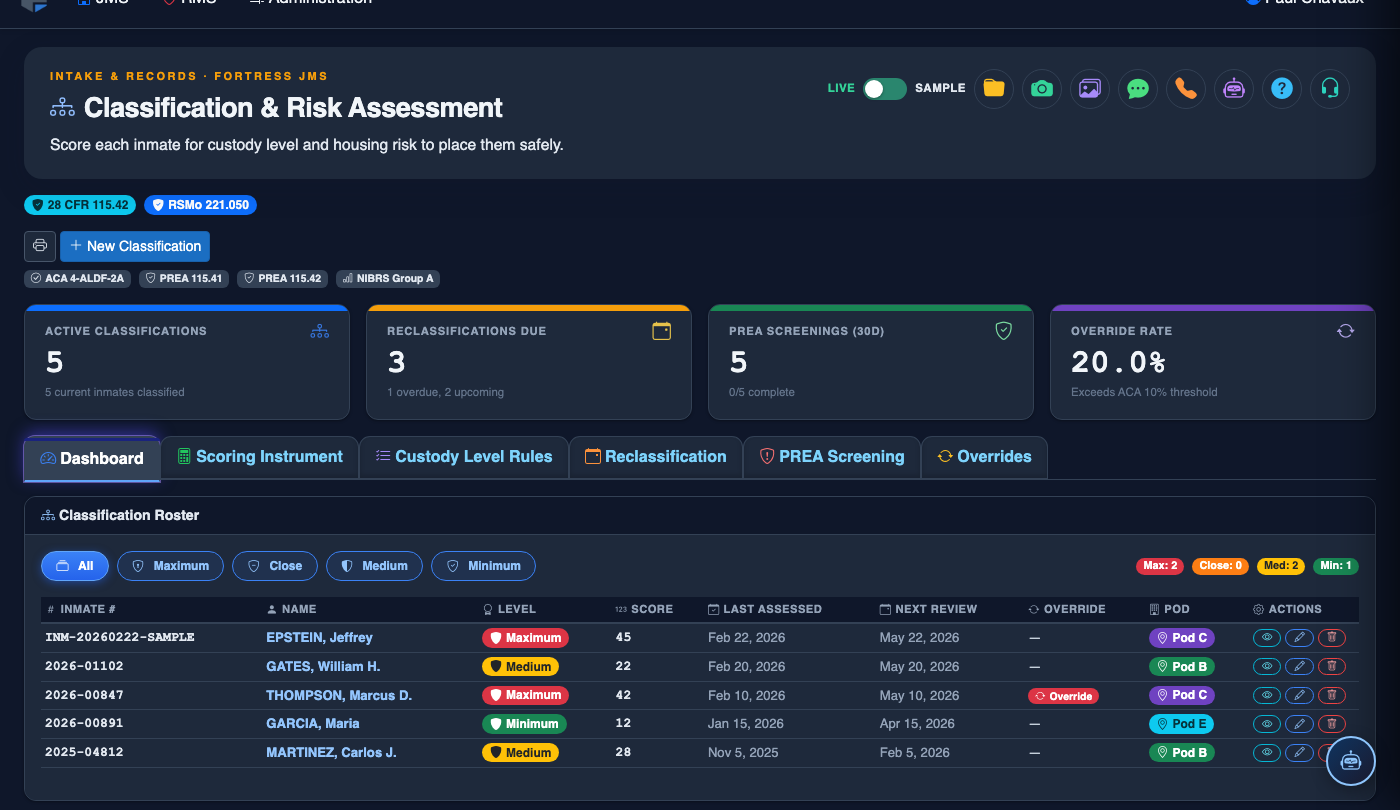
Step-by-Step: Completing a Reclassification Review
Open the Reclassification Work Queue
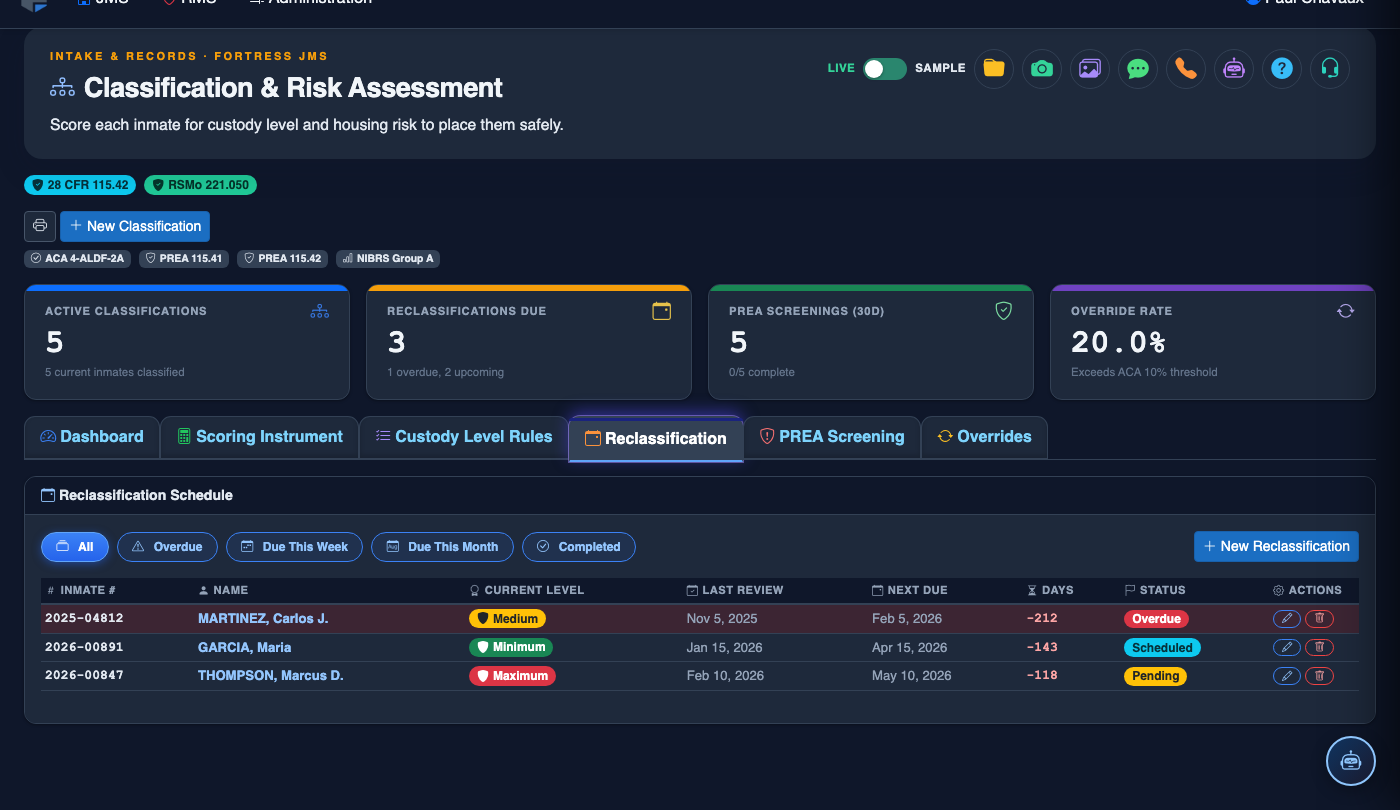
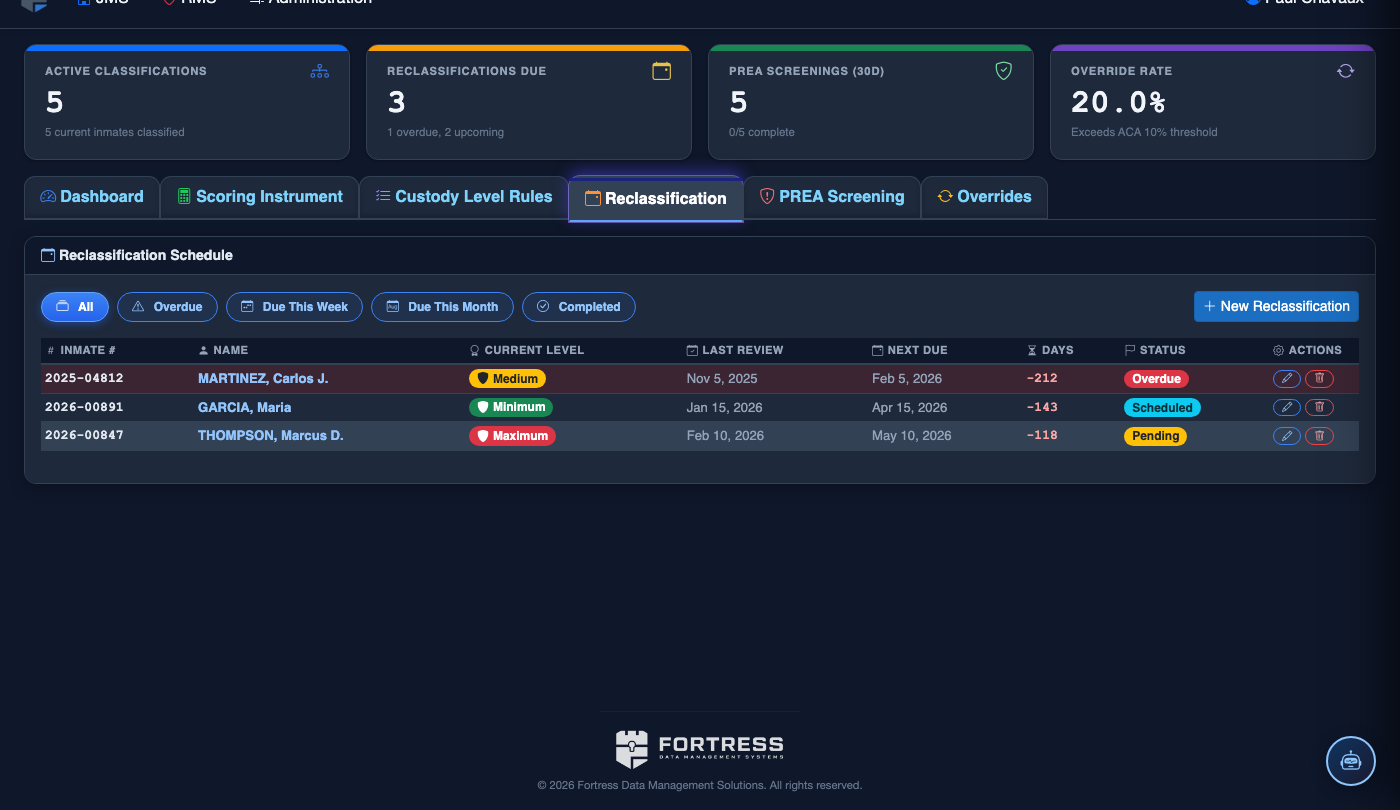
Navigate to Classification & Risk > Reclassification. The queue shows every inmate with a review due within the next 30 days, color-coded by urgency: red for overdue, amber for due within 7 days, and green for upcoming.
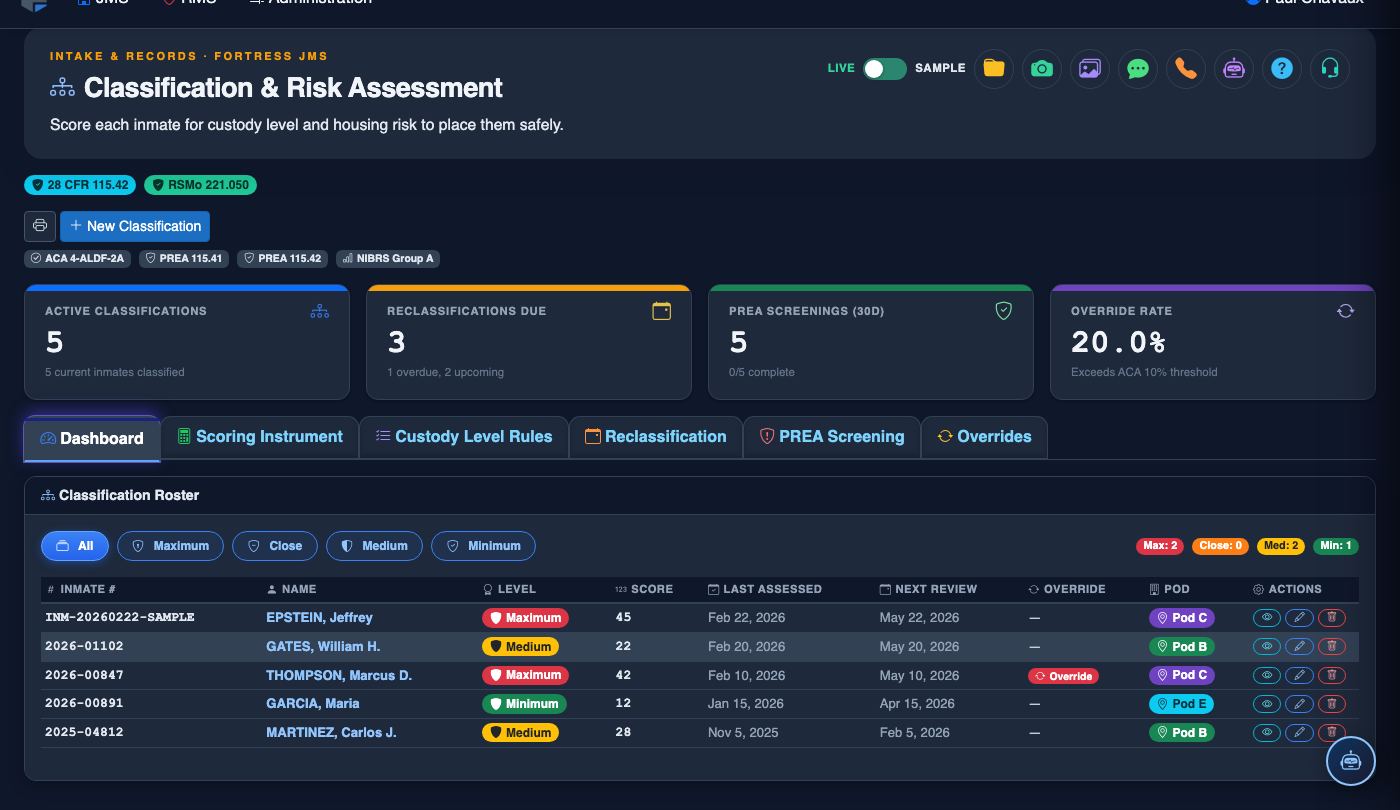
Select an Inmate and Open the Review Form
Click on an inmate’s name or booking number to open their reclassification form. The form pre-populates with the current custody level, the original classification date, and a summary of any behavioral events since the last review.
Review Behavioral History and Program Participation
The Behavioral Summary panel displays disciplinary infractions, commendations, and program completions in chronological order. Click any entry to view the full incident report. Use this information to adjust the Behavioral Score field on the reclassification form.
Record Updated Risk Scores
Enter updated scores for each risk domain shown on the form — such as Institutional Behavior, Program Participation, and Escape Risk. The composite score recalculates in real time. If mandatory override flags are triggered, the system highlights them and explains which rule applies.
Select Recommended Custody Level
The system displays the Recommended Custody Level based on the current rule set. Select that recommendation or choose a different level and enter a documented justification in the Override Reason field. All overrides are flagged for supervisor review.
Officer Signs and Submits for Approval
Add any narrative comments in the Officer Notes field, then click Sign & Submit. Your electronic signature is applied and the form routes to a classification supervisor for final approval or rejection.
Supervisor Approves and Housing Assignment Updates
The supervisor reviews, signs, and clicks Approve. The inmate’s custody level is updated immediately in the roster. If a housing move is required, FortressDMS generates an automatic bed-assignment recommendation and notifies housing staff.
💡 Pro Tips
- Enable email notifications for overdue reclassifications so supervisors are alerted before a review becomes a compliance finding.
- Event-triggered reclassifications — such as those caused by a serious disciplinary infraction — should be completed within 72 hours; configure that interval in the facility settings to enforce it automatically.
- Use the Batch Export button to download all pending reclassification forms as PDFs for court hearings or ACA accreditation reviews.
- When an inmate’s sentence changes significantly, manually queue an out-of-cycle reclassification using the Request Review button on their inmate profile.