
Product Catalog
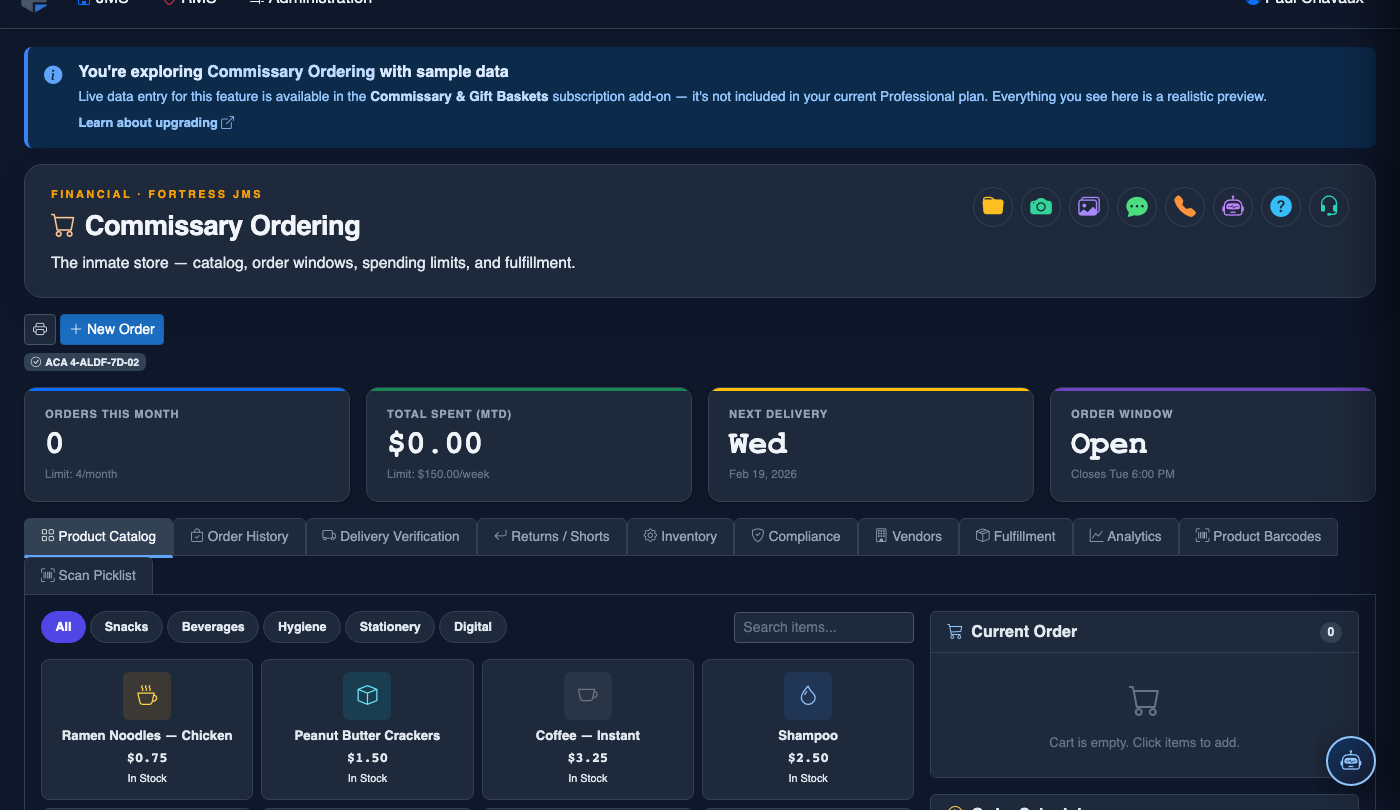
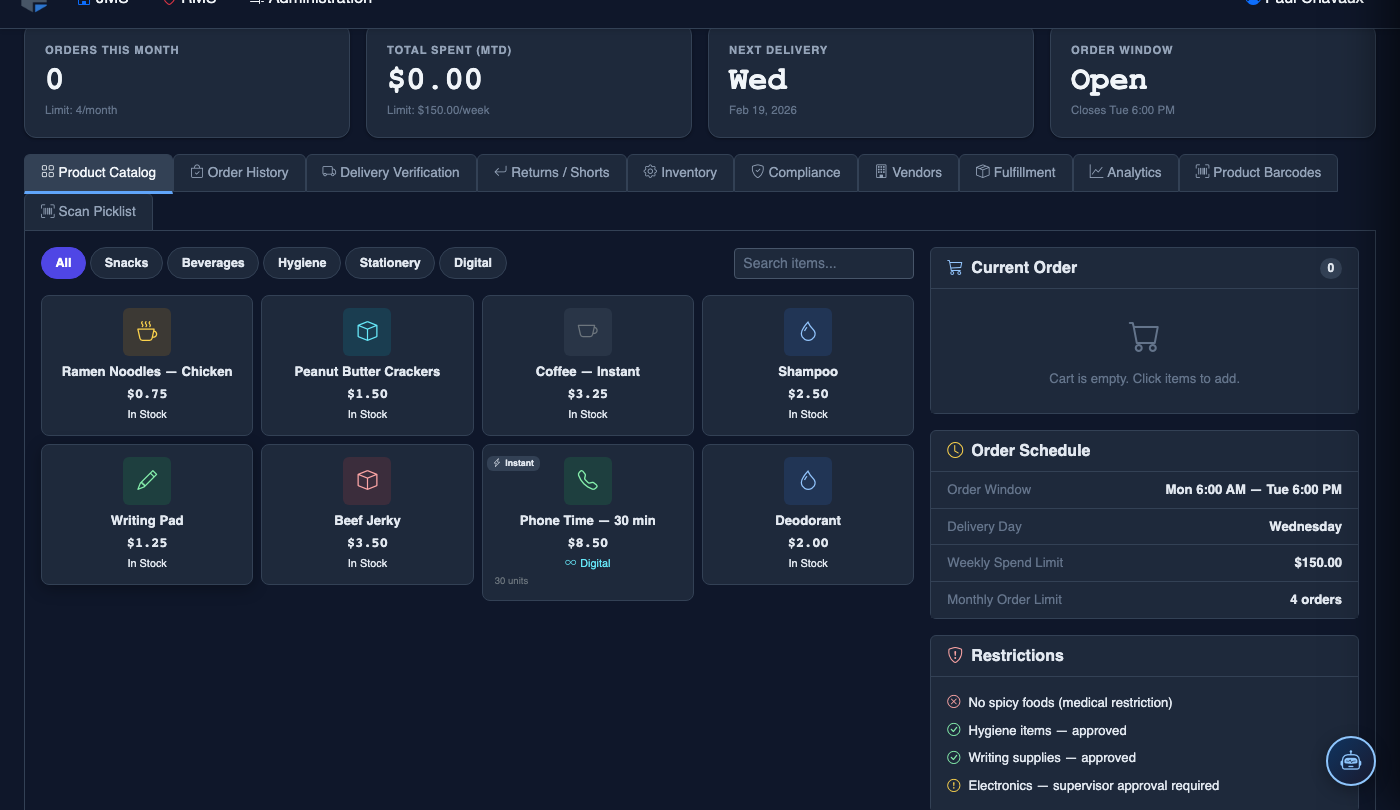
The Product Catalog tab is the foundation of the Commissary Ordering module, giving administrators full control over which products are available for inmate purchase. Staff can add new items, set pricing, define per-category quantity limits, restrict availability by housing unit classification, and deactivate products temporarily or permanently. A well-maintained catalog ensures that only approved goods reach inmates while giving facility administration accurate cost data for vendor procurement.
Product Categorization
Organize items by category (hygiene, food, stationery, electronics) for easier browsing and reporting.
Dynamic Pricing
Update unit prices at any time; price changes apply to new orders only, preserving historical order accuracy.
Housing Unit Restrictions
Restrict specific products to eligible housing units — prevent ad-seg or medical inmates from ordering items not approved for their classification.
Active/Inactive Status
Instantly deactivate out-of-stock or discontinued items without deleting historical records — reactivate when restocked.
Step-by-Step: Managing the Commissary Product Catalog
Open the Product Catalog Tab
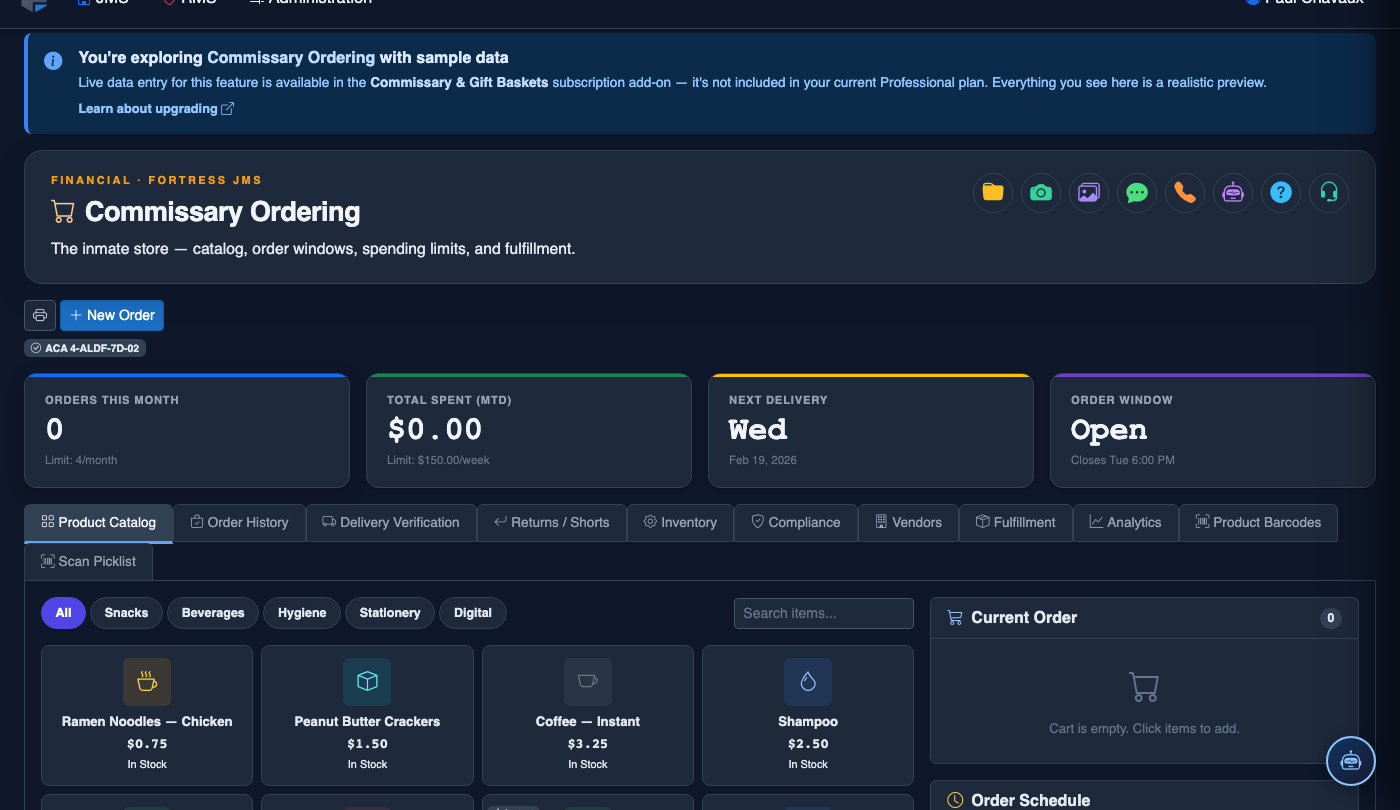
Navigate to Commissary Ordering in the Fortress JMS menu, then click the Product Catalog tab. The tab displays the full list of currently configured products with their status, category, price, and housing unit availability at a glance.
Add a New Product
Click Add Product to open the product form. Enter the Product Name, SKU or Vendor Code, Category, Unit Price, and Maximum Quantity Per Order. All fields are required before the product can be saved and activated.
Assign Housing Unit Availability
In the Availability section of the product form, select which housing units or classification levels may order the item. Use the Select All shortcut for general population items, or manually check individual units for restricted products such as specialty medical or therapeutic items.
Save and Activate the Product
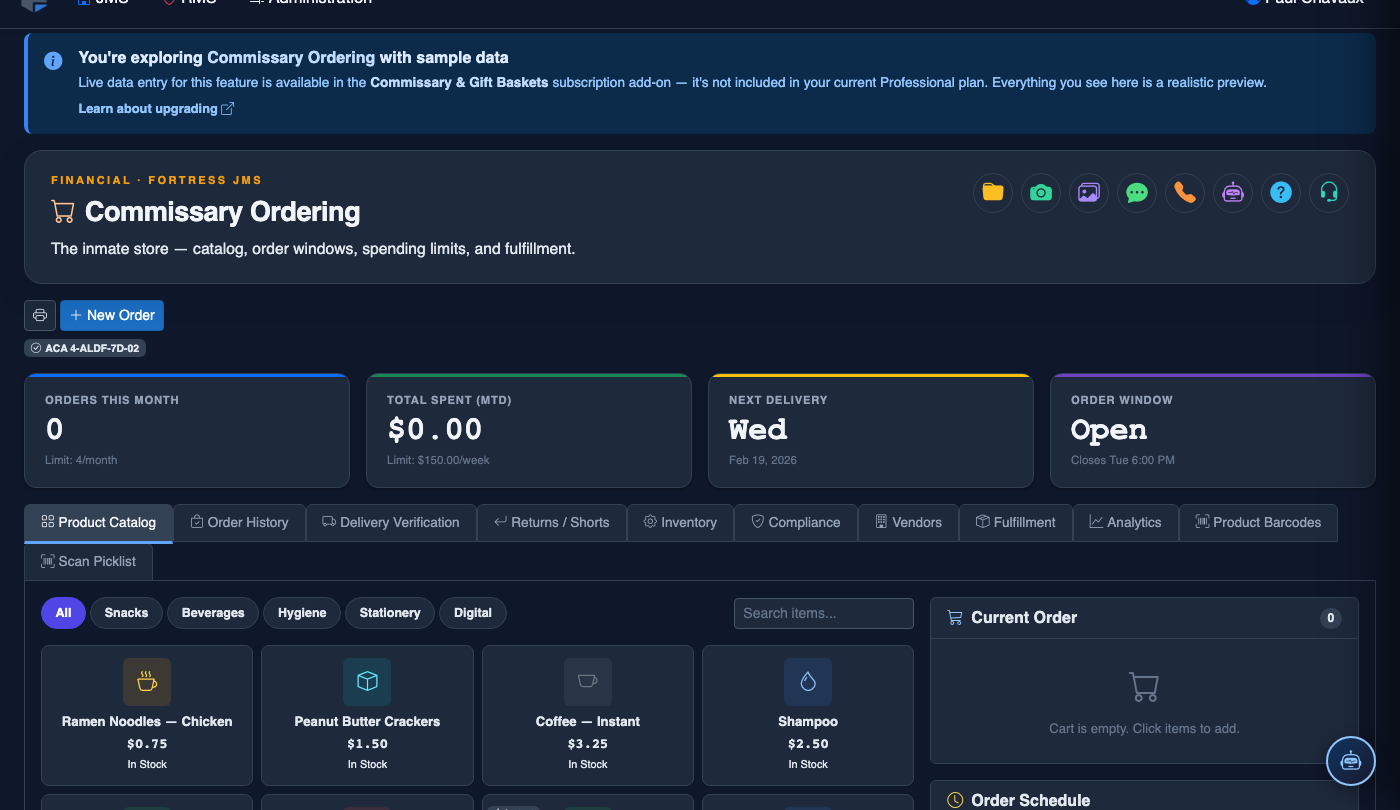
Click Save Product to add it to the catalog. Toggle the Active switch to make the item immediately available for the next order window. Products saved as inactive will be visible to administrators but will not appear on inmate order forms.
Update Pricing for Existing Products
Click the Edit (pencil) icon on any existing product row to open the edit form. Update the Unit Price to reflect your current vendor pricing, then click Save Changes. The system will apply the new price to all orders submitted after the save — previously approved orders retain their original pricing.
Deactivate Out-of-Stock Items
When a product is unavailable from your vendor, click Edit on that item and toggle Active to off, then save. The item will disappear from the inmate order form immediately. When restocked, re-enable it the same way — all historical order data for that product is preserved regardless of active status.
💡 Pro Tips
- Schedule a catalog audit at the beginning of each month to verify that all active products match your current vendor price sheet — price drift between the catalog and vendor invoices is a common reconciliation issue.
- Use the SKU/Vendor Code field consistently to match FortressDMS product records to your vendor’s order management system, enabling automated invoice matching.
- Apply housing unit restrictions proactively for any item that could pose a safety risk in high-supervision units — it’s easier to restrict upfront than to audit and revoke orders after the fact.
- Group related items under consistent category names to make the order form easier for inmates to navigate and to simplify pick-list organization during fulfillment.
Mobile View — Product Catalog
FortressDMS is fully responsive. Officers can access the Product Catalog on a phone or tablet directly from the field — no app install required.

Tab view with data rows

Scrolled / detail view