
Active Sessions
The Active Sessions tab is the real-time command center for all video visitation occurring at your facility right now. Officers see every live call — inmate name, housing unit, approved visitor, call duration, and bandwidth status — and can monitor, intervene, or terminate any session from a single screen without leaving their post.
Live Session Board
All active calls are listed in real time with auto-refresh — no manual reload needed to see new sessions start or end.
Silent Monitoring
Officers can open a live view of any session without alerting participants, enabling discreet surveillance of flagged inmates.
Duration Enforcement
Sessions approaching the facility-set time limit display a warning, then auto-terminate — no officer action required for routine cutoffs.
One-Click Termination
Terminate any call instantly with a reason code — the action is logged, the inmate’s record is flagged, and the visitor receives an end-of-session notification.
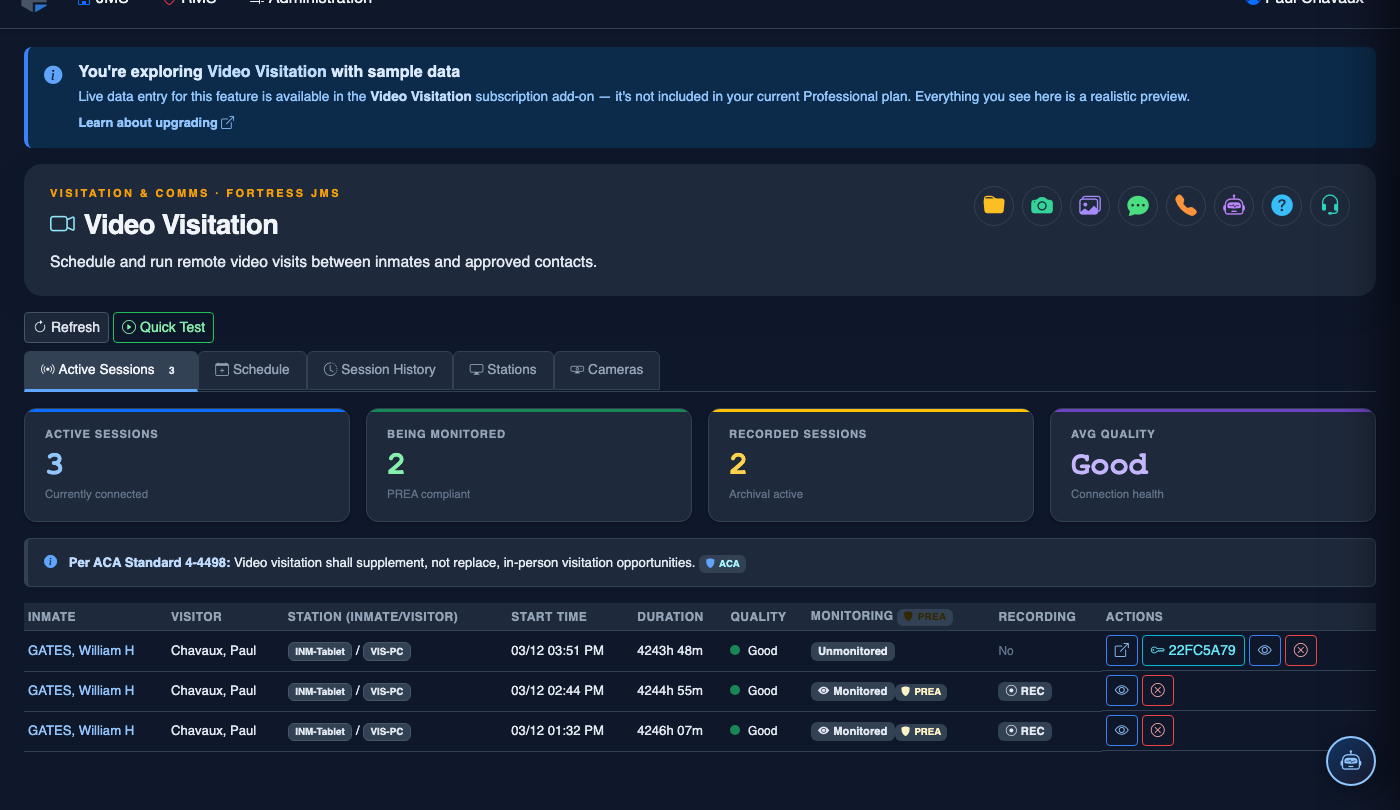
Step-by-Step: Monitoring Active Video Sessions
Open the Active Sessions Tab
Navigate to Video Visitation and click Active Sessions. The board loads automatically and refreshes every 15 seconds. The session count badge in the tab header shows how many calls are in progress.
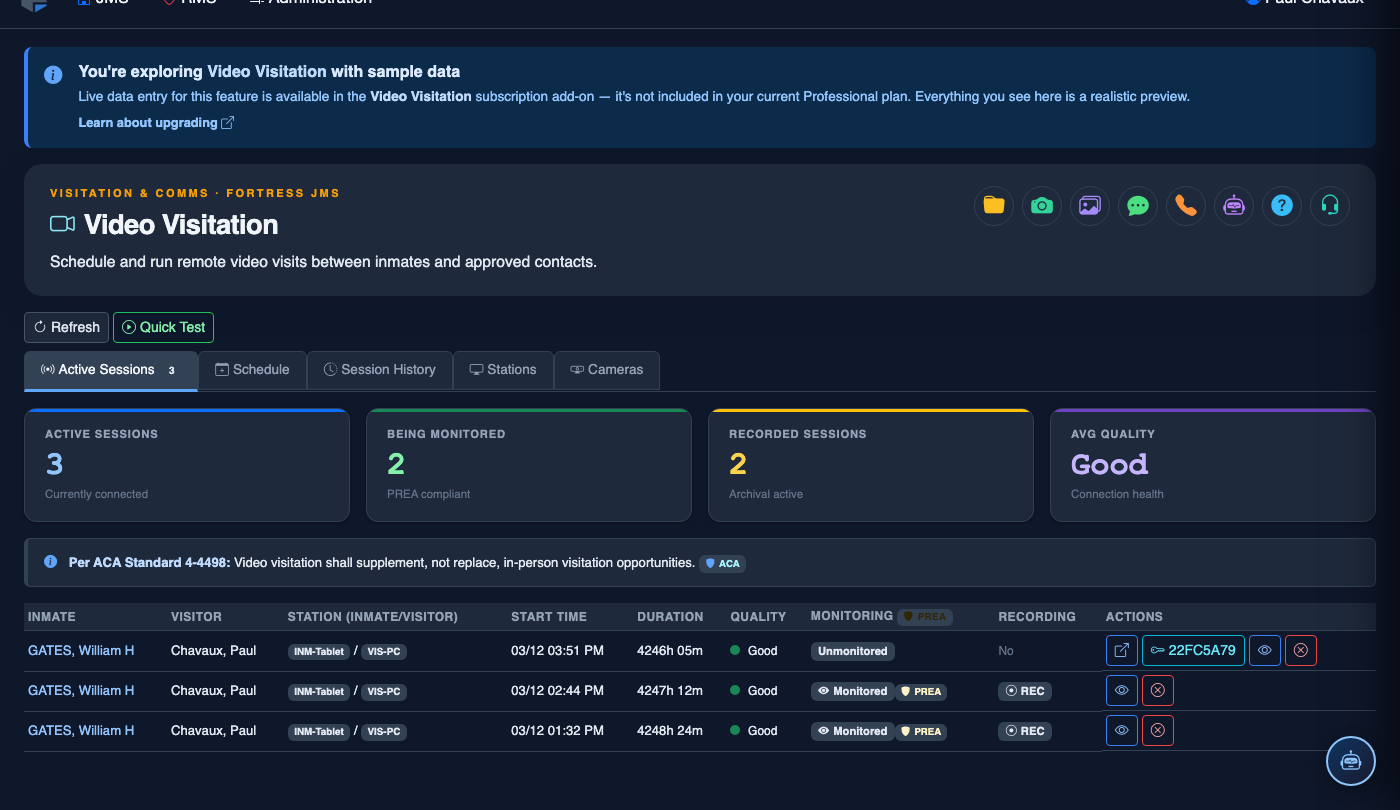
Read the Session Row
Each row displays: Inmate Name & Booking #, Housing Unit, Visitor Name, Session Type (Standard / Attorney-Privileged), Start Time, Elapsed Duration, Time Remaining, and Connection Quality indicator (Good / Degraded / Poor).
Open Silent Monitoring View
Click the Monitor button on any non-privileged session row to open a monitoring overlay. You will see and hear both sides of the call without participants being notified. Attorney-privileged sessions show a Privileged — No Monitor Access label instead of a monitor button.
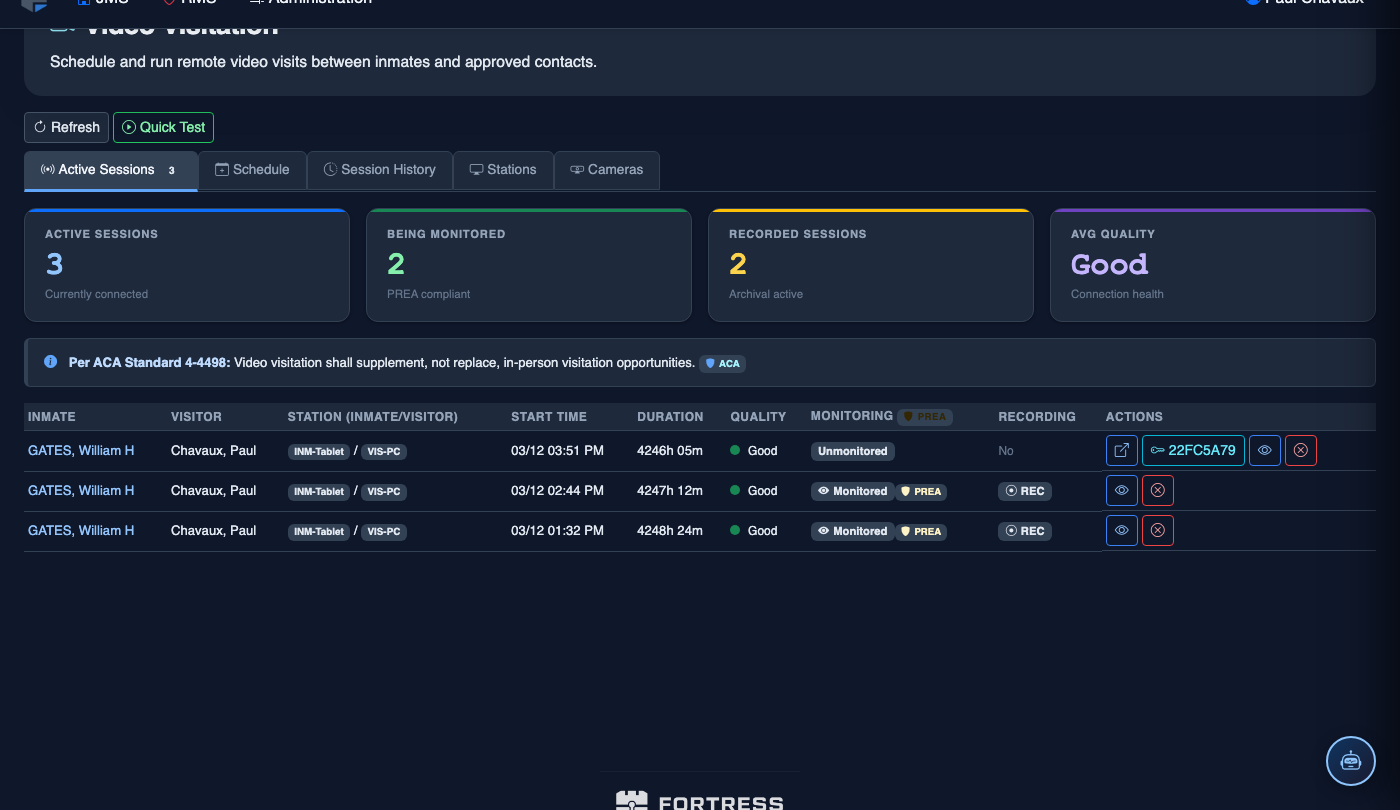
Flag a Session for Review
While monitoring, click Flag Session to mark the recording for investigative review without ending the call. Enter a short note (e.g., “Possible coded language — refer to SIS”). The flag is saved and the session continues undisturbed.
Terminate a Session
Click Terminate from either the session row or the monitoring overlay. Select a Termination Reason from the dropdown (Policy Violation / Contraband Attempt / Unauthorized Third Party / Inmate Request / Technical Issue / Administrative). Click Confirm — the session ends in under 3 seconds.
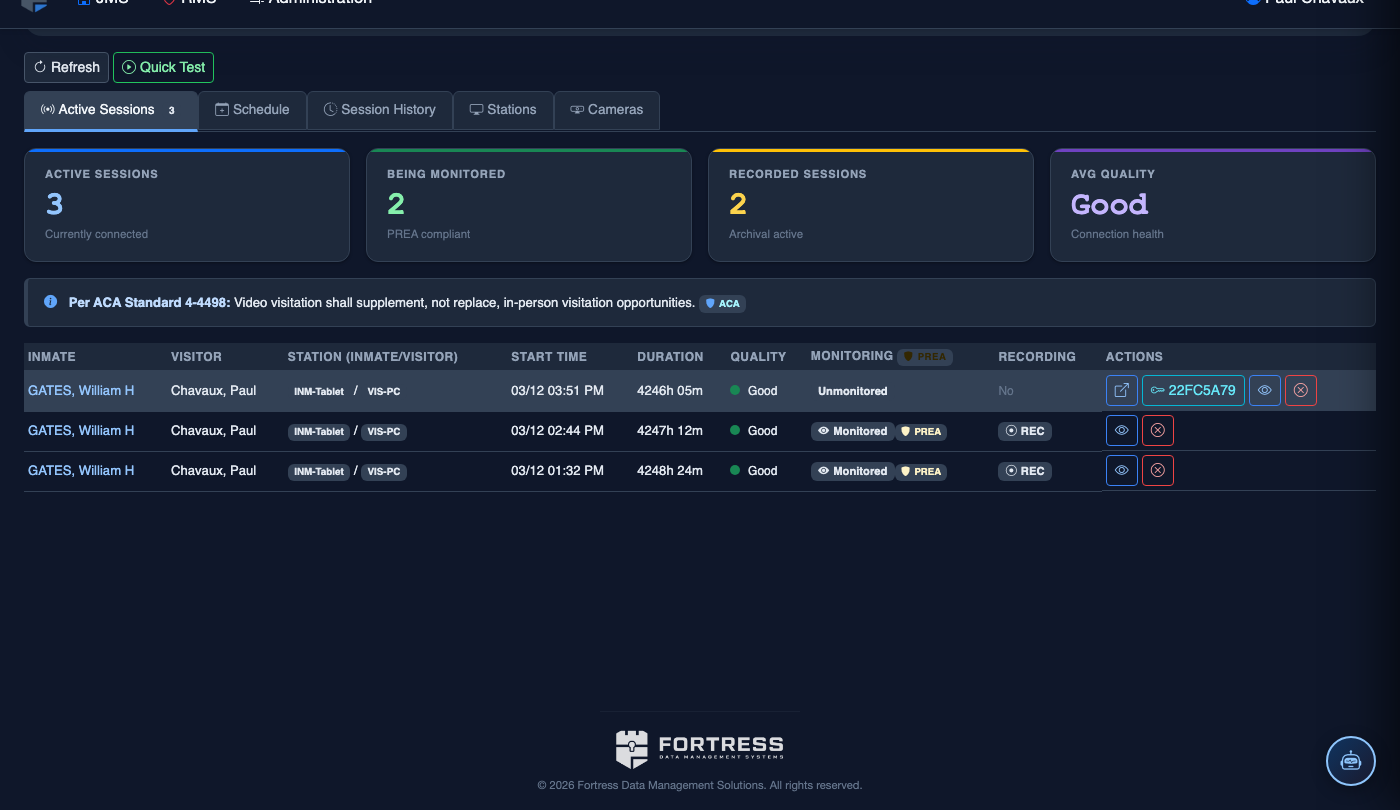
Filter by Housing Unit or Inmate
Use the Filter bar above the session list to narrow active sessions by Housing Unit, Security Level, or Inmate Name. This is especially useful in large facilities running dozens of concurrent sessions.
Schedule a Video Visitation Session
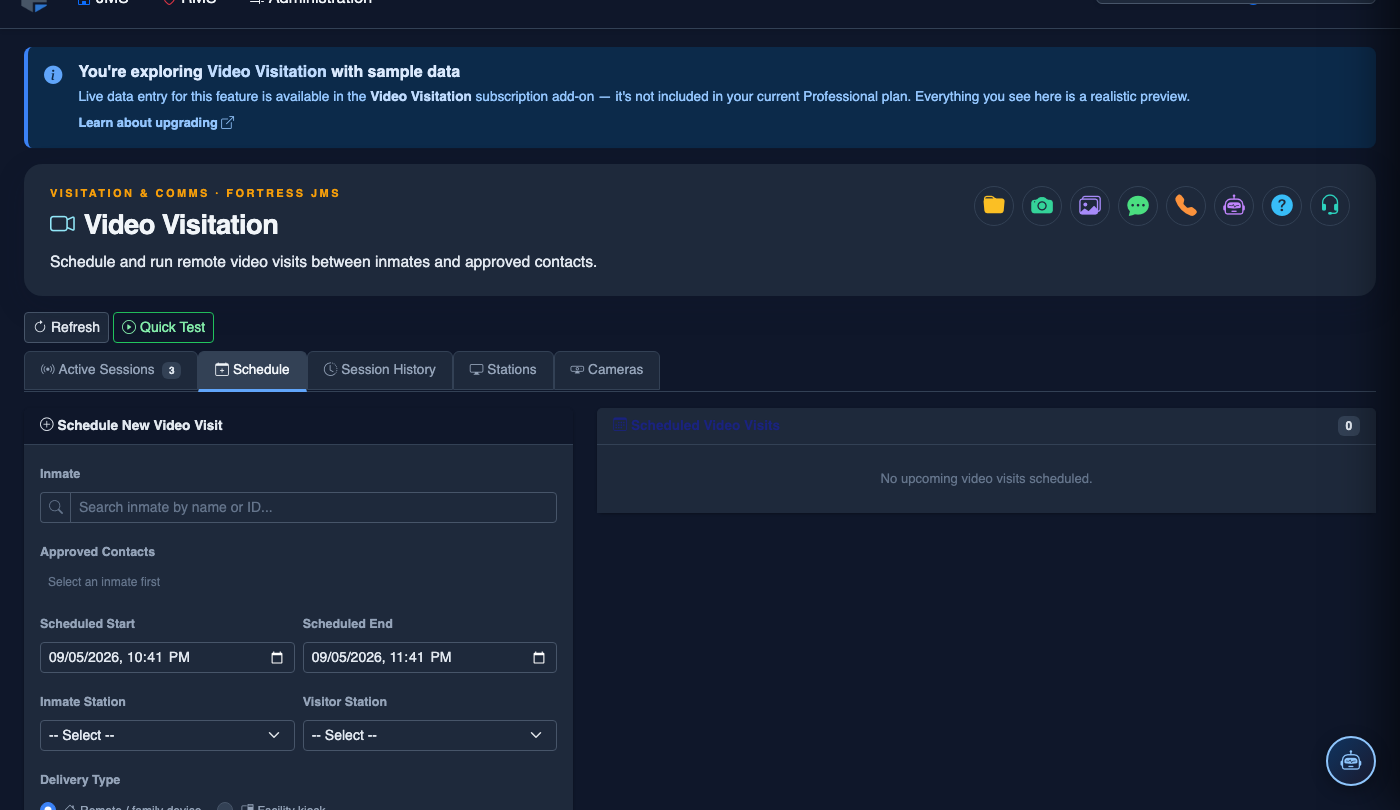
Click Schedule. Complete the video session booking:
- Inmate — search by name or booking number.
- Visitor — select from the approved visitor list; remote visitors receive an email invitation link.
- Session Type — Remote Video (visitor connects from home), In-Facility Kiosk, or Legal (private channel, no recording).
- Date and Time Slot — choose from available slots; the system enforces visit frequency limits per facility policy.
- Station Assignment — select the video station or kiosk to use.
- Duration — typically 30 minutes; extended slots require supervisor approval.
- Click Confirm Booking. Confirmation emails go to the visitor; session appears on the facility video schedule.
💡 Pro Tips
- Pin high-risk inmates to the top of the session board using the Watch List flag on their inmate profile — their sessions will always appear first in the active queue for prioritized monitoring.
- Connection quality indicators turning Poor (red) usually signal a visitor’s network issue, not the facility infrastructure — note it in the session log if the call drops so inmates aren’t penalized for technical failures on the visitor’s end.
- Never open a monitoring view for a session marked Attorney-Privileged — doing so is a potential Sixth Amendment violation. If you believe a session was wrongly marked as privileged, escalate to your facility administrator rather than monitoring directly.
Mobile View — Active Sessions
FortressDMS is fully responsive. Officers can access the Active Sessions on a phone or tablet directly from the field — no app install required.
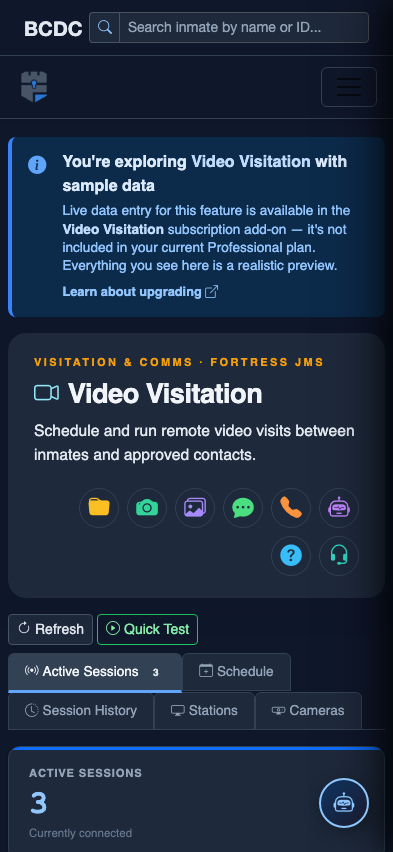
Tab view with data rows
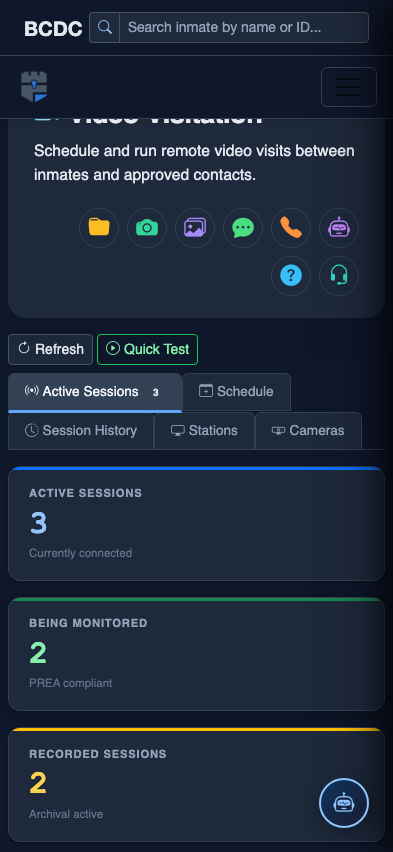
Scrolled / detail view