
Order Fulfillment
The Order Fulfillment tab manages the physical distribution of approved commissary orders from the point of picking and packing through final delivery to inmate housing units. Staff use FortressDMS to generate organized pick lists by housing unit, mark items as picked and packed, record delivery officer assignments, and capture delivery confirmation. A complete chain of custody is maintained for every item — from approval to the inmate’s hands — supporting accountability and reducing disputes.
Automated Pick Lists
System-generated pick lists group approved items by housing unit and sort by product category for efficient warehouse pulling.
Item-Level Check-Off
Mark each line item as picked individually, with the ability to flag short-ships or substitutions before finalizing the pack.
Delivery Assignment
Assign a delivery officer to each housing unit run and record actual delivery time for accountability and shift documentation.
Delivery Confirmation
Print inmate receipt forms for signature at delivery; completed forms are scanned or noted in FortressDMS for dispute resolution.
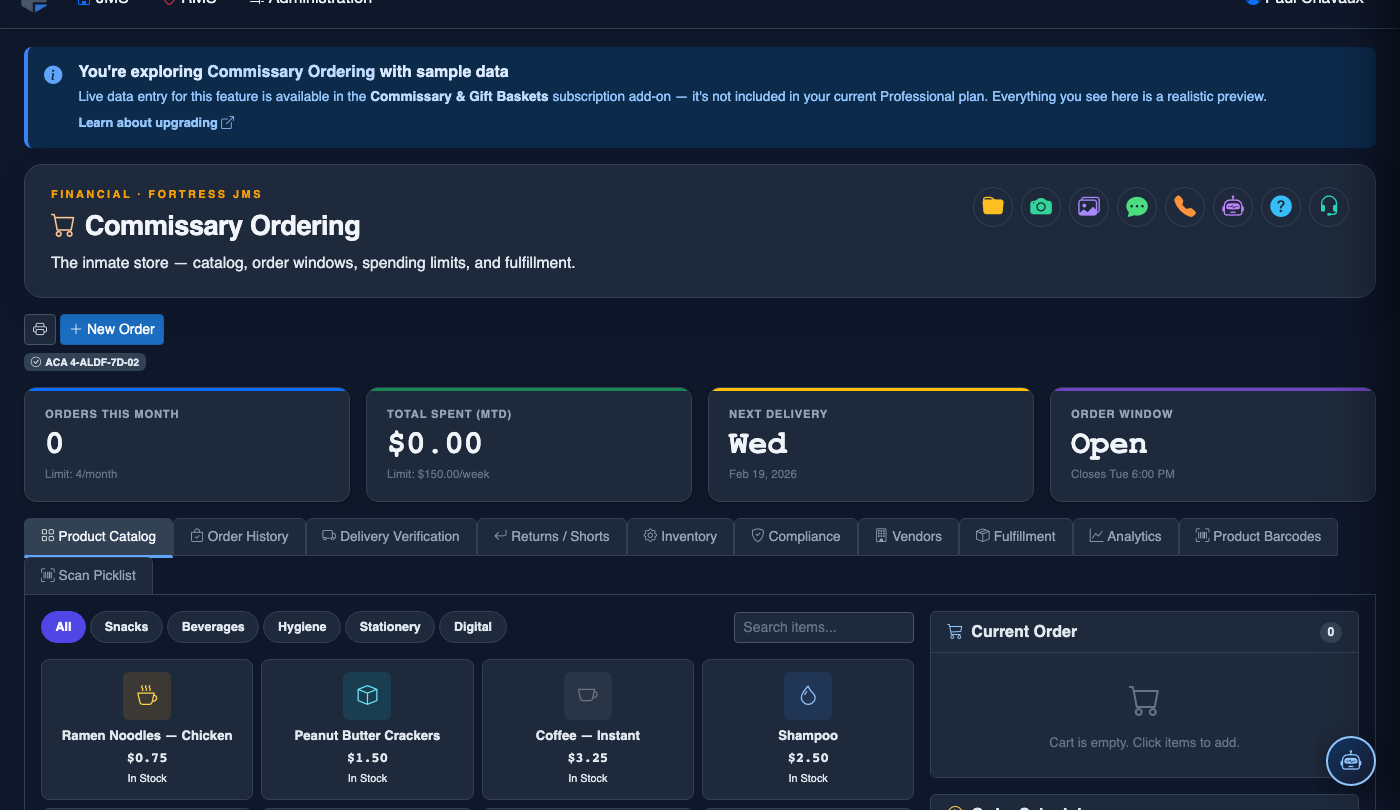
Step-by-Step: Fulfilling Approved Commissary Orders
Open the Order Fulfillment Tab
In Commissary Ordering, click the Order Fulfillment tab. The page shows all orders that have been approved and are queued for physical fulfillment, sorted by housing unit. Orders still pending approval will not appear here until processed in the Order Management tab.
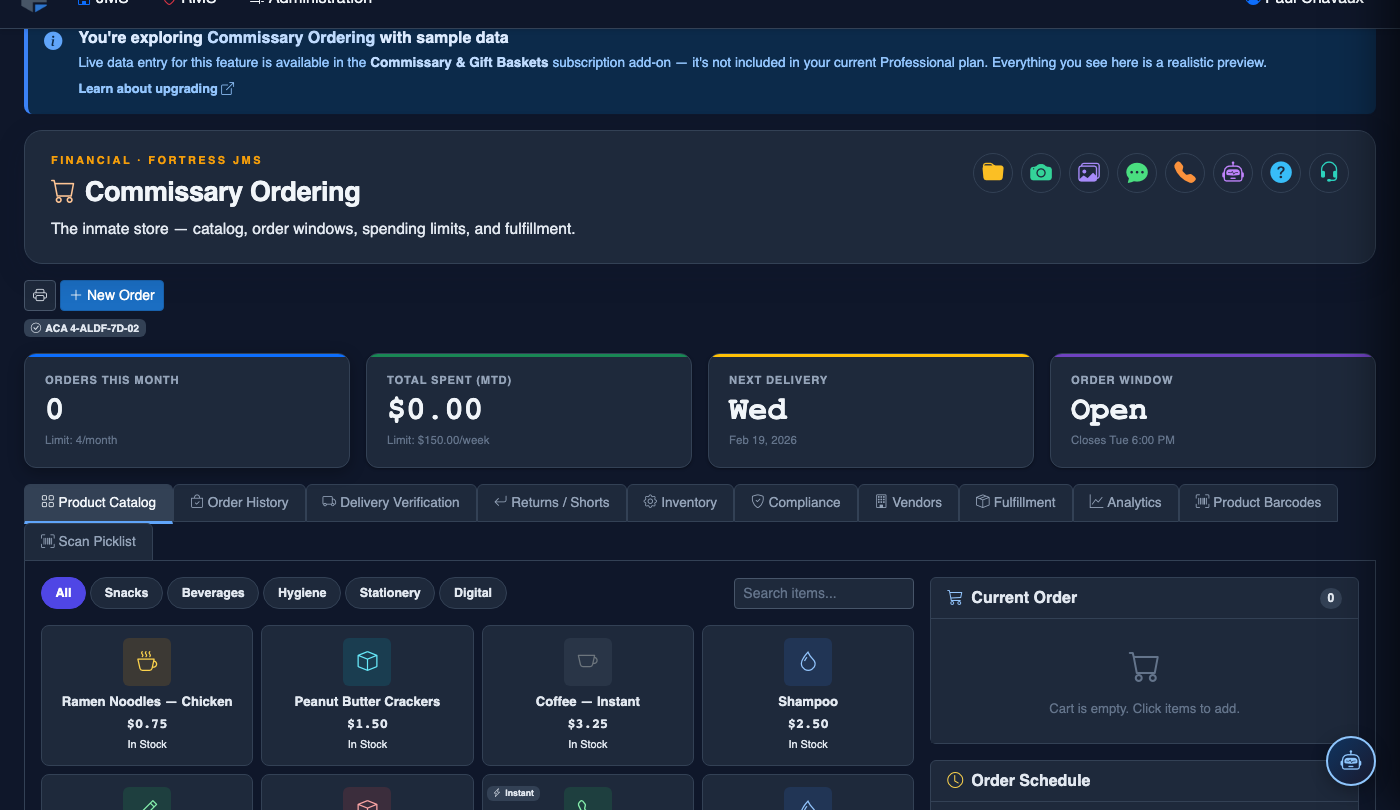
Generate Pick Lists by Housing Unit
Click Generate Pick Lists to produce a consolidated picking document for each housing unit. Pick lists group identical products across multiple inmate orders to minimize trips through the warehouse — e.g., “Block A: 12 × Ramen Noodles, 8 × Soap, 5 × Envelopes.” Print each pick list or work from the on-screen version.
Check Off Items as Picked
As items are pulled from inventory, check them off in the Pick List view. For short-ships (item out of stock), click Short Ship on that line and enter the quantity actually available. FortressDMS will calculate a partial refund to the inmate’s trust account for any unfulfilled quantity and flag the order for notification.
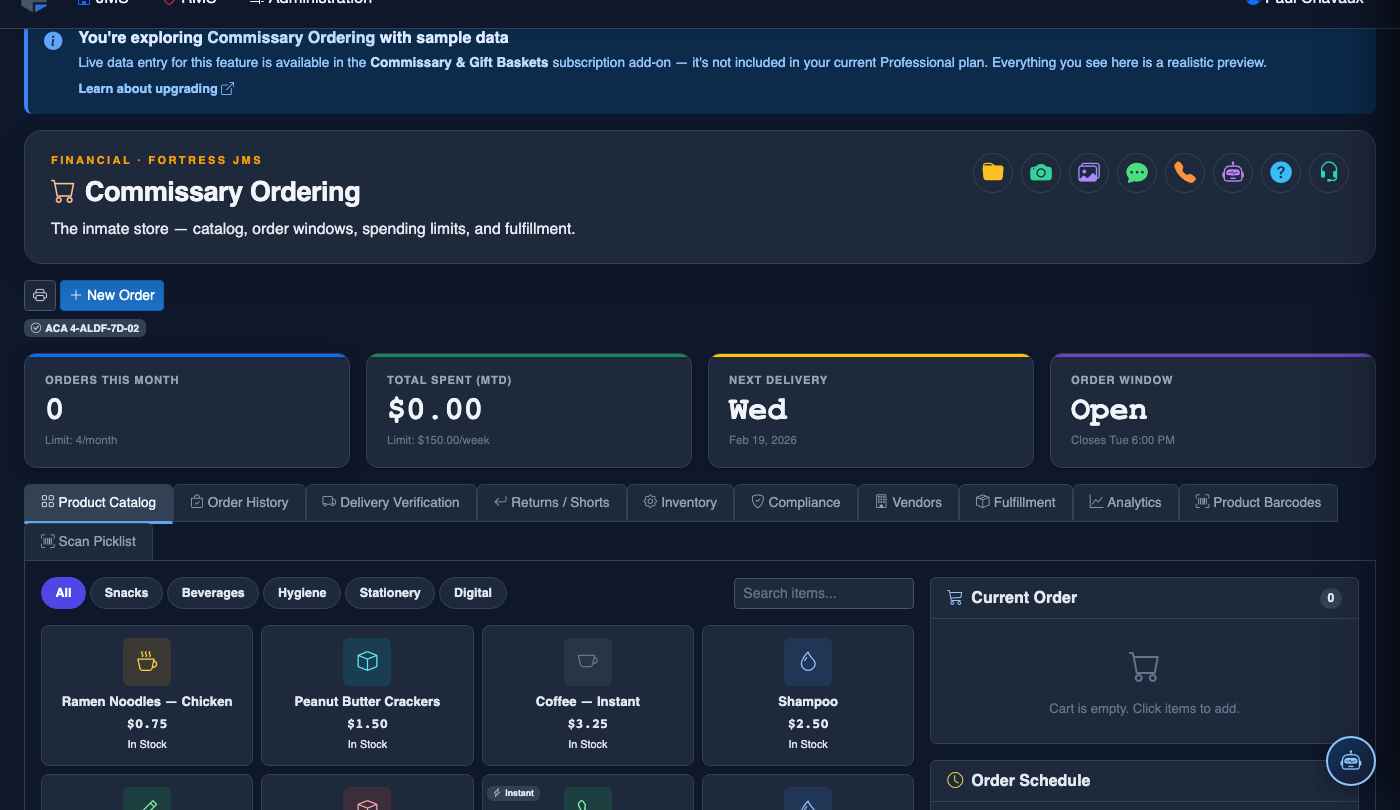
Mark Orders as Packed
Once all items for an inmate’s order are pulled and bagged, click Mark as Packed on that inmate’s order row. The status updates to Packed and a label is available to print with the inmate’s name, booking number, housing unit, and item count for bag identification during delivery.
Assign Delivery Officer
Select one or more packed orders for a housing unit and click Assign Delivery Officer. Choose the officer from the duty roster and confirm. The assignment is recorded in the fulfillment log. Once assigned, the delivery officer can view their delivery queue from any terminal logged into FortressDMS.
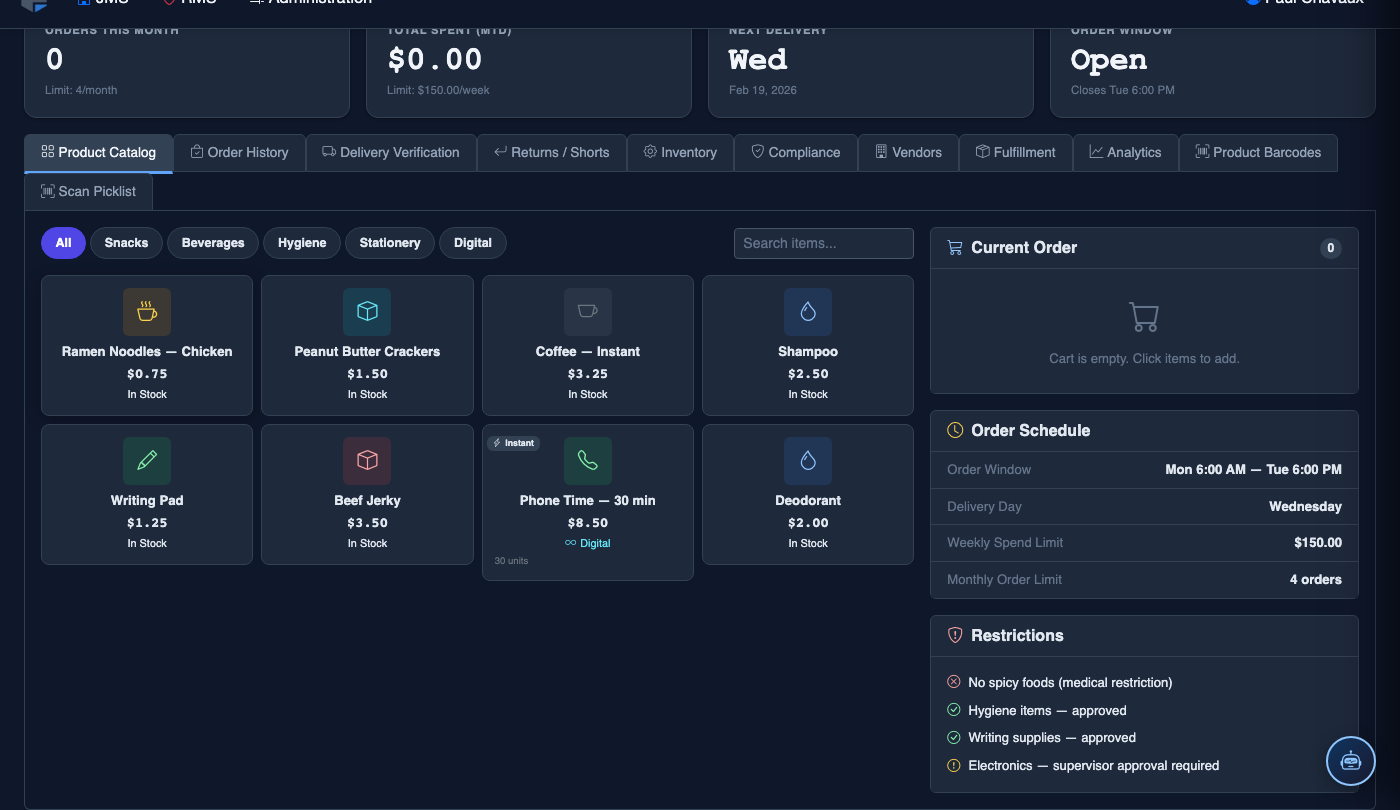
Record Delivery Completion
After distributing bags to each inmate in the housing unit, the delivery officer marks each order as Delivered and records the Delivery Time in FortressDMS. If an inmate refuses delivery, use the Refused status and enter a note — refused orders trigger an automatic trust account refund for any approved, paid items.
Close Fulfillment Cycle
Once all housing units show 100% delivery completion, click Close Fulfillment Cycle. This locks the cycle records, triggers any outstanding short-ship refunds, and generates the Fulfillment Completion Report available under Reports. The cycle is now archived and searchable in the order history.
💡 Pro Tips
- Print bag labels directly from FortressDMS before packing to eliminate handwritten labels — this reduces misdelivery incidents and gives you a scannable record if disputes arise.
- Use the Short Ship feature immediately upon discovering a shortage rather than substituting unauthorized items — trust fund refunds process automatically, keeping accounting clean without manual adjustments.
- Schedule fulfillment during low-activity shift hours when housing unit foot traffic is minimal — this reduces delivery disruptions and keeps officers focused on distribution without competing demands.
- Close each fulfillment cycle within 24 hours of delivery completion to ensure trust account reconciliation and vendor invoice matching stay synchronized with the current accounting period.
Mobile View — Order Fulfillment
FortressDMS is fully responsive. Officers can access the Order Fulfillment on a phone or tablet directly from the field — no app install required.
Tab view with data rows
Scrolled / detail view