
Commissary Reports
The Commissary Reports tab provides jail administrators and fiscal staff with comprehensive financial and inventory analytics for all commissary activity. Generate order summaries, revenue breakdowns, and inmate spending histories to ensure accurate reconciliation and compliance. Use built-in filters to drill down by date range, housing unit, or inmate to support audits and budget planning.
Order Summary Reports
View aggregated commissary order totals by cycle, housing unit, or date range for facility-wide oversight.
Revenue & Reconciliation
Track commissary revenue collected, balances applied, and outstanding amounts for accurate fiscal reconciliation.
Inmate Spending History
Drill into individual inmate purchase records and account activity for grievance resolution or audit support.
Inventory Usage Reports
Identify top-selling items, low-stock trends, and product demand patterns to optimize commissary purchasing.
Step-by-Step: Commissary Reports
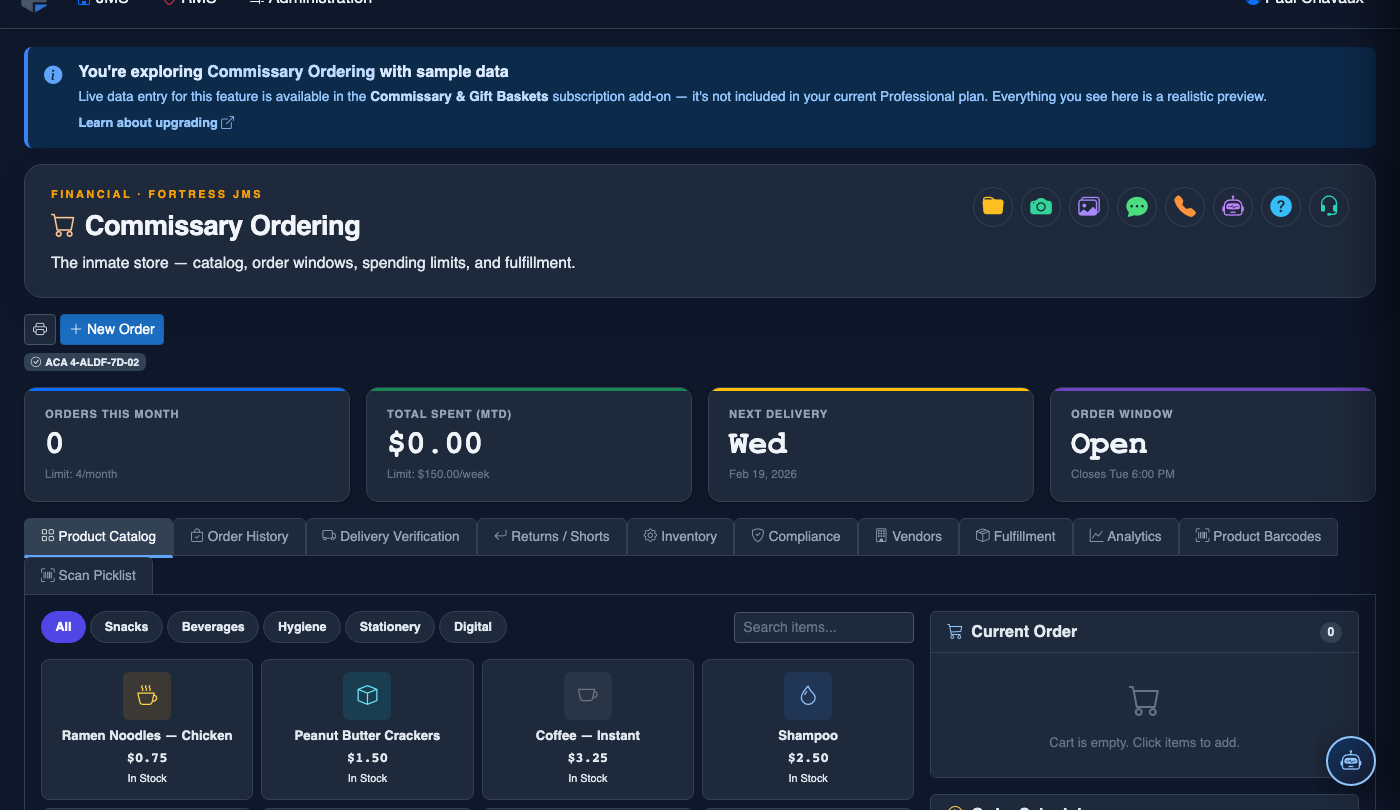
Navigate to Commissary Reports
From the main navigation, select Commissary Ordering and click the Reports tab along the top of the page. This tab is only visible to users with Commissary Admin or Fiscal Officer roles.
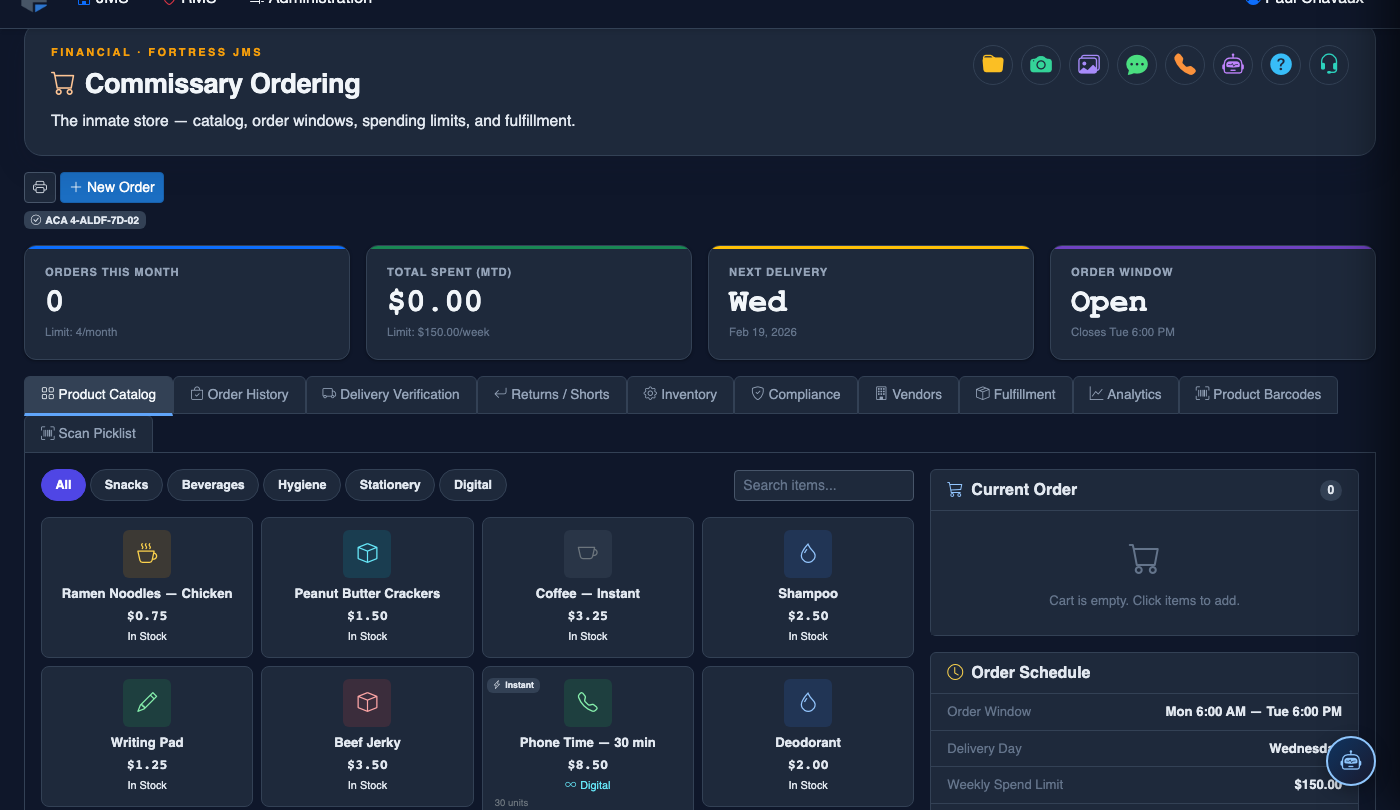
Select the Report Type
Use the Report Type dropdown to choose from available report categories: Order Summary, Revenue Reconciliation, Inmate Spending, or Inventory Usage. Each report type reveals contextually relevant filter options below.
Set Date Range and Filters
Enter a Start Date and End Date using the date pickers. Optionally narrow results by selecting a specific Housing Unit, Commissary Cycle, or Inmate ID from the additional filter dropdowns.
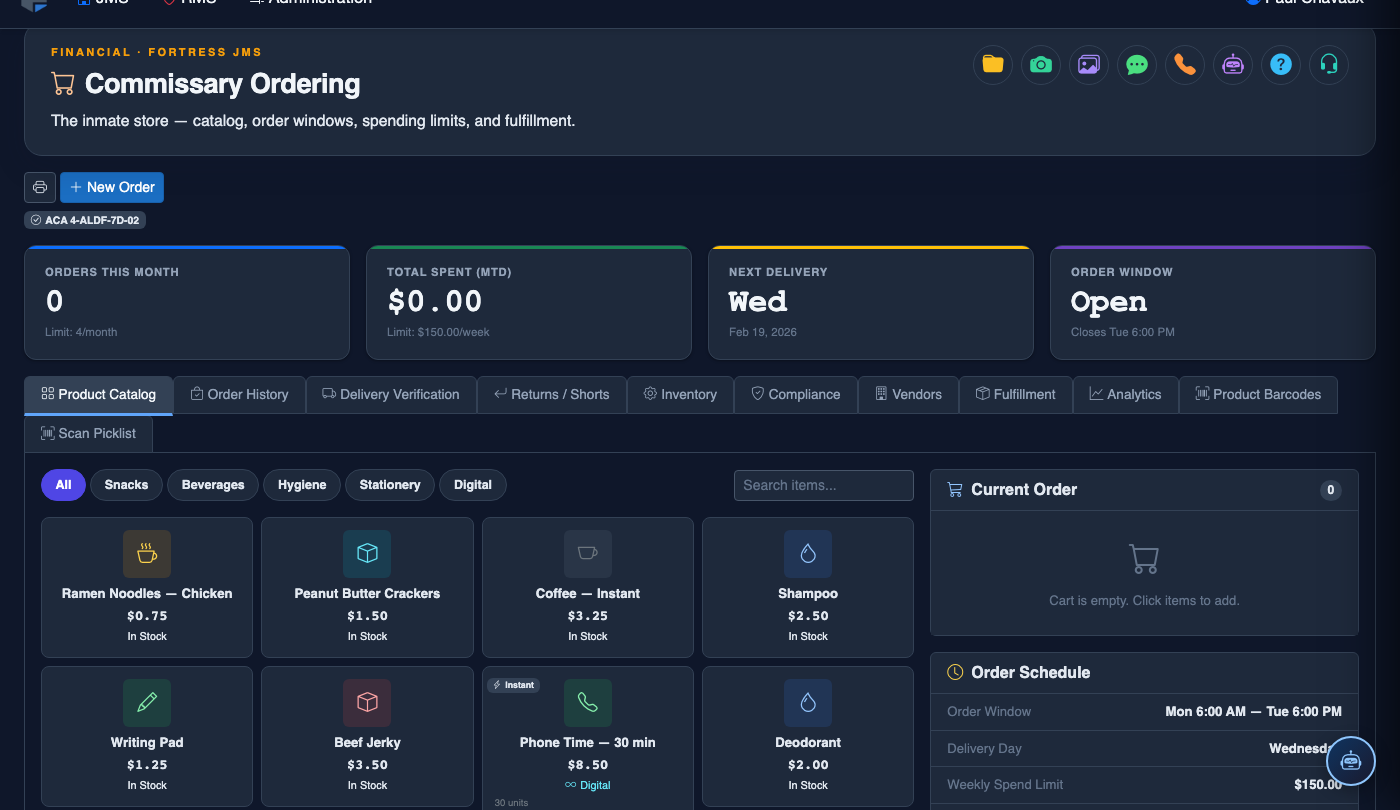
Generate the Report
Click the Generate Report button. The system will query all matching commissary transactions and render the results in the data grid below. Large date ranges may take a few seconds to load — a loading spinner will appear during processing.
Review the Results Grid
Scroll through the results grid showing columns such as Inmate Name, Item, Quantity, Unit Price, Total, and Order Date. Click any column header to sort ascending or descending. Use the Search box above the grid to filter visible rows by keyword.
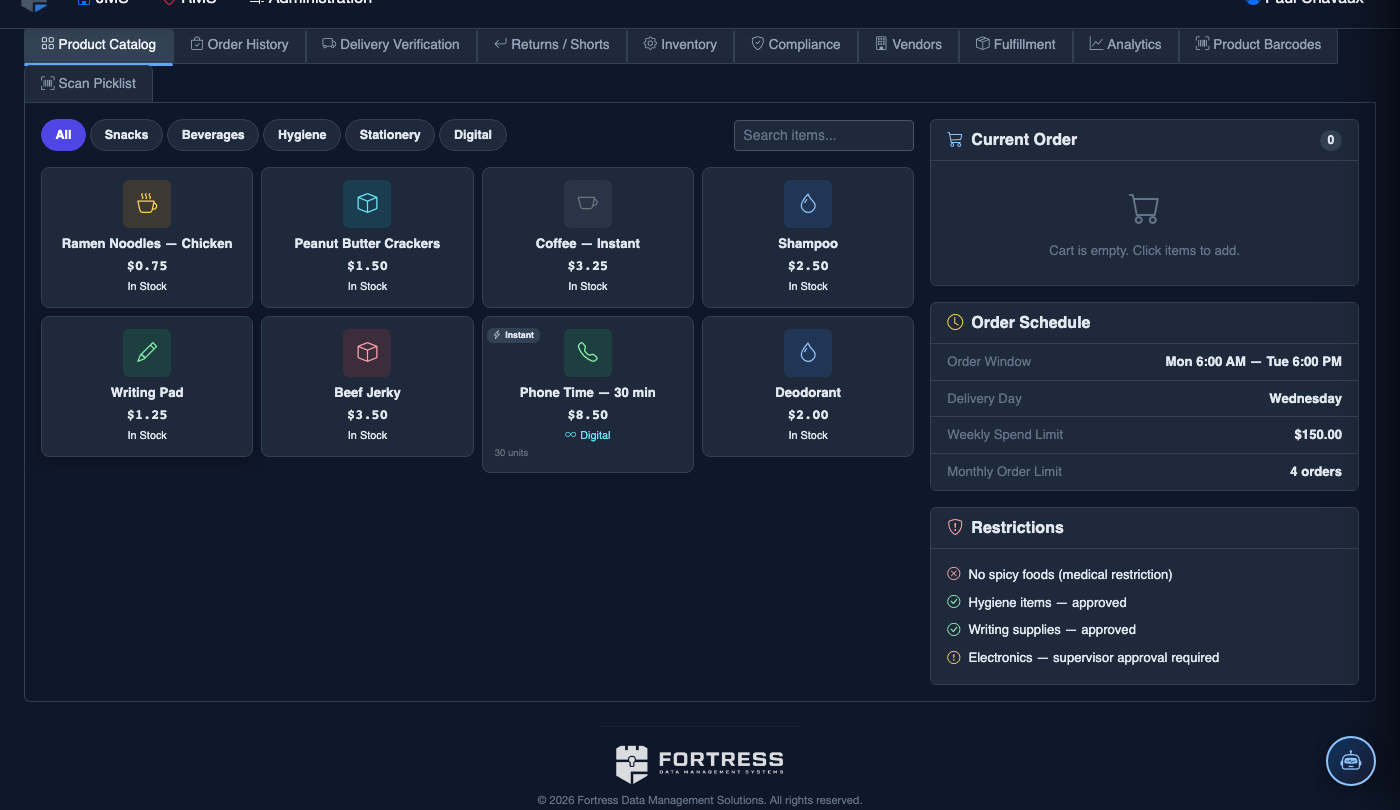
Export the Report
Click Export to CSV or Export to PDF at the top-right of the results grid to download the report. CSV exports are suitable for importing into accounting software; PDF exports include facility letterhead for audit submission.
Schedule Automated Reports
Use the Schedule Report option to configure automatic report generation and email delivery. Set the Frequency (Daily, Weekly, Monthly), the Recipients email list, and the Format. Scheduled reports run overnight and deliver to specified fiscal and administrative staff.
💡 Pro Tips
- Run the Revenue Reconciliation report at the close of each commissary cycle to catch discrepancies before funds are posted to inmate trust accounts.
- Use the Inmate Spending report when responding to inmate grievances about account charges — it provides a timestamped, itemized transaction history.
- The Inventory Usage report sorted by quantity can highlight items that consistently sell out early in a cycle, allowing you to increase stock levels proactively.
- Scheduled reports sent weekly to the jail administrator and fiscal officer create a lightweight accountability trail without requiring manual log-ins.
Mobile View — Commissary Reports
FortressDMS is fully responsive. Officers can access the Commissary Reports on a phone or tablet directly from the field — no app install required.

Tab view with data rows

Scrolled / detail view