
Billing Setup
The Billing Setup tab is the administrative foundation of the Inter-Agency Billing module, where facility administrators define and manage the external agencies, per-diem rates, and billing parameters that govern all inter-agency financial transactions. Properly configured agency records ensure that invoices are generated accurately and that census-based charges reflect your current housing agreements.
Agency Records
Create and maintain records for each contracting agency including contact info and billing address.
Per-Diem Rate Tables
Configure tiered daily rates for general population, medical, mental health, and segregation housing.
Billing Cycle Settings
Set invoice frequency (monthly, bi-monthly, or custom) and billing cutoff dates per agency.
Surcharge Configuration
Add optional surcharges for medical transports, specialized programming, or administrative fees per agency.
Step-by-Step: Billing Setup
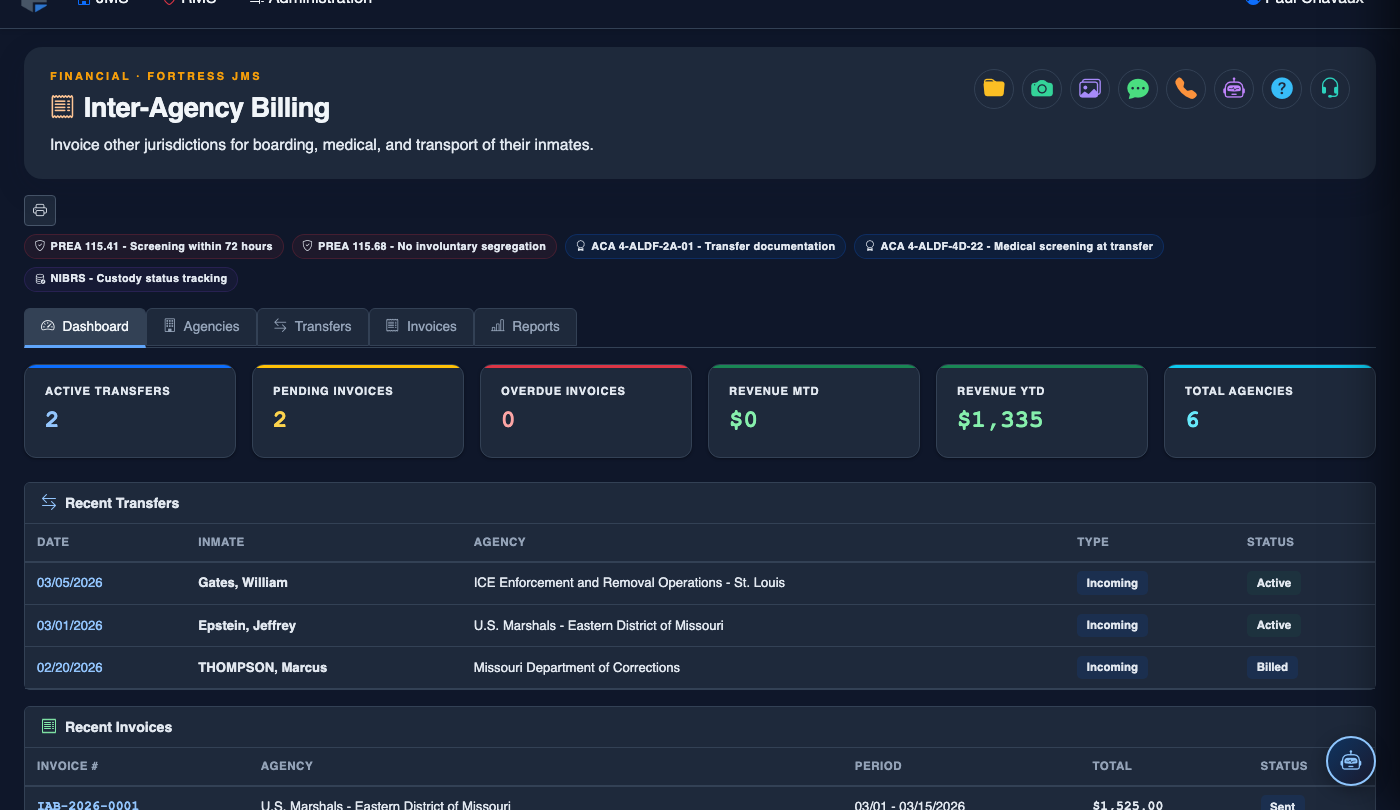
Open the Billing Setup Tab
In Inter-Agency Billing, click the Billing Setup tab. You will see a list of all currently configured agencies with their active status, per-diem rate, and billing cycle. New facilities will see an empty grid with a prominent Add Agency button.
Add a New Agency
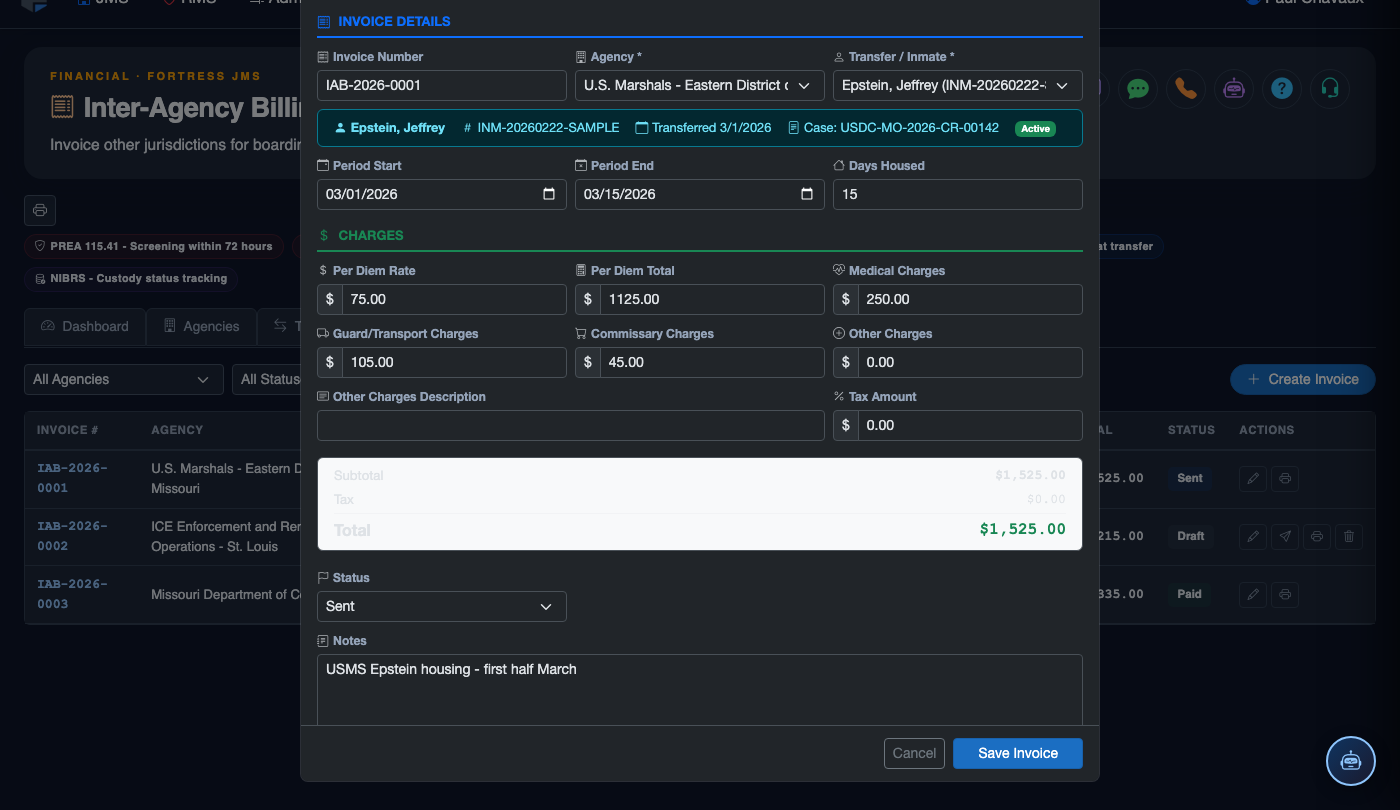
Click Add Agency to open the agency creation form. Fill in the Agency Name, Agency Type (State, Federal, Municipal, or Other), Primary Contact Name, Contact Email, Phone Number, and Billing Address. These details appear on all invoices transmitted to the agency.
Set Per-Diem Rates
In the Rate Configuration section, enter the daily rate for each housing classification: General Population Rate, Medical Rate, Mental Health Rate, and Segregation Rate. The system uses the inmate’s current classification when calculating daily charges.
Configure Billing Cycle
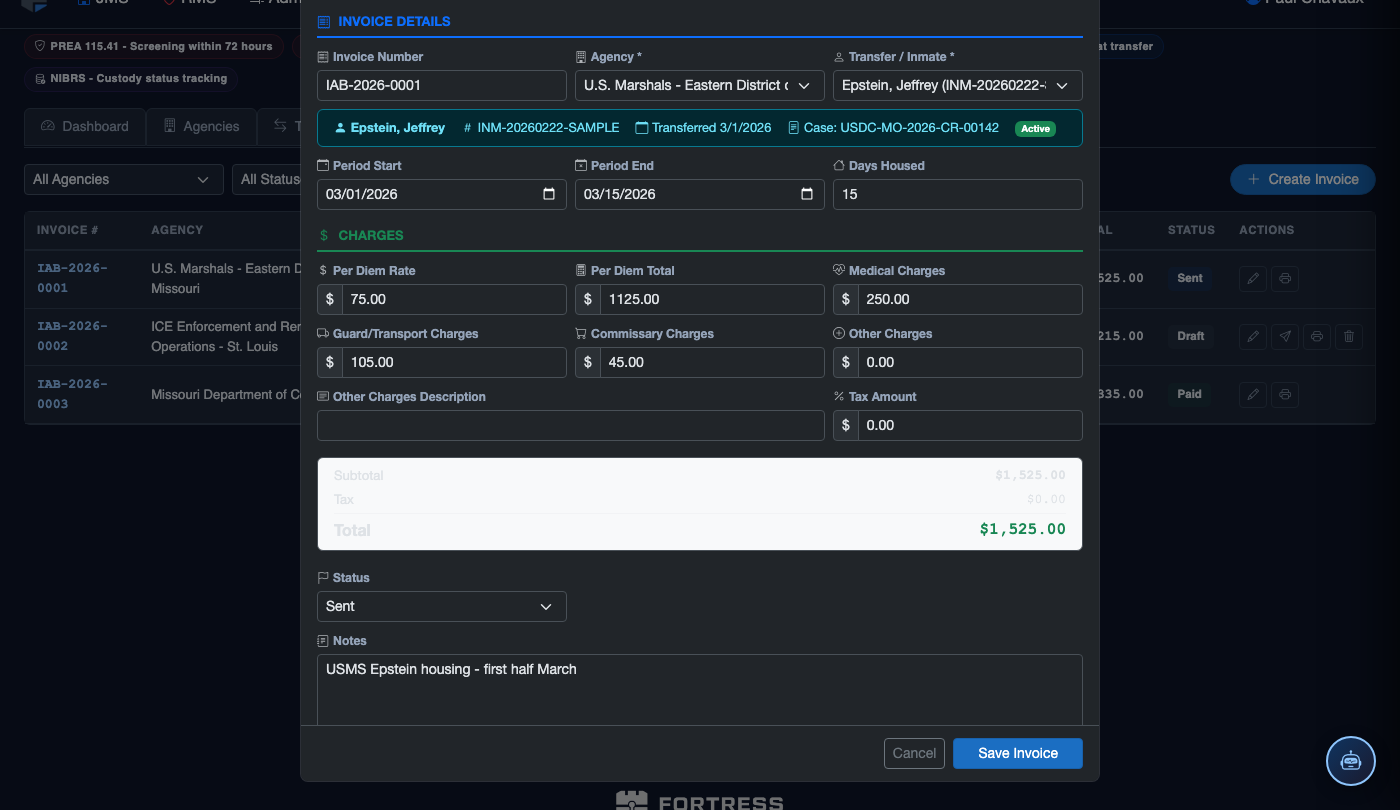
Set the Invoice Frequency using the dropdown (Monthly, Bi-Monthly, or Custom). For monthly billing, select the Billing Cutoff Day — the day of the month when the census count closes for that billing cycle. For custom cycles, specify the exact number of days per period.
Add Surcharges (Optional)
Scroll to the Surcharges panel and click Add Surcharge to define any additional line items that appear on invoices. Common surcharges include Medical Transport Fee, Booking Fee, and Program Participation Fee. Each surcharge can be set as per-occurrence or per-diem.
Save and Activate the Agency
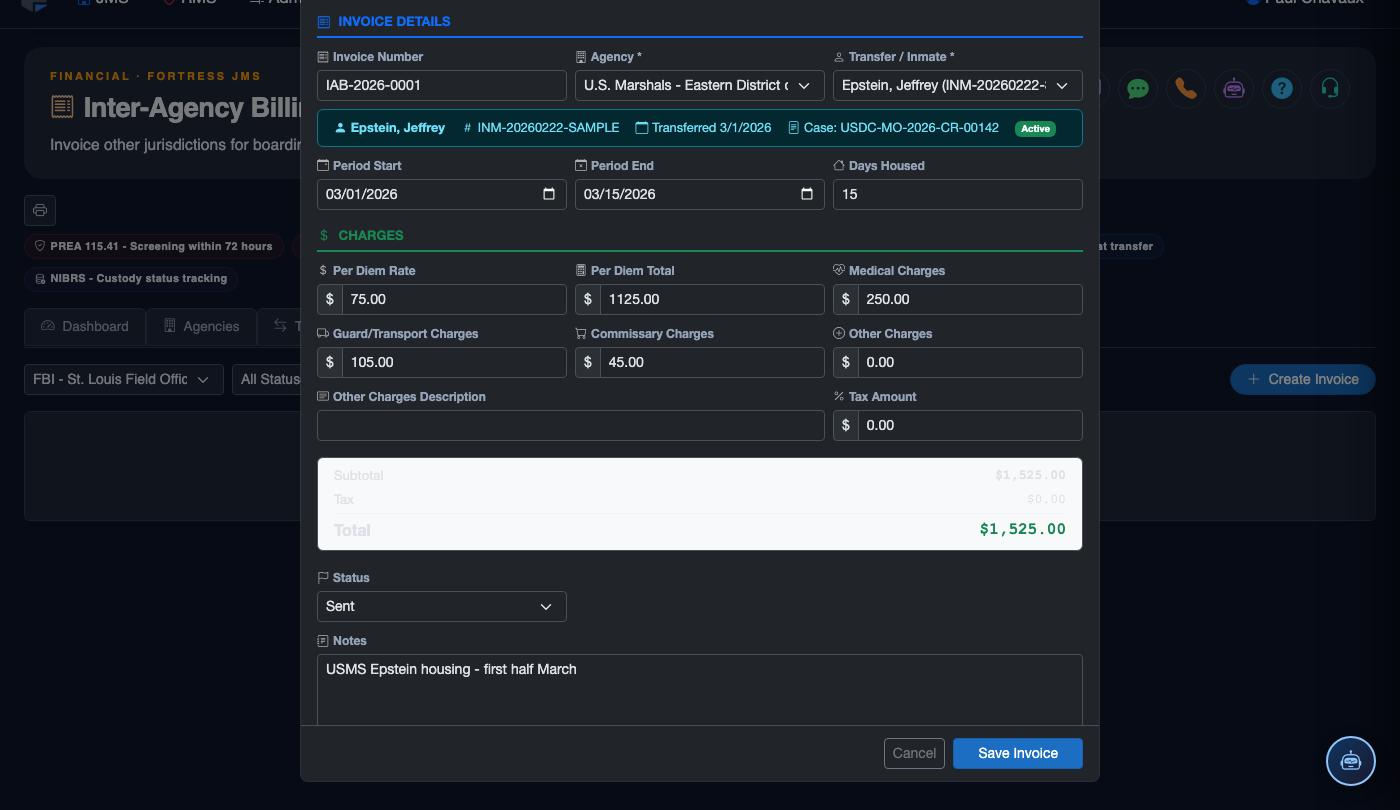
Click Save Agency to create the record. Toggle the Active switch to enable billing for this agency. Only active agencies appear in the inmate booking agency assignment dropdown and in the invoice generation workflow.
Update Rates When Contracts Renew
When a housing contract is renegotiated, click Edit on the agency row and update the per-diem rates with the new contract’s Effective Date. The system maintains a rate history so that invoices generated for prior periods remain at the rates in effect during those periods.
💡 Pro Tips
- Always enter an Effective Date when changing per-diem rates — this protects historical invoices from being retroactively recalculated at the new rate.
- Tie the billing cutoff day to the last day of each calendar month to make reconciliation with county finance easier.
- Use the Agency Type field consistently — reporting filters allow you to aggregate billing by type, which is useful when budgeting for federal vs. state vs. municipal housing revenue.
- Deactivate rather than delete agencies when a contract ends — this preserves all historical billing records for audit purposes while preventing new assignments.
Mobile View — Billing Setup
FortressDMS is fully responsive. Officers can access the Billing Setup on a phone or tablet directly from the field — no app install required.
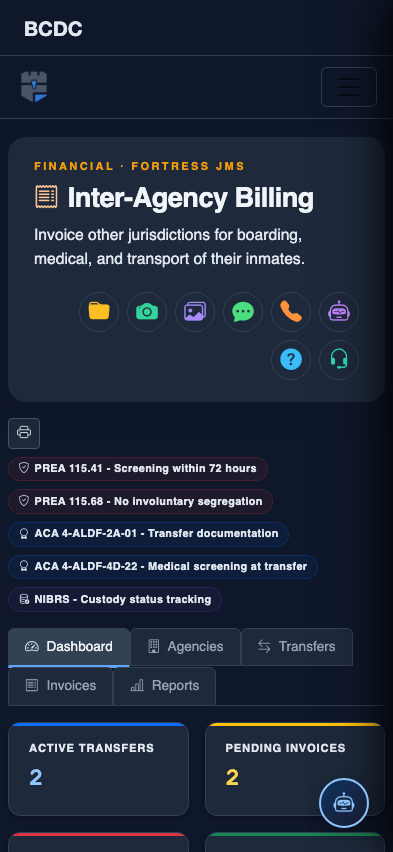
Tab view with data rows
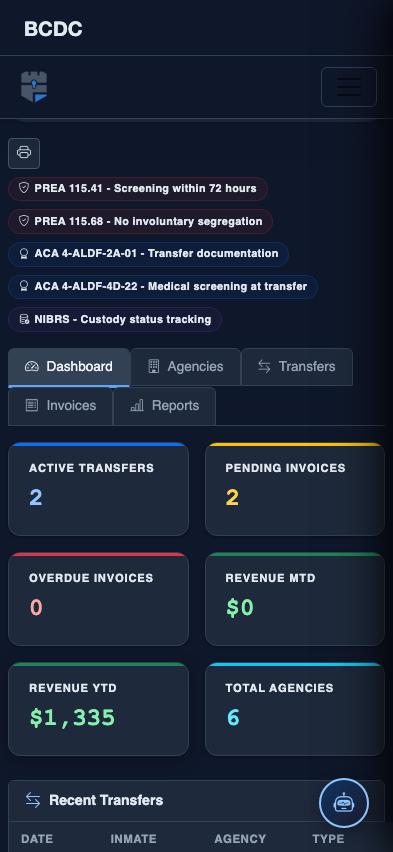
Scrolled / detail view