
Invoices
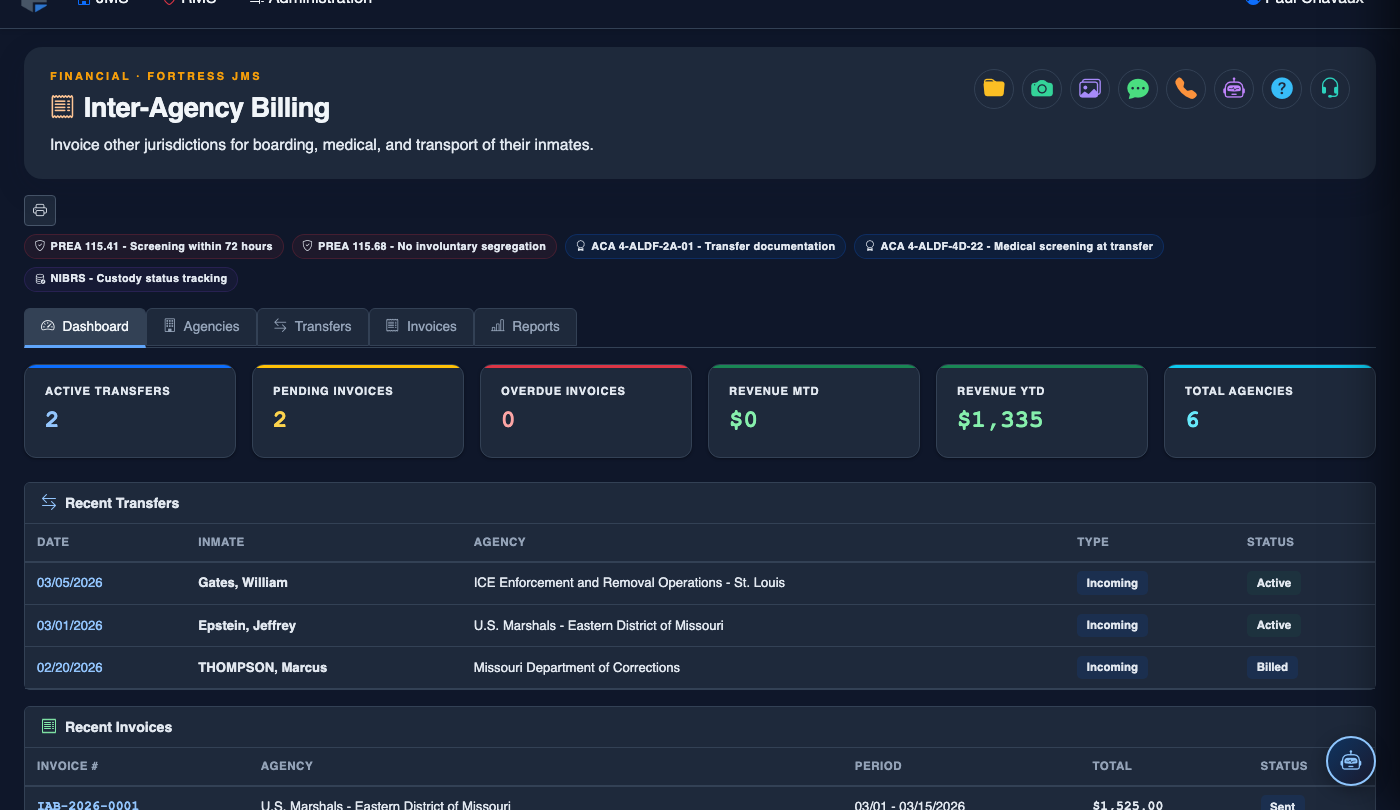
The Invoices tab is where fiscal staff generate, review, and transmit billing statements to contracting agencies for housing inter-agency inmates at your facility. Each invoice is calculated from the daily census records of agency-linked inmates, applying the configured per-diem rates and surcharges for the billing period. Once finalized, invoices can be printed, exported to PDF, or transmitted electronically to the billing contact on file.
Auto-Calculated Charges
Invoice totals are calculated from census data automatically, eliminating manual per-diem arithmetic and reducing billing errors.
PDF Export & Transmission
Export finalized invoices as professionally formatted PDFs ready for mail, email, or agency accounts-payable portals.
Itemized Line Detail
Each invoice includes a per-inmate, per-day breakdown so agencies can verify charges against their own custody records.
Invoice Locking
Finalized invoices are locked to prevent post-transmission modifications, ensuring an immutable billing record.
Step-by-Step: Creating and Transmitting an Invoice
Open the Invoices Tab
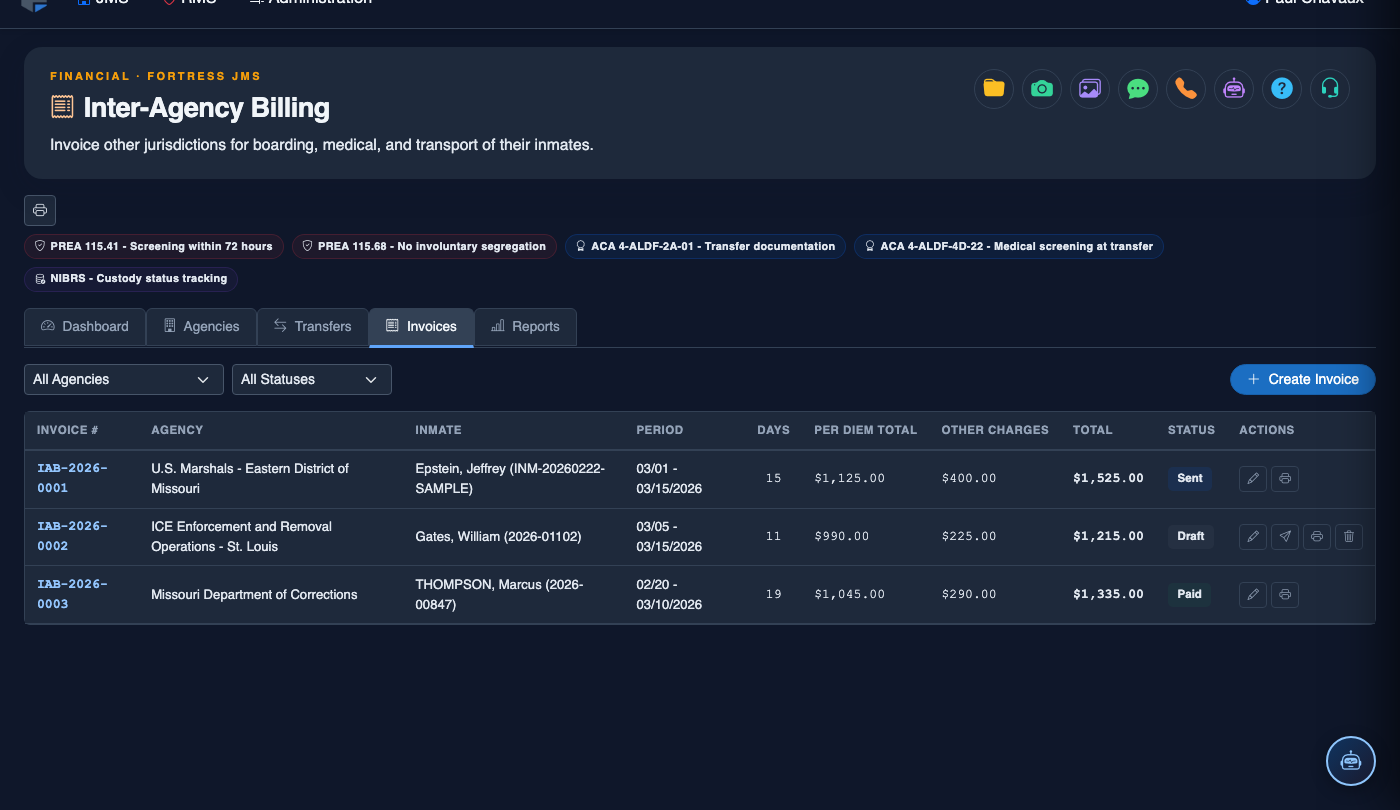
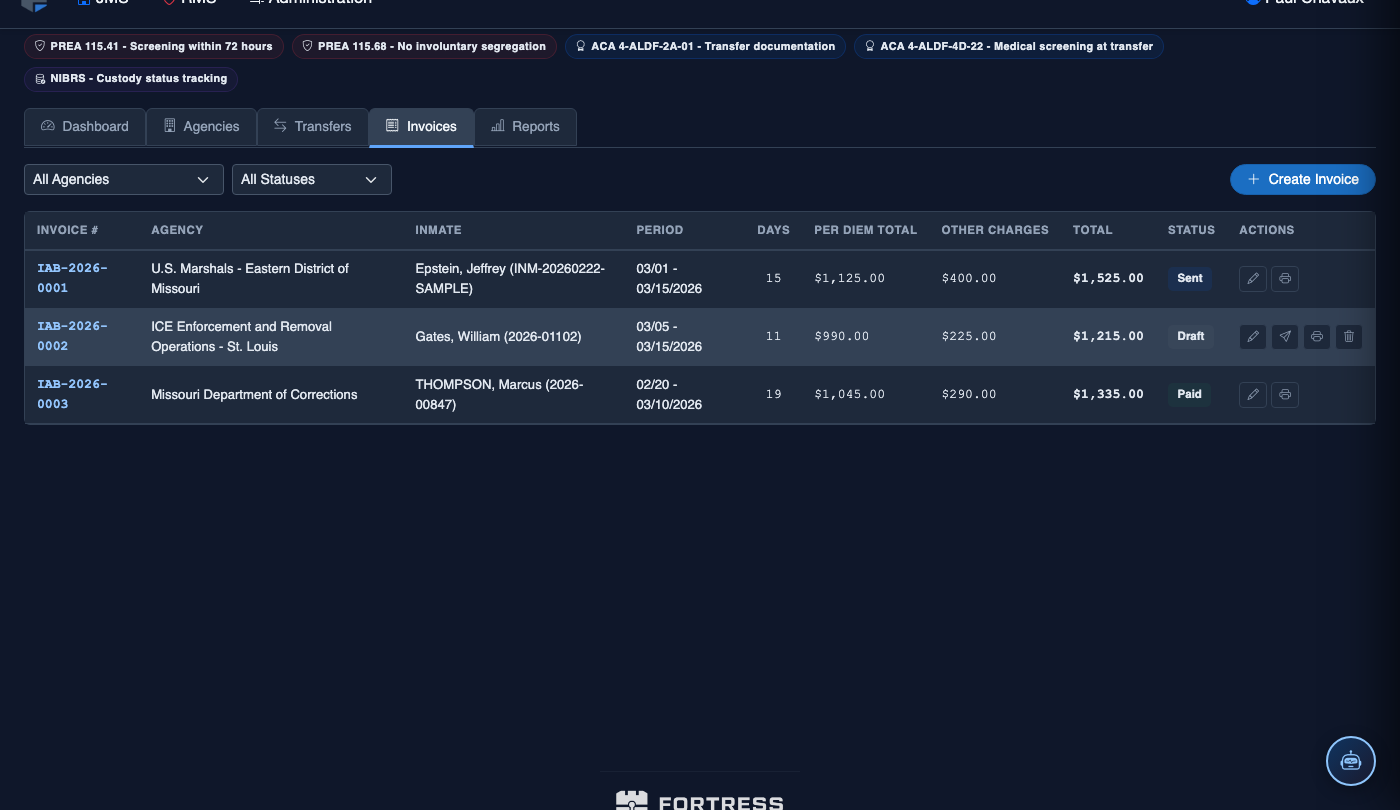
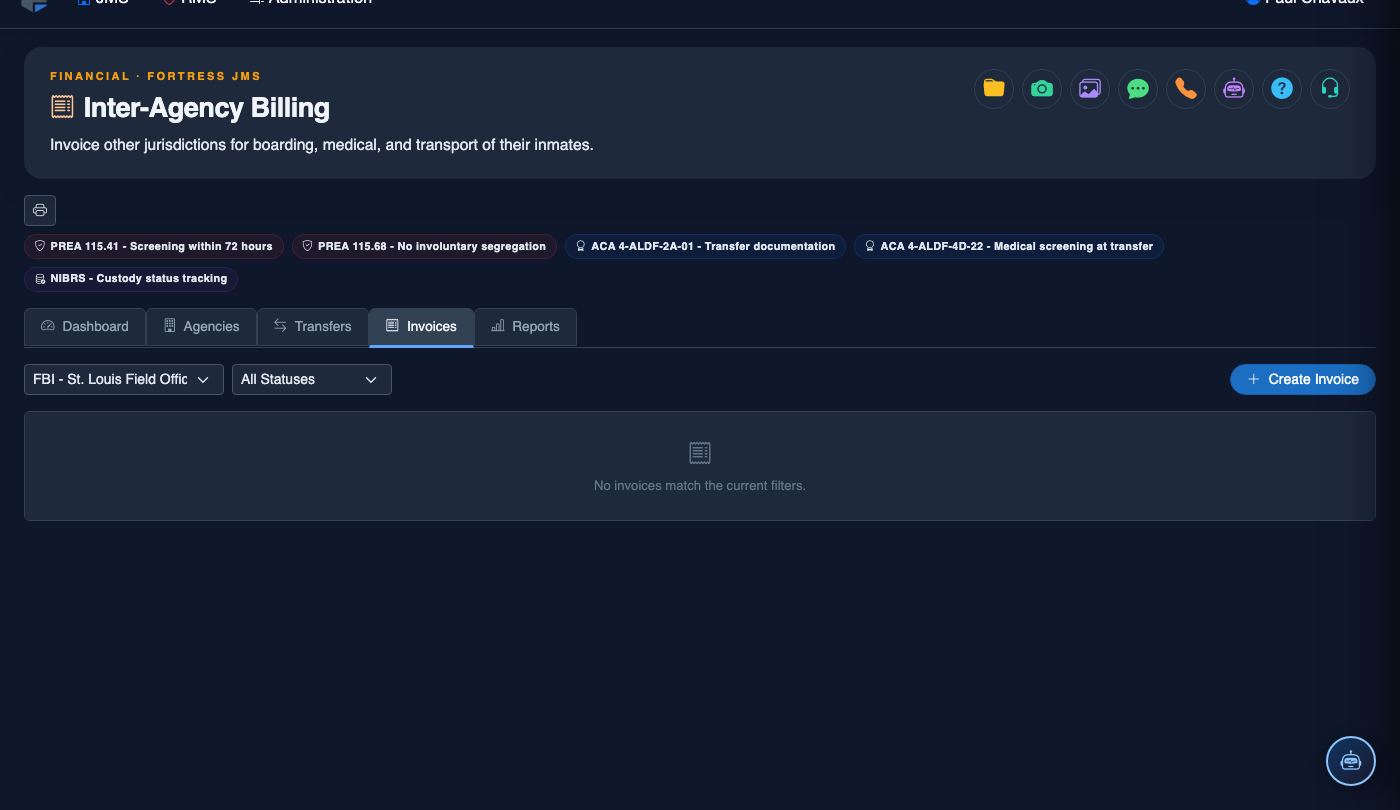
Navigate to Inter-Agency Billing and click the Invoices tab. The invoice list displays all existing invoices with their Agency, Billing Period, Amount, Status (Draft, Finalized, Paid, or Overdue), and Due Date.
Click Generate Invoice
Click the Generate Invoice button at the top of the page. A dialog will prompt you to select the Agency and the Billing Period (start and end dates). The system calculates the billing period automatically based on the agency’s configured billing cycle.
Review the Invoice Preview
The invoice preview shows an itemized list of all charges: each inmate’s name, booking number, days housed during the period, applicable rate tier, and sub-total. Verify the Total Inmate Days count against your facility’s own census records before proceeding. Any discrepancy must be resolved before finalizing.
Add Any Manual Line Items
If the housing contract includes non-per-diem charges (such as a medical transport or a booking fee), click Add Line Item to append a custom charge to the invoice. Enter the Description, Amount, and Occurrence Date. These items appear as a separate section on the invoice below the per-diem summary.
Finalize and Lock the Invoice
Click Finalize Invoice to lock the invoice. The status changes to Finalized and the record becomes read-only. If corrections are needed after finalization, you must void the invoice and regenerate it — this ensures a clean audit trail without untracked edits.
Export and Transmit the Invoice
Click Export PDF to download the formatted invoice document. The PDF includes your facility’s name, address, invoice number, and the agency’s billing contact information. Email the PDF directly to the agency’s accounts payable contact or upload it to their vendor portal. Mark the invoice as Sent after transmission to update its status.
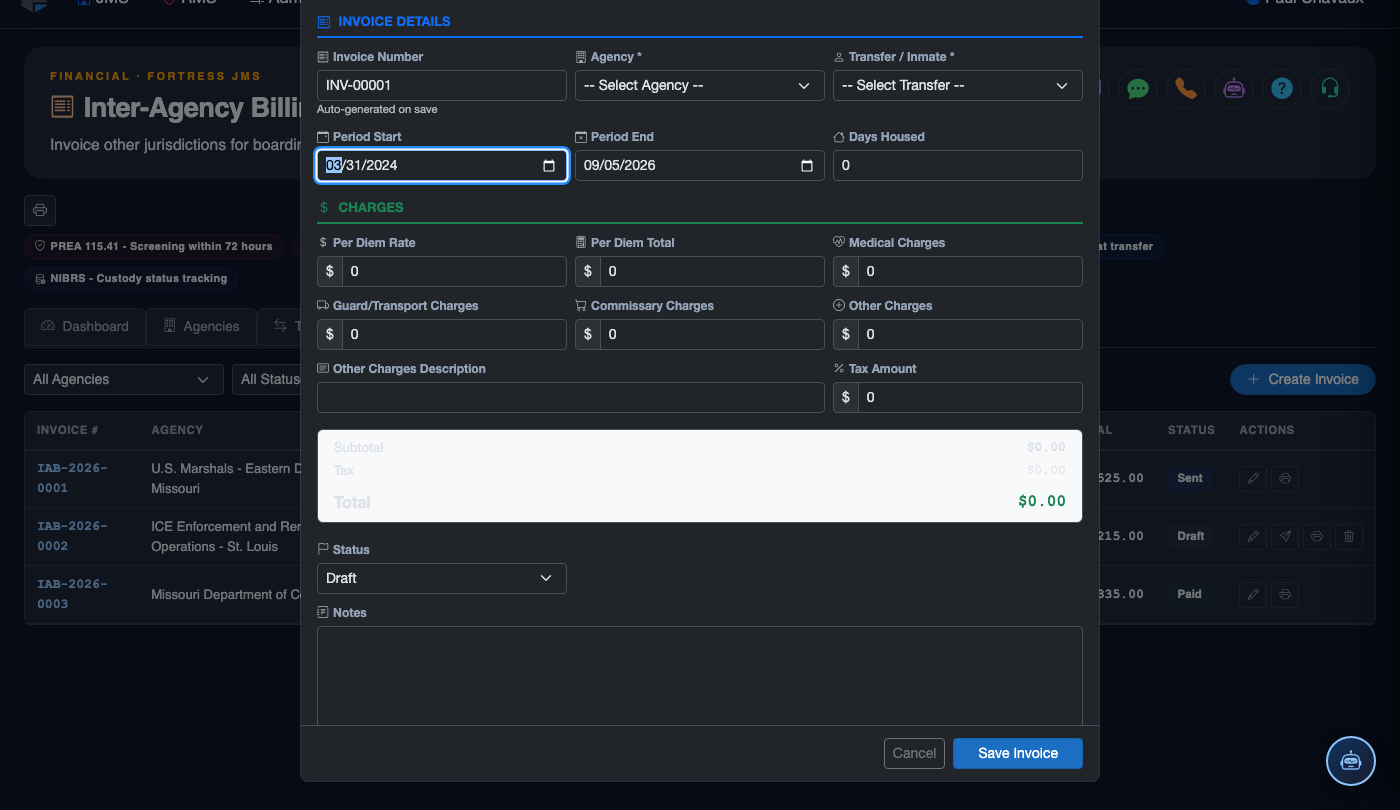
Create a New Agency Invoice
Click Create Invoice. Complete the billing form:
- Agency — select the contracting law enforcement agency.
- Billing Period — set Start and End dates for the invoice period.
- Inmate Population — the system auto-populates the daily headcount from housing records for the selected period.
- Rate Type — Per Diem or Fixed Monthly; rate pulls from the active housing contract.
- Purchase Order Number — the agency’s PO reference for matching payment.
- Notes — document any adjustments, credits, or special circumstances.
- Click Generate Invoice. Invoice is saved as Draft; submit for approval before sending.
💡 Pro Tips
- Cross-reference the system-calculated inmate-day count against your daily bed census log before finalizing — even a one-day discrepancy on a large inmate population can mean hundreds of dollars.
- Use the Sent status update immediately after transmitting the invoice so you always know which invoices are awaiting payment vs. which are still in your queue.
- Void and regenerate — never hand-edit a finalized invoice. The void creates a clear paper trail that auditors can follow.
- Set internal reminders at net-30 and net-45 to follow up on outstanding invoices — some agencies have lengthy approval queues and early follow-up prevents invoices from falling into the next fiscal quarter.
Mobile View — Invoices
FortressDMS is fully responsive. Officers can access the Invoices on a phone or tablet directly from the field — no app install required.
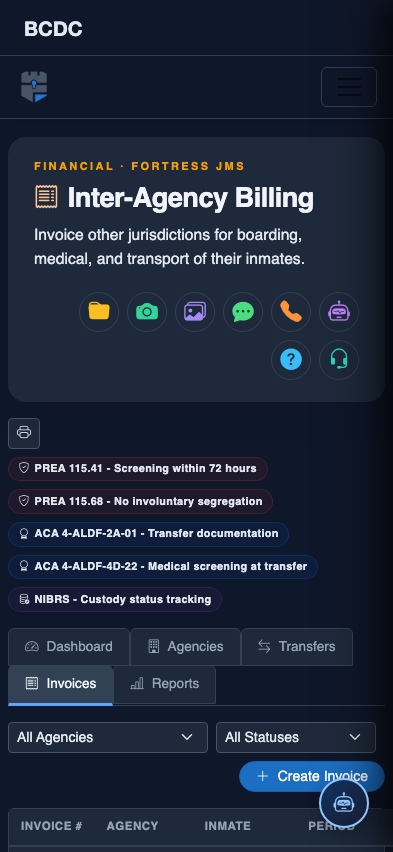
Tab view with data rows
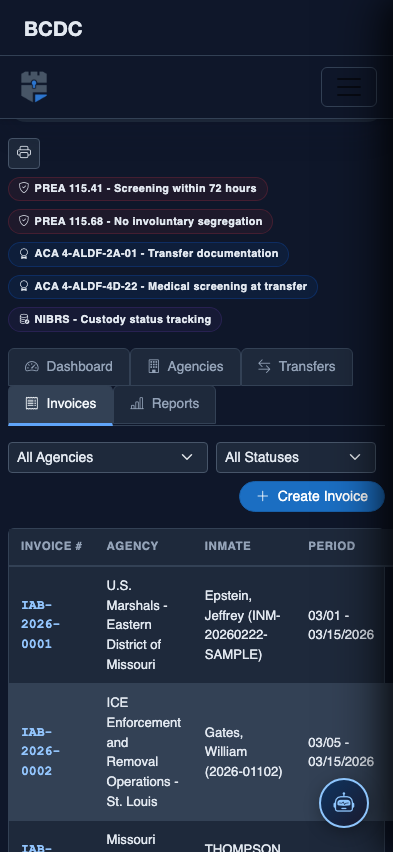
Scrolled / detail view