
Inmate Movement
The Inmate Movement module is the central command for tracking every physical location change within your facility — from cell-to-cell transfers and unit reassignments to court transports and medical escorts. FortressDMS maintains a real-time location ledger for every inmate in custody, giving officers, supervisors, and administrators an always-current picture of where each individual is and who authorized the move. Every movement event is timestamped, officer-attributed, and permanently stored in the inmate’s movement history for liability protection and operational review.
Real-Time Location Tracking
Every inmate’s current location is updated instantly when a movement is logged, giving control room staff a live facility picture.
Internal & External Moves
Handles everything from single-cell swaps to court transports, hospital holds, and inter-facility transfers in one unified workflow.
Separation Conflict Checks
Automatic checks block moves that would place incompatible inmates — enemies, co-defendants, or PREA-flagged pairs — in the same housing area.
Full Movement History
A chronological log of every location change is accessible on the inmate profile, supporting grievance investigations and litigation defense.
Escort Authorization
Assign specific officers to escort duty for any movement, creating a documented chain of custody from origin to destination.
Medical & Court Hold Flags
Temporary holds for medical appointments, court appearances, or administrative segregation are tracked separately and auto-resolved on return.
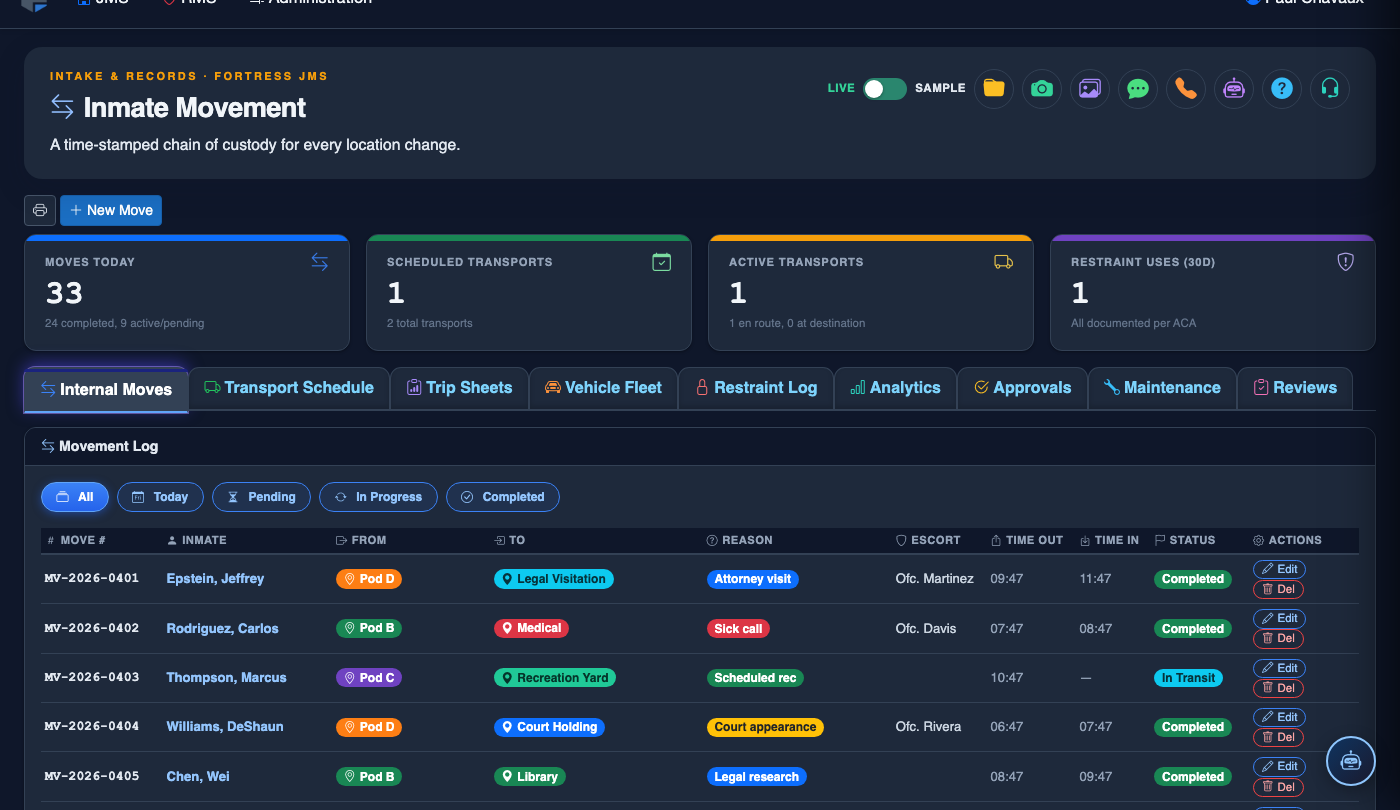
Step-by-Step: Processing an Inmate Movement
Open the Inmate Movement Module
From the main navigation, click Inmate Movement. The module dashboard displays a summary of movements in progress, pending authorizations, and any separation conflict alerts that require officer attention before moves can proceed.
Search for the Inmate
Use the Search by Name or Booking Number field to locate the inmate. The search results display the inmate’s current location, custody level, and any active separation flags. Click Select to open their movement record.
Select the Movement Type
Choose the appropriate movement type from the Movement Type dropdown: Internal Move, Court Transport, Medical Transport, Inter-Facility Transfer, or Administrative Segregation. The selected type determines which fields appear and which approval chain is triggered.
Enter Origin and Destination
Select the From Location (pre-filled with current location) and the To Location using the facility map picker or the searchable location dropdown. If the destination is outside the facility, enter the external address and receiving agency information in the transport fields.
Review Separation Conflict Alerts
Before confirming the destination, the system runs a separation check and displays any conflicts. A red alert means the destination unit already contains an enemy or PREA-flagged incompatible inmate — the move cannot proceed without a supervisor override. A yellow warning is advisory and can be acknowledged by the officer.
Assign Escort Officers
Under Escort Assignment, select the primary escort officer and any additional officers from the on-duty roster. The escort team is stamped on the movement record, creating a documented chain of custody for the entire transit duration.
Confirm Move and Update Live Location
Click Confirm Movement. The inmate’s location in the facility roster updates instantly. For transport moves, the record shows In Transit status until the receiving officer logs the arrival at the destination. The full movement event is written to the inmate’s permanent movement history.
Log Arrival to Complete the Movement Record
When the inmate arrives at the destination, the receiving officer clicks Log Arrival to close the movement event. The record captures both departure and arrival timestamps, completing the chain of custody. Incomplete movements (where arrival is never logged) surface in the supervisor dashboard as unresolved transport alerts.
💡 Pro Tips
- Use the Bulk Movement feature when reassigning an entire pod or unit — it processes multiple inmates through a single workflow and catches separation conflicts for each one before any move is confirmed.
- Require escort arrival logging as a standing post order — unresolved In Transit records are a serious accountability gap and the number one finding in facility transport audits.
- Schedule recurring Location Audits (available under Reports > Movement) to compare system records against physical headcounts and identify discrepancies before shift change.
- Medical transport moves automatically notify the medical unit upon departure so the receiving clinic can prepare — verify this notification is enabled in your facility’s movement settings.