
Workflow History
Workflow History provides a complete, tamper-evident audit trail of every workflow instance executed across the facility — from the moment a workflow was triggered to its final completion or cancellation. Administrators, compliance officers, and legal staff can search, filter, and export workflow records to demonstrate procedural compliance, investigate incidents, and respond to public records requests. Every step completion, escalation, branch decision, and reassignment is captured with officer identity, timestamp, and all data entered at that step.
Advanced Search & Filter
Search history by inmate name, booking number, workflow type, officer, date range, or outcome to pinpoint any historical record instantly.
Tamper-Evident Audit Trail
All records are write-once with cryptographic integrity checks — no administrator can modify or delete a completed workflow entry.
PDF Export
Export any workflow instance as a formatted PDF report suitable for legal discovery, court filings, or accreditation audits.
Performance Analytics
View average completion times, escalation rates, and bottleneck steps by workflow type and unit to drive continuous process improvement.
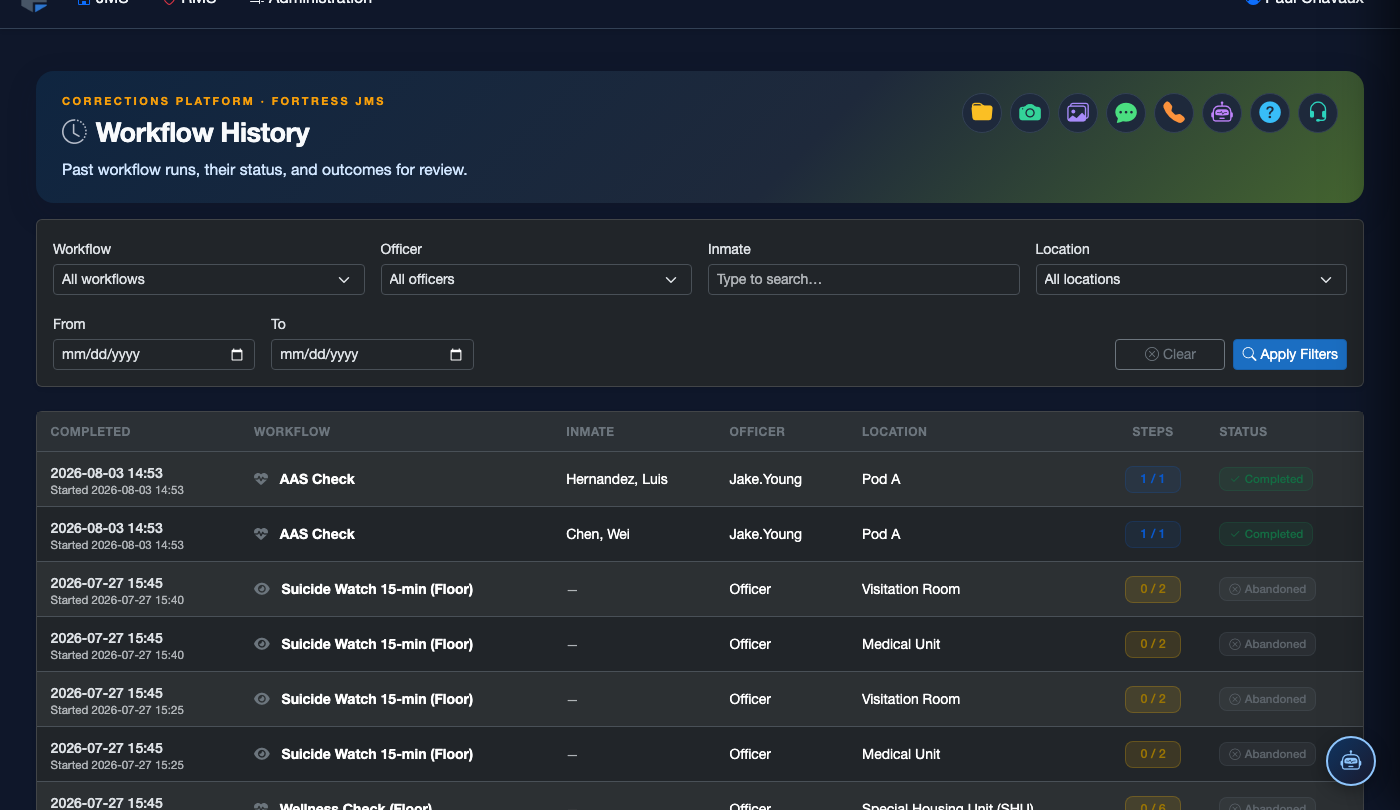
Step-by-Step: Searching and Exporting Workflow History
Access Workflow History
From the main navigation, go to Workflows > Workflow History. The page loads showing the most recent 100 completed workflow instances across all types. The default view shows Workflow Name, Inmate, Initiated By, Start Time, End Time, and Outcome (Completed, Cancelled, or Escalated).
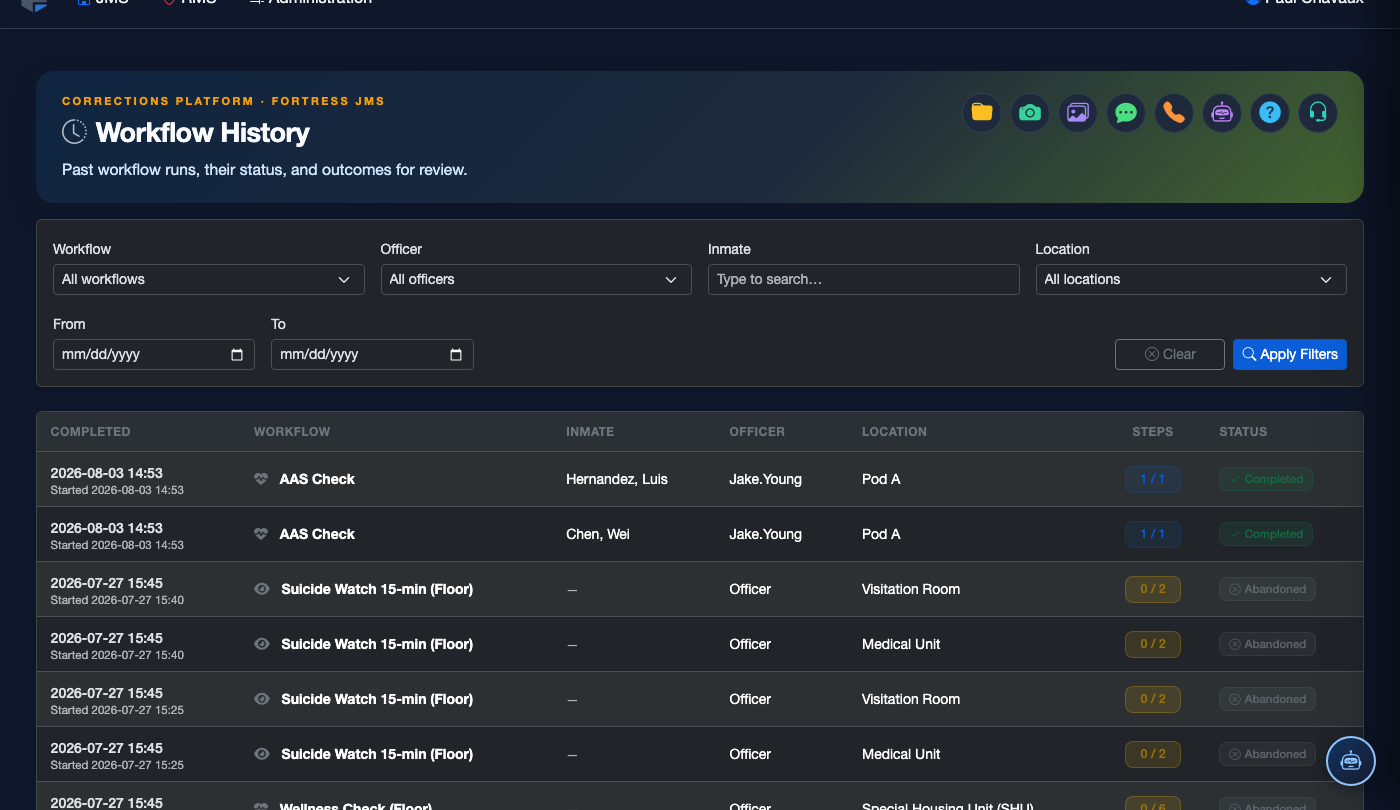
Apply Search Filters
Use the Filter Panel on the left to narrow results. Enter an Inmate Name or Booking Number, select a Workflow Type from the dropdown (e.g., Intake Screening, Disciplinary), choose a Date Range using the calendar pickers, and optionally filter by Initiating Officer or Outcome. Click Apply Filters to refresh the results grid.
Open a Workflow Instance Record
Click any row in the results grid to open the full Workflow Instance Record. The detail view shows a timeline of every step in execution order — each entry displays the Step Name, Assigned Officer, Claimed At timestamp, Completed At timestamp, the Branch Taken (if conditional), and all form data submitted at that step. Escalations appear inline in red with the escalating supervisor identified.
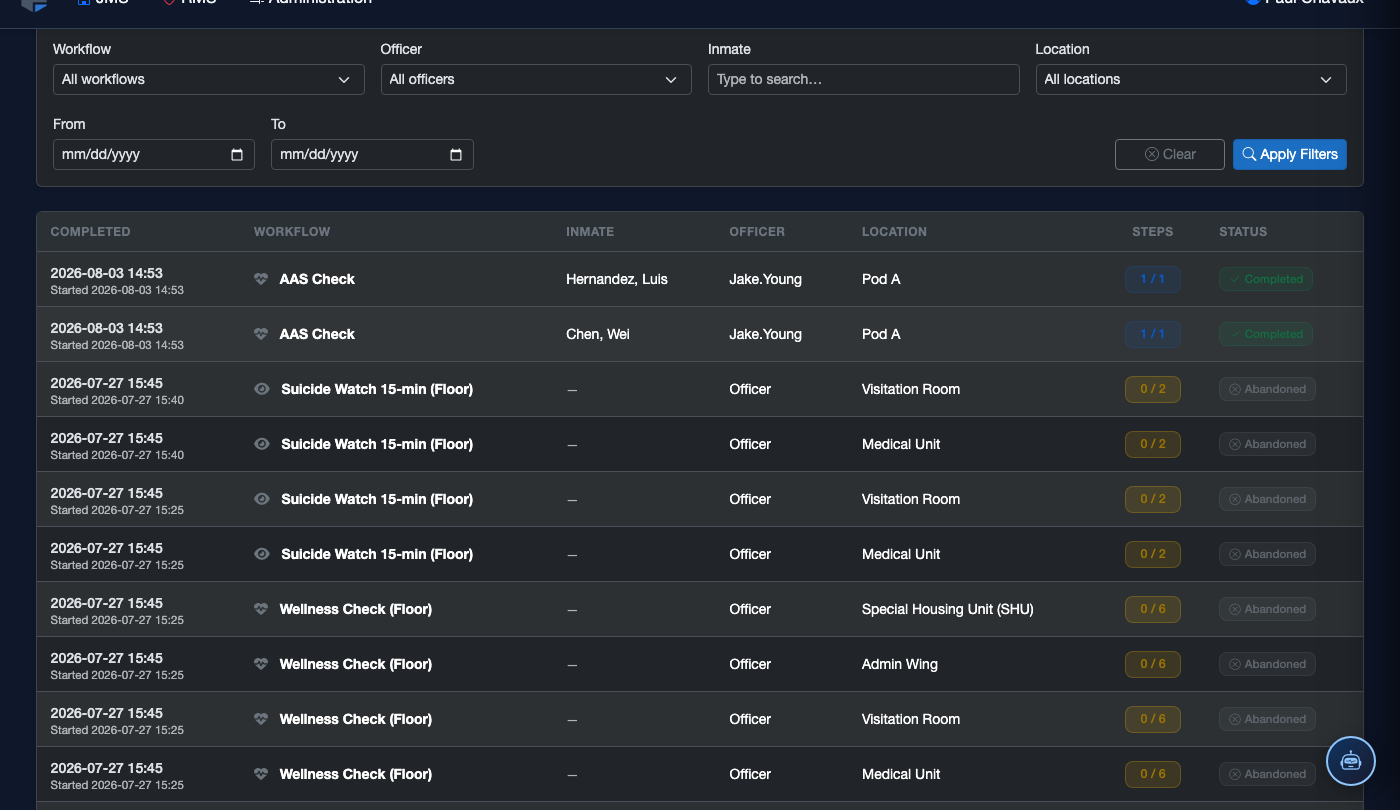
Export a Single Instance to PDF
From the Workflow Instance Record detail page, click Export PDF in the top-right corner. The system generates a formatted PDF containing the full step-by-step audit trail, all submitted data, officer signatures (if electronic signature was required), and a document integrity hash. This document is admissible as a compliance record in ACA and PREA audits.
Bulk Export for Audits
After applying filters to scope a date range or workflow type, click Bulk Export to download all matching records. Choose between PDF (per record), a CSV summary for spreadsheet analysis, or a ZIP archive containing individual PDFs for each instance. Bulk exports for large date ranges are queued and delivered via an email notification when ready.
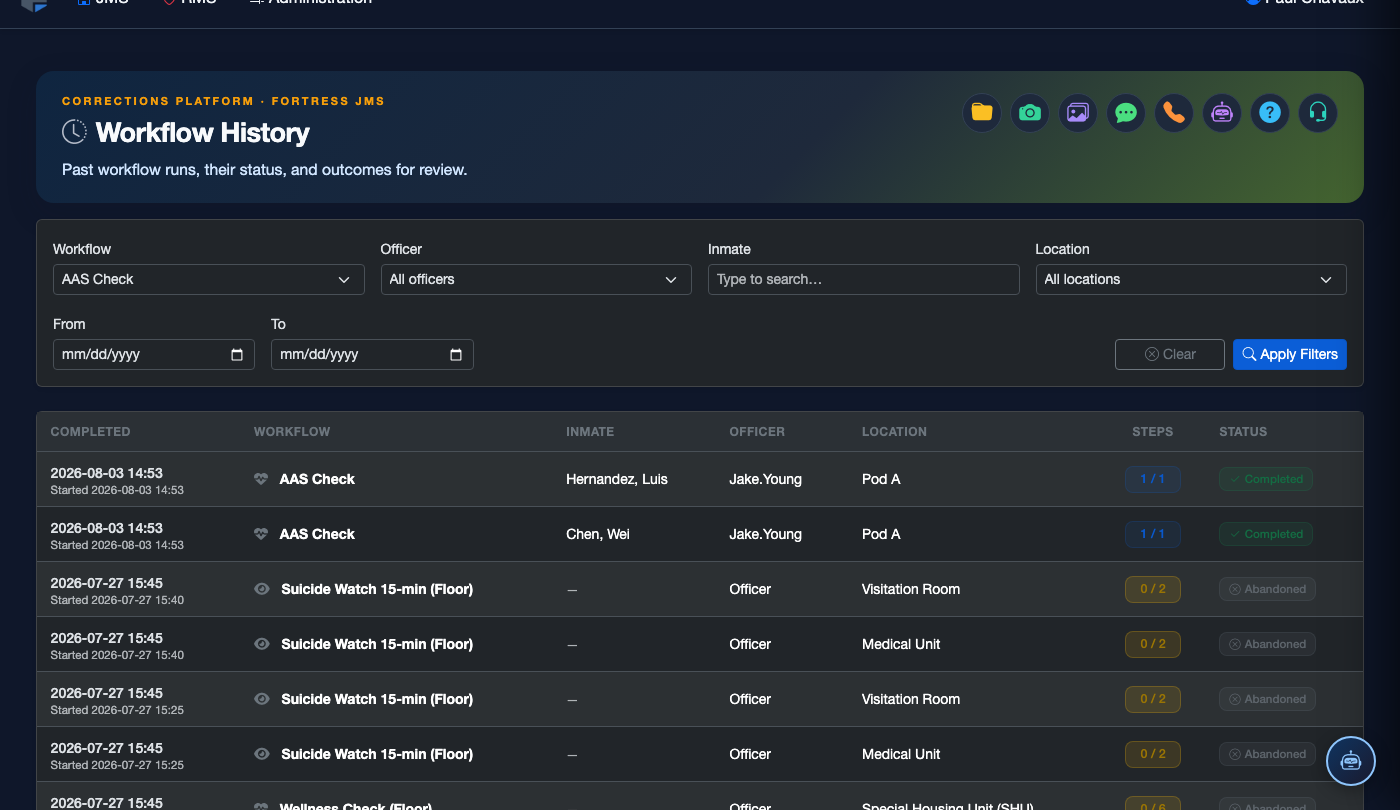
Review Analytics and Performance Metrics
Click the Analytics tab at the top of the Workflow History page to switch from record search to performance reporting. Select a workflow type and date range, then review charts showing Average Time Per Step, Escalation Rate by Step, and On-Time Completion Rate by officer and shift. Use this data to identify training gaps or process bottlenecks and bring findings back to the Workflow Builder for refinement.
💡 Pro Tips
- When preparing for a PREA or ACA audit, use the Bulk Export by Date Range feature to pull all intake screening workflows for the audit period in a single operation.
- Save commonly used filter combinations as Saved Searches (star icon in the filter panel) — for example, “Last 30 Days — Escalated” for a weekly operations review.
- The Outcome: Cancelled filter is useful for investigating incomplete workflows — check these records to ensure cancellations were properly authorized and documented.
- Cross-reference Workflow History escalation timestamps against your incident reports to verify that the documented response times match actual inmate care records.