
User Management
The User Management module provides jail administrators with centralized control over every account that accesses FortressDMS — from correctional officers and medical staff to supervisors, inmates, and external visitors. Administrators can create, modify, suspend, and audit both staff accounts and offender accounts from a single unified interface. Role-based access control ensures each user type sees only the functions appropriate to their position, while a complete activity log tracks every login, action, and account change for compliance and security purposes.
Staff Account Management
Create and manage accounts for correctional officers, supervisors, medical staff, and administrative personnel with role-specific permissions.
Role-Based Access Control
Assign granular permission sets by role so staff only access the modules and data their position authorizes — no more, no less.
Offender Account Provisioning
Provision limited inmate accounts for approved services like commissary, video visitation, and phone access, tied to their booking record.
Activity & Security Audit Log
Every login, permission change, password reset, and account suspension is logged with officer identity and timestamp for security compliance.
Step-by-Step: Managing Users in FortressDMS
Navigate to User Management
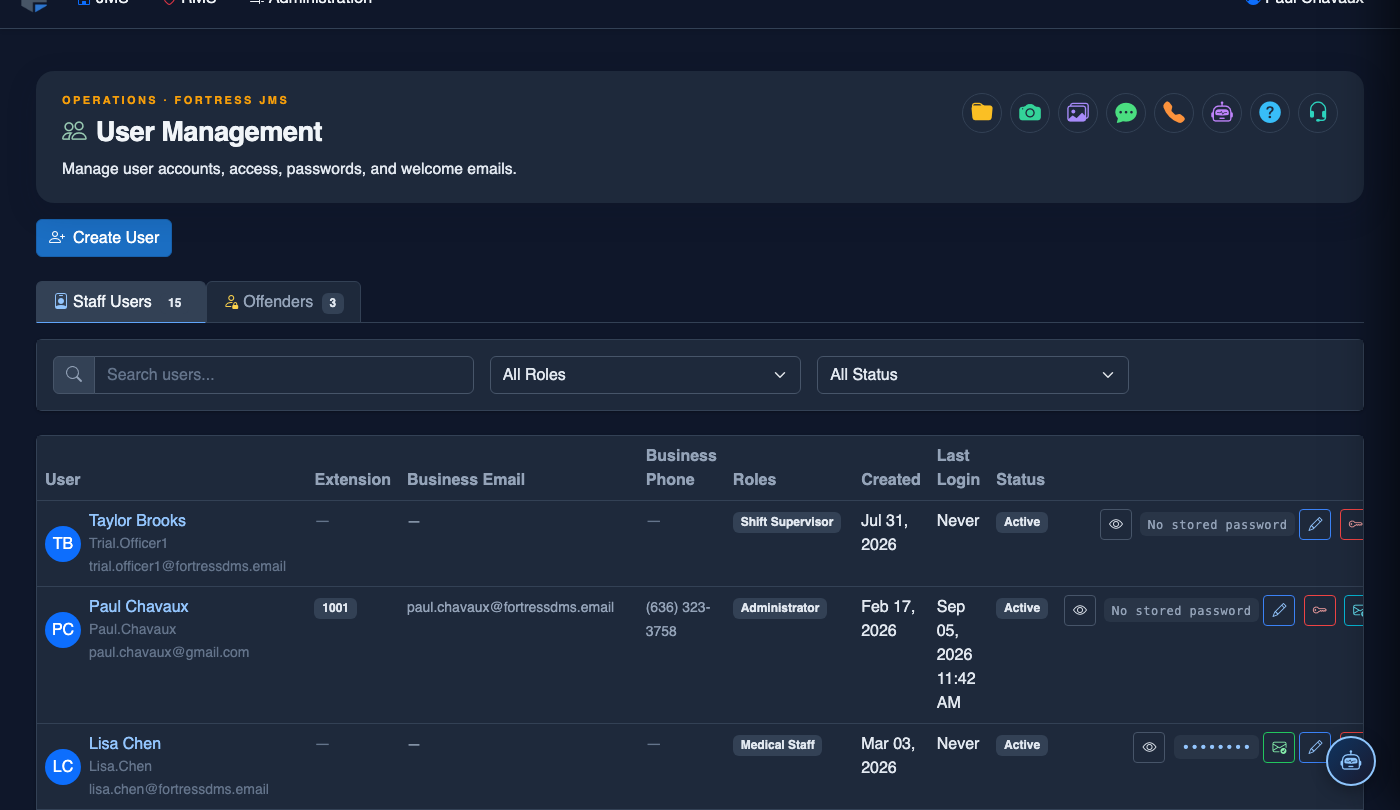
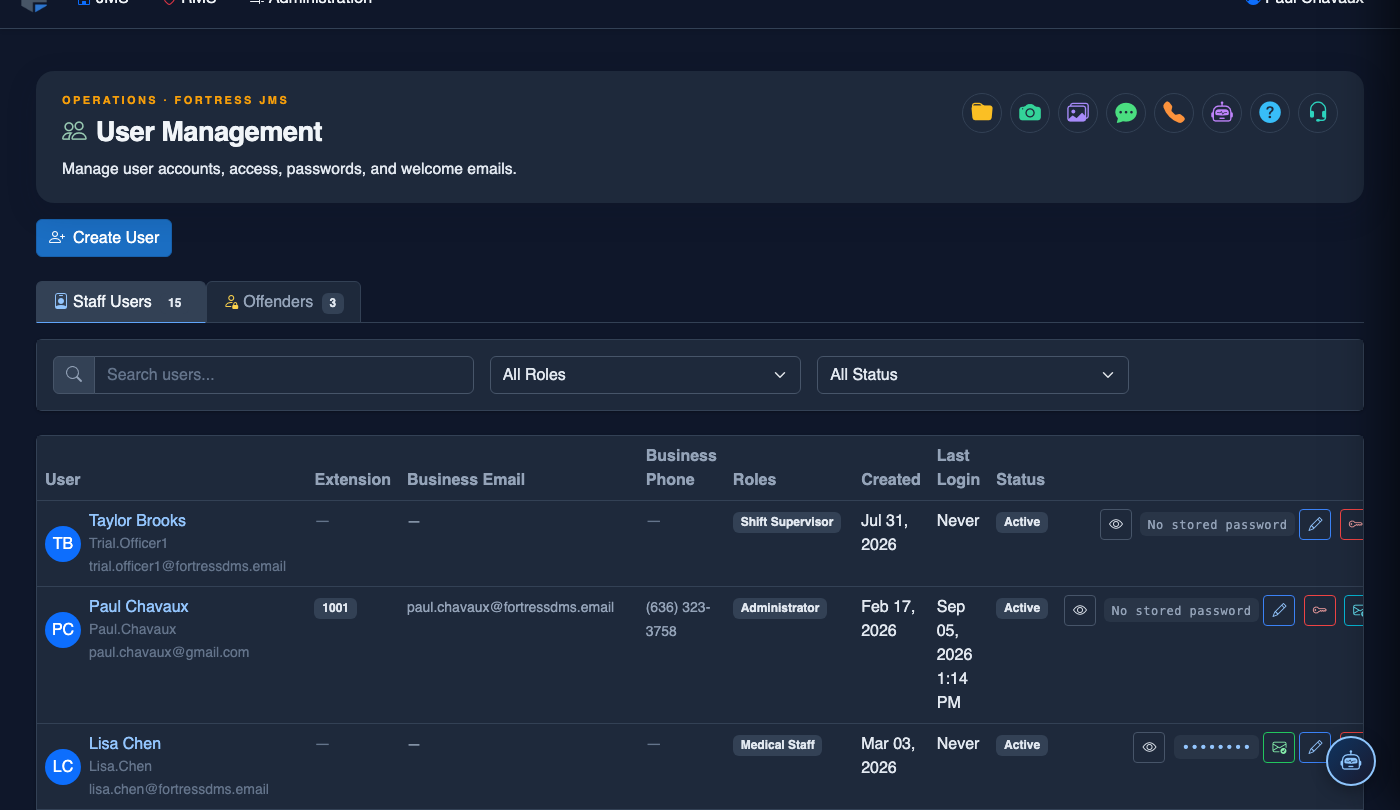
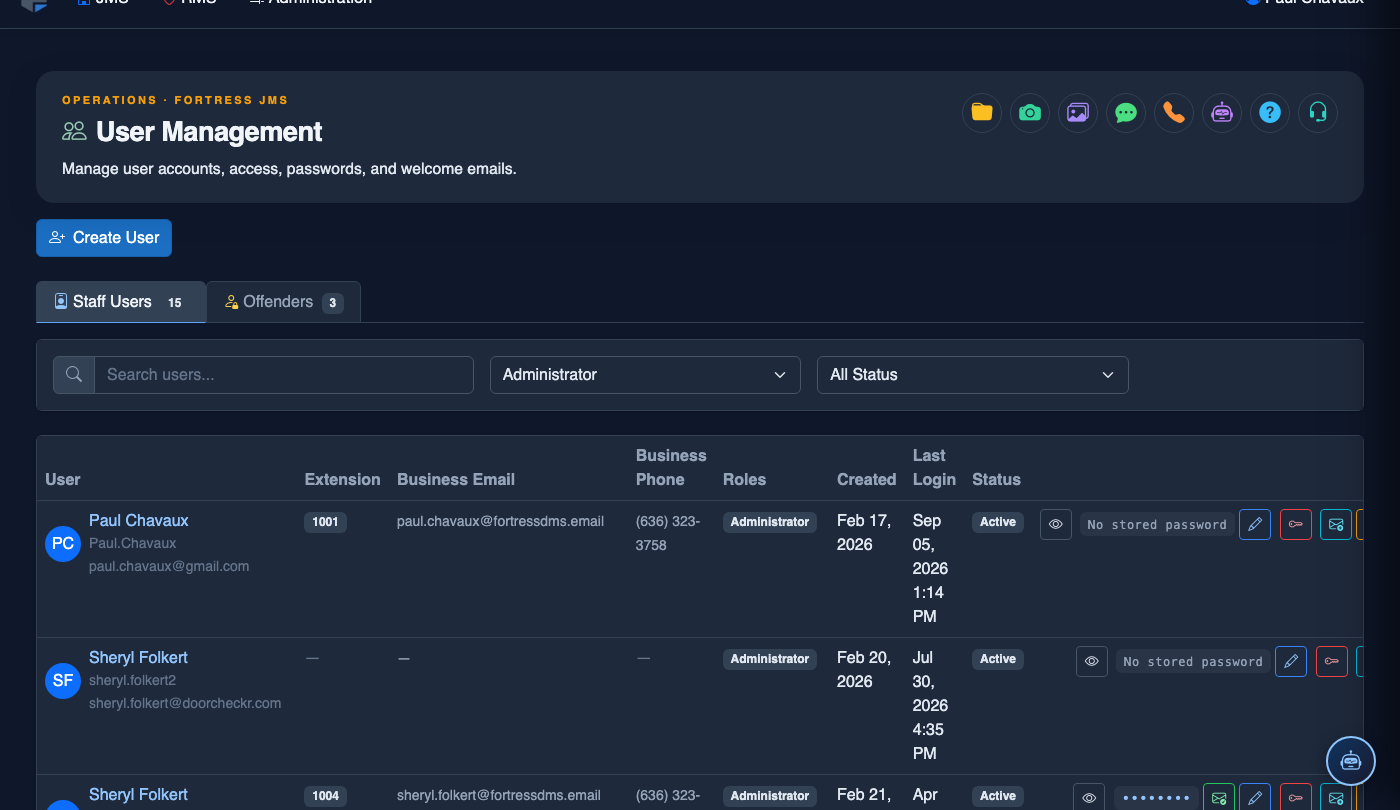
From the main navigation, select Administration > User Management. The module opens with two tabs: Staff Users and Offender Accounts. Staff Users is active by default. The main grid lists all current system accounts with columns for Name, Username, Role, Department, Last Login, and Status.
Create a New Staff User
Click + Add Staff User in the top-right corner. Complete the New User form: enter the officer’s First Name, Last Name, Employee ID, Email Address, and Phone Number. Select their Department (Booking, Security, Medical, Administration) and assign their primary Role from the dropdown.
Configure Permissions and Module Access
After selecting the role, the Permissions Preview panel automatically populates with the default permission set for that role. Review each module permission toggle — you can grant additional access or restrict default permissions on a per-user basis without changing the base role. Sensitive permissions such as Delete Records, Override Classification, and Access Medical Data require a secondary administrator confirmation.
Send Welcome Email and Set Password Policy
Check Send Welcome Email to automatically dispatch an account activation message to the officer’s email address. Under Password Policy, choose Force Password Change on First Login and set the Account Expiry date if the account is temporary (for contractors or interns). Click Create User to finalize the account.
Edit, Suspend, or Deactivate Existing Accounts
Find the account in the Staff Users grid and click the row to open the User Profile. To update role or permissions, edit the relevant fields and click Save Changes. To temporarily lock out an officer (e.g., during an investigation), click Suspend Account — the officer cannot log in but their record and audit history is preserved. To permanently deactivate a departed employee, click Deactivate — this revokes all access and archives the account.
Review the Account Activity Log
From any User Profile page, click the Activity Log tab to view the full chronological history of that user’s logins, module access events, data entries, and any account changes made by administrators. Use the Export CSV button to pull this log for HR investigations or compliance reporting.
Manage Offender Accounts
Switch to the Offender Accounts tab to provision, review, and manage inmate accounts for approved services. Offender accounts are automatically linked to the inmate’s active booking record and are automatically deactivated upon release. See the Offender Accounts tab documentation for the full provisioning workflow.
💡 Pro Tips
- Run a Quarterly Access Audit by exporting all active staff accounts and cross-referencing against your current HR roster — departed employees with active accounts are a serious security risk.
- Use Account Expiry for every contractor, intern, or temporary staff account to eliminate the risk of forgotten accounts remaining active indefinitely.
- The Last Login column in the Staff Users grid quickly identifies dormant accounts — any account with no login in 90+ days should be reviewed and suspended if the employee is still active.
- Never delete a staff account — always Deactivate it to preserve the audit trail of all actions taken under that account for legal and compliance purposes.