
Roles & Permissions
The Roles & Permissions module gives facility administrators granular control over exactly what every staff member can see and do inside FortressDMS. Define custom roles tailored to your organizational structure, assign them to individual users, and enforce least-privilege access across booking, classification, medical, and administrative functions. Role changes take effect immediately without requiring users to log out.
Custom Role Builder
Create facility-specific roles — Booking Officer, Classification Sergeant, Medical Supervisor — with precisely the permissions each position requires.
Per-User Assignment
Assign one or more roles to each staff account so deputies, nurses, and administrators each access only the modules relevant to their duties.
Module-Level Access Control
Grant or deny access to every JMS module — Booking, RMS, Medical, Commissary, and more — at a role level with a single toggle.
Audit-Ready Permissions Log
Every role creation, modification, and assignment is automatically recorded in the Audit Log for compliance review and liability protection.
Step-by-Step: Managing Roles & Permissions
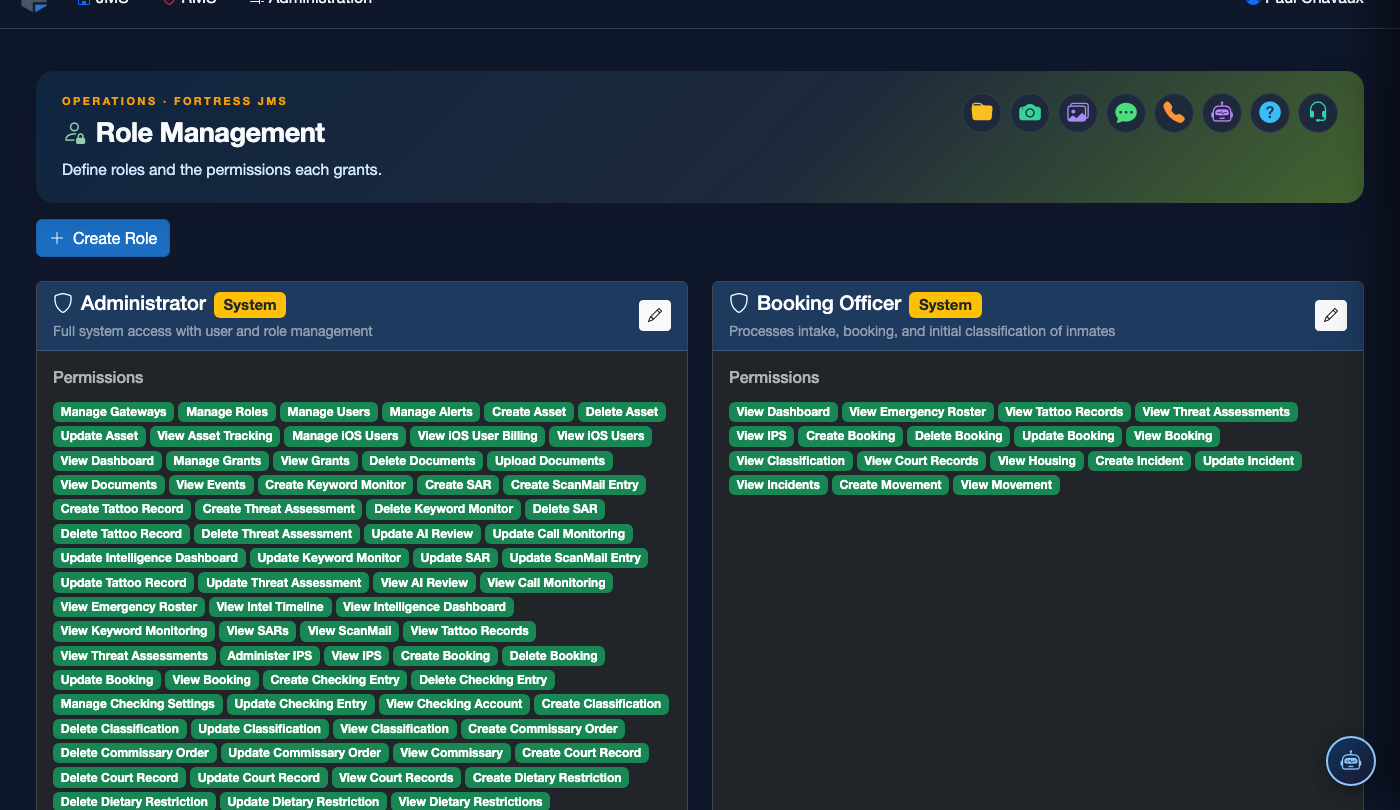
Navigate to Roles & Permissions
From the main navigation, click Administration, then select Roles & Permissions from the dropdown. You must have the Administrator role to access this module. The page displays all currently configured roles on the left panel.
Create a New Role
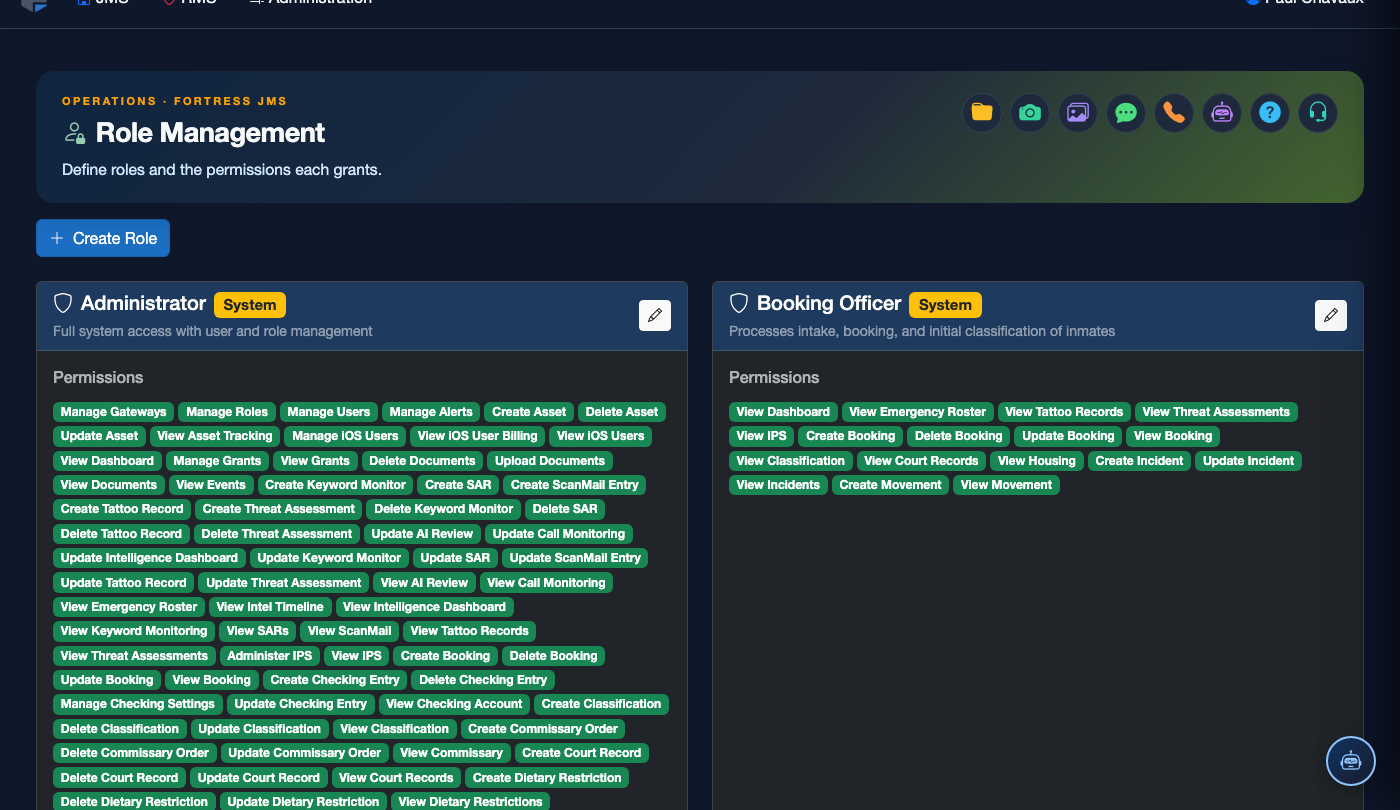
Click the + New Role button in the upper-right corner. Enter a descriptive Role Name (e.g., “Intake Officer” or “Classification Supervisor”) and an optional description. Role names should mirror your facility’s chain-of-command titles for clarity.
Configure Module Permissions
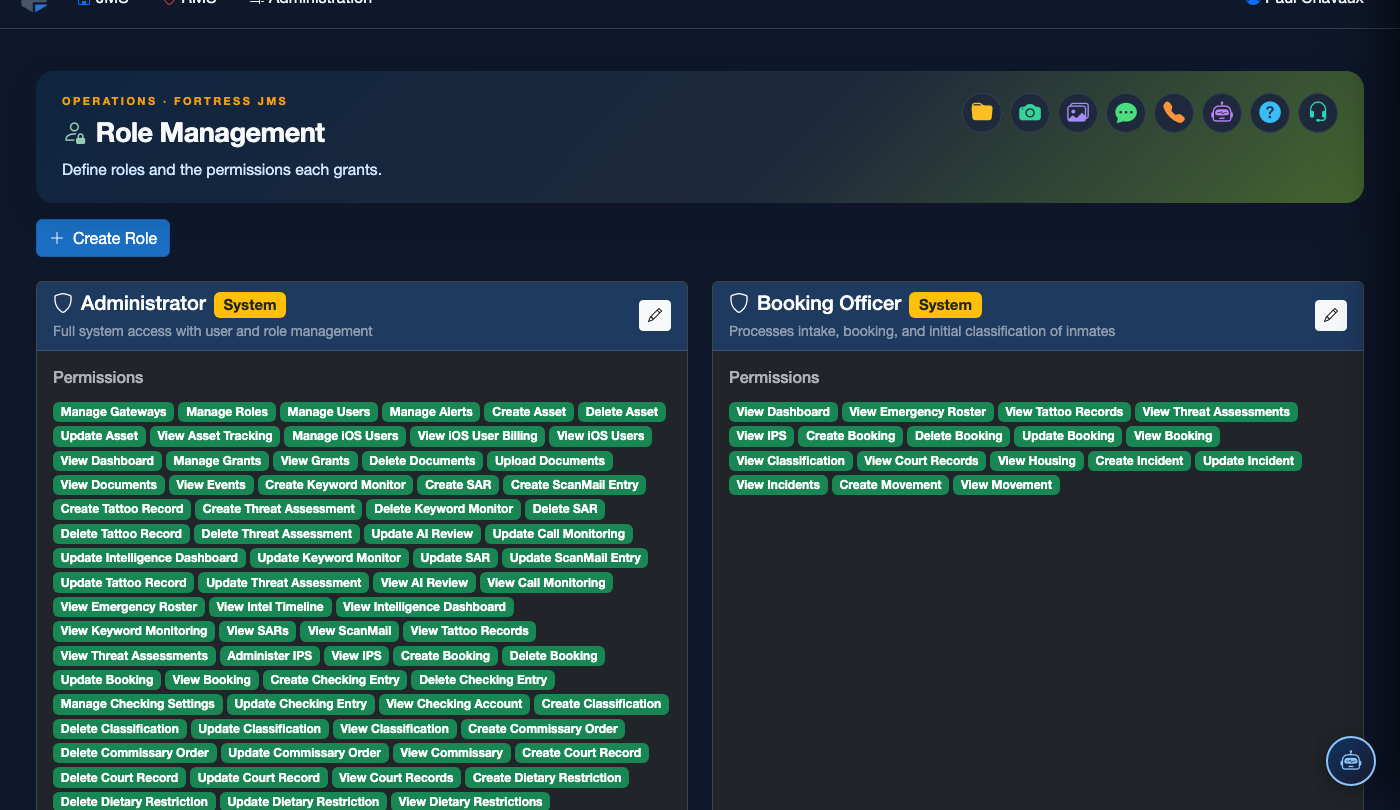
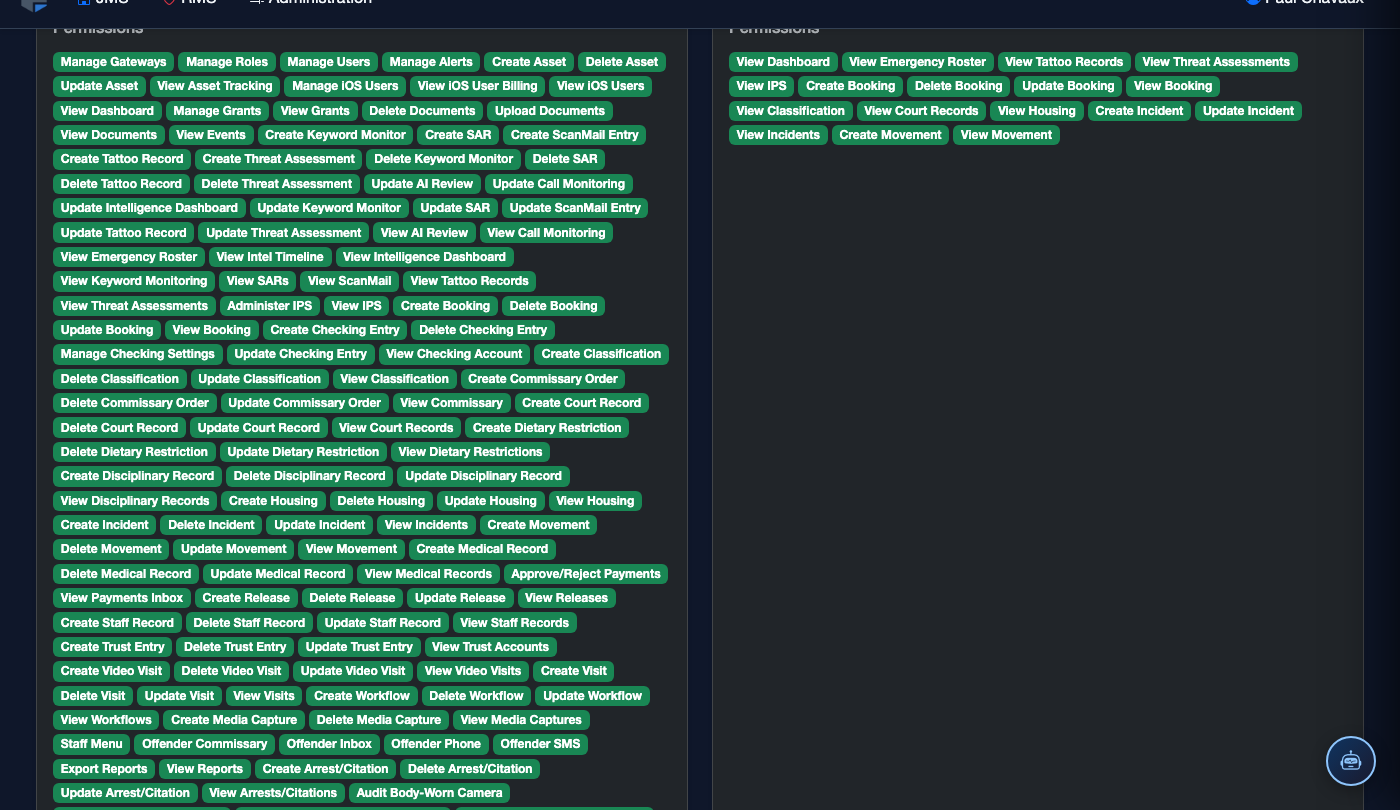
The permissions grid lists every JMS module. For each module, toggle View, Create, Edit, and Delete independently. For example, a Booking Officer may need View + Create access to Intake but only View access to Medical records. Use the Select All row header to bulk-enable an entire module.
Save the Role
Click Save Role. The system validates that at least one permission is enabled before saving. A green confirmation banner confirms the role was created. The new role immediately appears in the role list and is available for user assignment.
Assign Roles to Staff Users
Navigate to Administration > User Management, open a staff account, and click the Roles tab. Use the checkbox list to assign one or more roles. Users with multiple roles receive the union of all permissions from those roles. Click Save Changes to apply immediately — no logout required.
Edit or Deactivate Existing Roles
Select any role from the left panel and click Edit to modify its permissions. To retire a role, click Deactivate — all users assigned that role will immediately lose those permissions. FortressDMS will warn you if the role is currently assigned to active staff accounts before deactivating.
Review Role Assignment Audit Trail
All role changes are automatically logged. Navigate to Administration > Audit Log and filter by category Roles & Permissions to review a complete timestamped history of who created, modified, or assigned roles — essential for PREA and accreditation inspections.
💡 Pro Tips
- Start with your org chart — create one role per rank or job classification before assigning individual users, then fine-tune permissions based on operational feedback after go-live.
- Never assign the Administrator role to non-supervisory staff; reserve it for your JMS system administrator and facility commander only to protect sensitive configuration settings.
- Use the Duplicate Role action to clone a baseline role (e.g., “General Officer”) and make minor adjustments when onboarding a new unit or shift — saves significant configuration time.
- Audit role assignments quarterly as part of your standard access-control review; former employees or transferred staff may still hold active role assignments if not proactively removed.