
Audit Log
The Audit Log module provides a tamper-evident, append-only record of every significant action performed within FortressDMS — from booking entries and classification changes to role assignments and report exports. Every log entry captures the acting user, timestamp, affected record, and before/after values, giving administrators and inspectors a definitive accountability trail. The Audit Log supports PREA compliance, accreditation audits, and internal investigations.
Tamper-Evident Log
Append-only architecture means no staff member — including administrators — can edit or delete audit entries once recorded.
Advanced Filtering
Filter by user, date range, module, action type, or inmate booking number to quickly isolate the exact events under review.
Export for Compliance
Export filtered audit data to PDF or CSV for submission to accreditation bodies, legal counsel, or internal affairs investigators.
Real-Time Event Capture
Every create, edit, delete, and view of sensitive records is logged in real time — no batch jobs or delays between action and record.
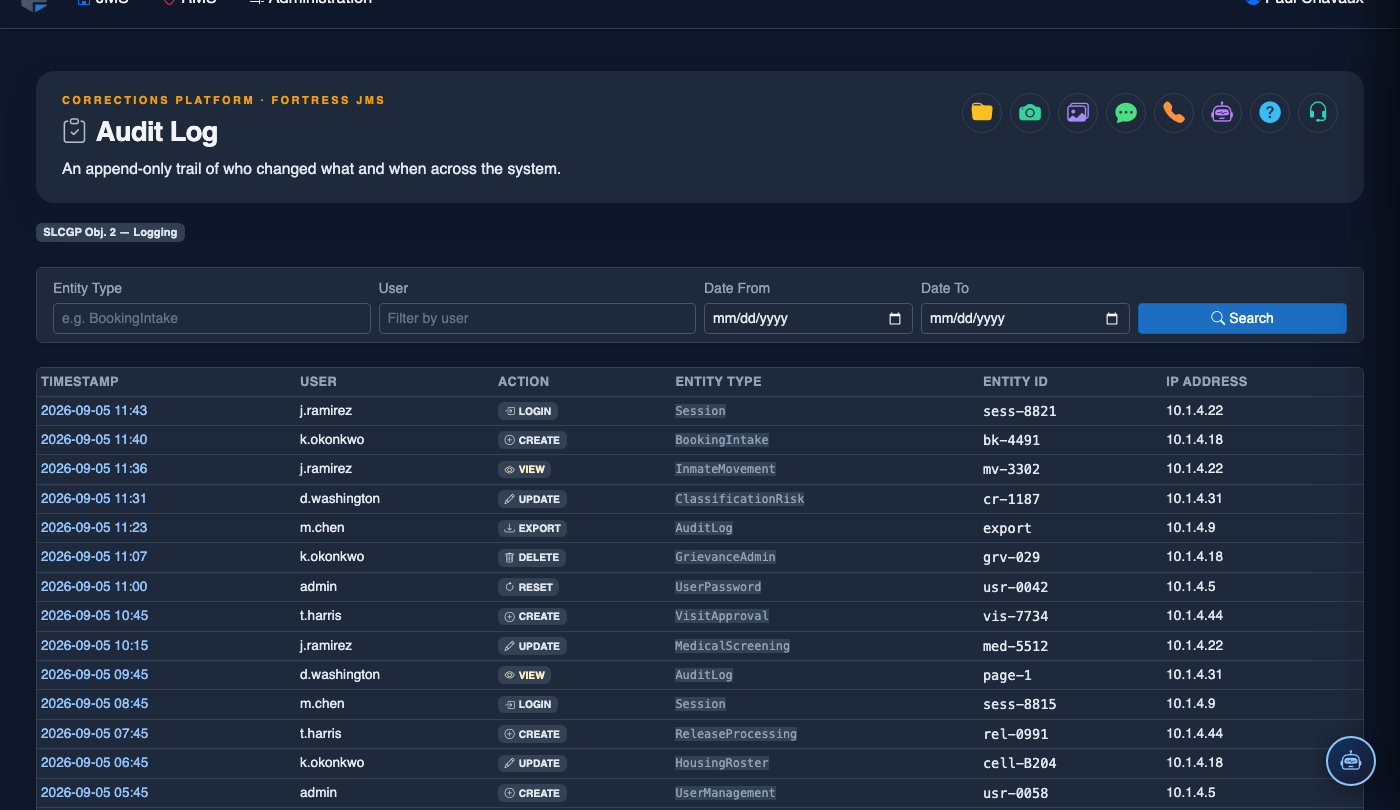
Step-by-Step: Using the Audit Log
Open the Audit Log
Navigate to Administration > Audit Log. The log opens showing the most recent 100 events in reverse-chronological order. Each row displays Timestamp, User, Module, Action, and the affected Record ID.
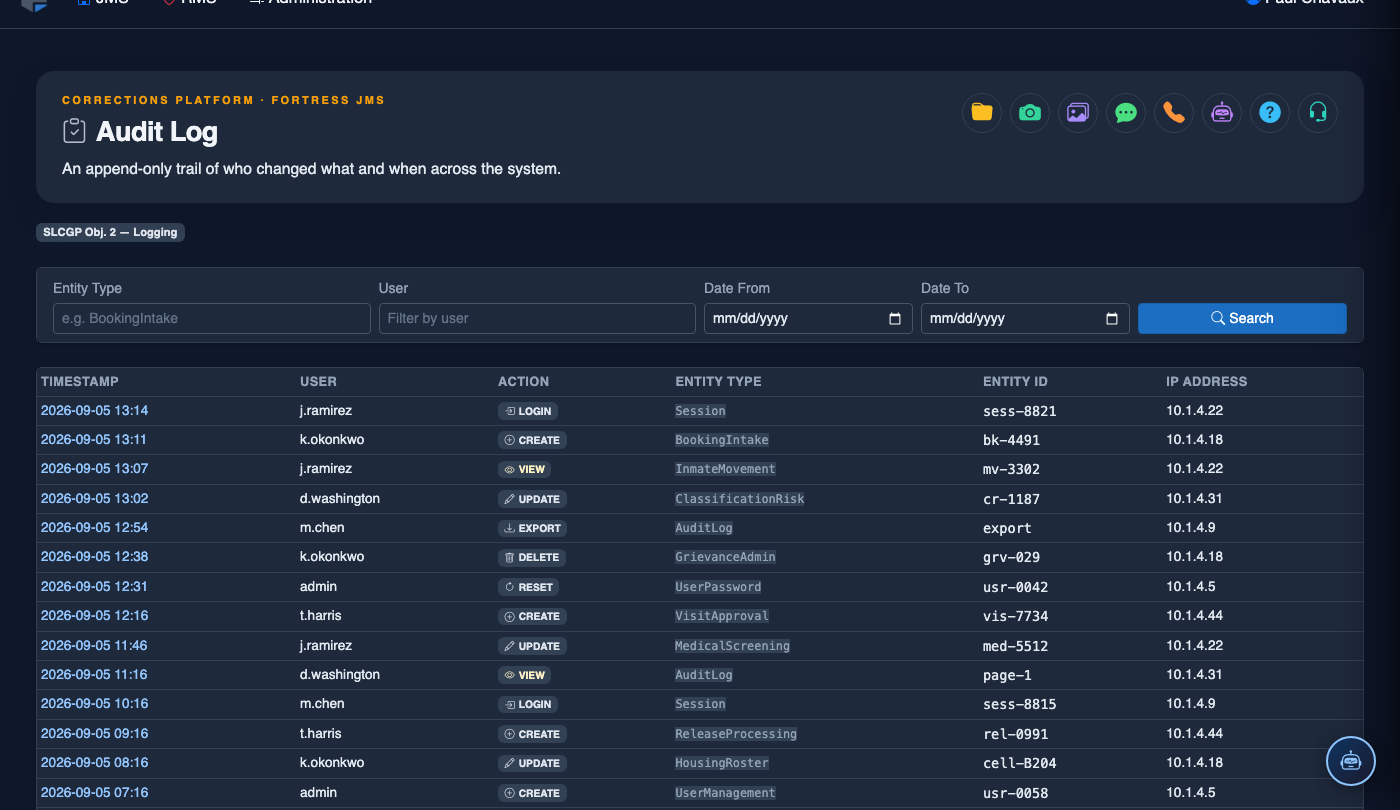
Apply Date and User Filters
Use the Filter panel at the top of the page to narrow results. Set a Date From and Date To range, select a specific Staff User from the dropdown, and choose a Module (e.g., Booking, Medical, Classification). Click Apply Filters to refresh the grid.
Search by Inmate or Record
Enter an inmate’s Booking Number or last name in the Search field to display only events related to that individual. This is the fastest way to reconstruct a chain of custody for a specific inmate during an investigation or legal proceeding.
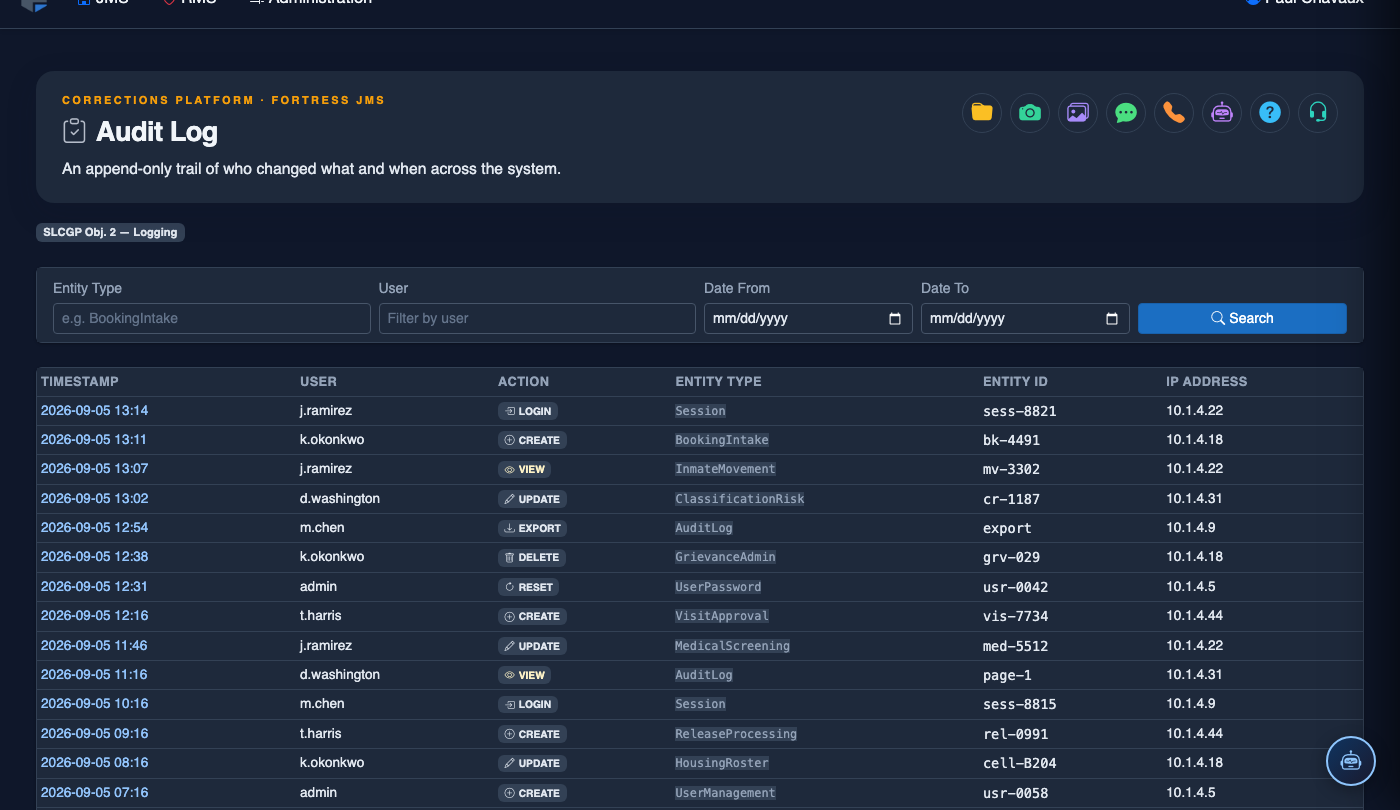
Expand an Event for Full Detail
Click the chevron on any audit row to expand it. The detail panel shows the full before-and-after field values (e.g., classification changed from Level 2 to Level 3), the user’s IP address, and the browser session ID — critical information for determining whether a change was deliberate or erroneous.
Export the Filtered Results
Once you have the relevant events filtered, click Export PDF or Export CSV. The PDF export generates a formatted report with your facility name, the applied filters, and a page-numbered log suitable for submission to inspectors or legal counsel. The CSV is ideal for further analysis in Excel or your compliance platform.
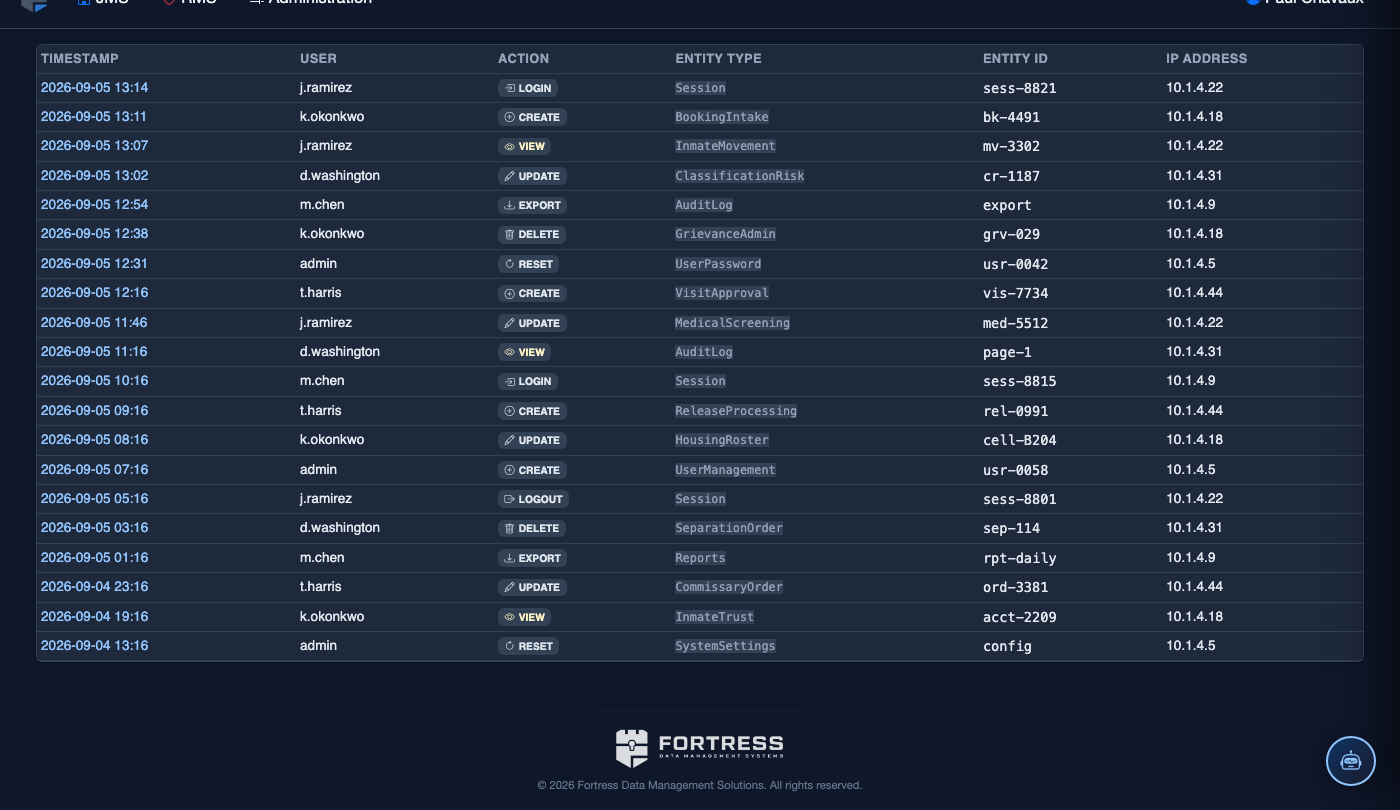
Set Up Scheduled Audit Reports
Navigate to Administration > Report Scheduler and create a recurring Audit Log report. Choose daily, weekly, or monthly delivery, select the modules to include, and enter supervisor email addresses. Scheduled reports help command staff identify unusual access patterns without manually reviewing logs each shift.
💡 Pro Tips
- During accreditation inspections, pre-generate a 90-day audit export filtered by the Medical module to demonstrate documented oversight of inmate health record access — inspectors frequently request this.
- Set up a weekly scheduled Audit Log report filtered to Roles & Permissions changes and email it directly to your facility administrator — any unauthorized permission escalation will surface immediately.
- Use the Action Type: Delete filter after any reported data discrepancy; soft-deleted records appear in the audit log even after they no longer appear in operational screens, providing a recovery reference point.