
Incident Reporting
The Incident Reporting module provides corrections officers and supervisors with a standardized, defensible system for documenting every in-facility incident — from minor disciplinary infractions to use-of-force events and medical emergencies. Reports are written and reviewed within FortressDMS, automatically linked to the inmate’s record, and archived with a tamper-evident audit trail. Supervisors can review, approve, and escalate reports to administration or the RMS Case Management module with a single click.
Structured Report Templates
Choose from facility-configured templates — Use of Force, Assault, Medical Emergency, Contraband — to ensure every officer captures the same required fields every time.
Supervisor Review Workflow
Reports route automatically to the reporting officer’s supervisor for review and approval before archiving — no paper routing slips, no lost reports.
Automatic Inmate Linkage
Incident reports are automatically associated with every named inmate’s permanent record, visible from their booking profile without manual cross-referencing.
Evidence Attachments
Attach photographs, body-camera clips, and medical documentation directly to the report for a complete, self-contained evidentiary package.
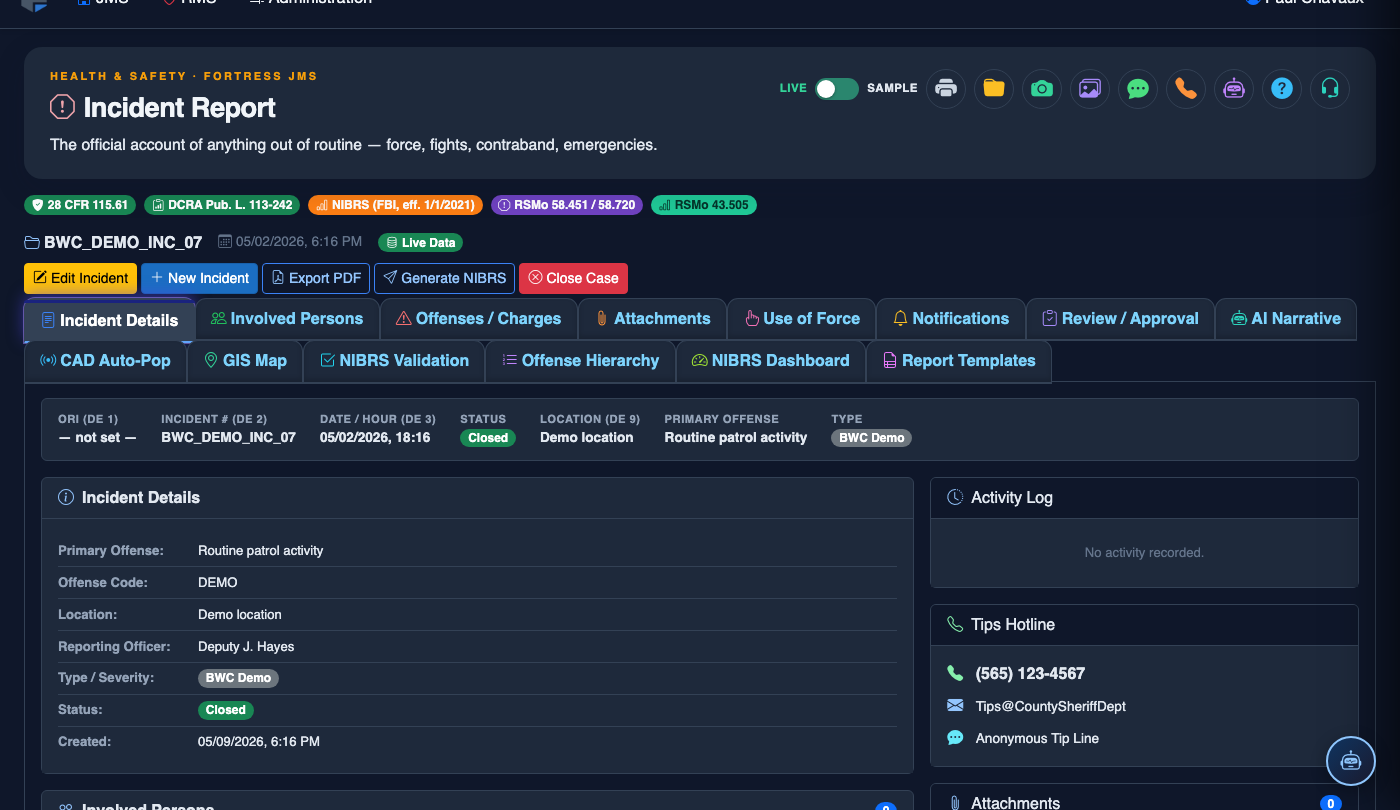
Step-by-Step: Filing an Incident Report
Navigate to Incident Reporting
Click Incident Reporting from the main navigation. The module opens on the Incident List tab, which shows all incidents filed at your facility. Your pending incidents requiring action appear highlighted at the top. Click + New Incident Report to begin a new report.
Select the Incident Type and Template
Choose the Incident Type from the dropdown (e.g., Inmate Assault, Use of Force, Medical Emergency, Contraband Discovery, Property Damage, PREA Allegation). The form automatically loads the template configured by your administrator for that incident type, ensuring all required fields appear. Enter the Incident Date/Time and Location within the facility.
Identify Involved Inmates and Staff
In the Involved Parties section, search for and add each inmate involved by booking number or name, designating each as Aggressor, Victim, or Witness. Add any involved staff members by name and role. Each person added creates a direct link between the report and their respective records for future reference.
Write the Narrative
In the Narrative field, document a first-person, chronological account of the incident using factual, objective language — avoid conclusions or opinions. The system provides a character count and flags reports under the facility’s minimum narrative length requirement. Use the Spell Check tool before submitting. Narratives cannot be edited after supervisor approval.
Attach Evidence
Click Add Attachment to upload photographs, body-camera footage, scanned medical forms, or contraband inventory sheets. Each file is stored securely with an upload timestamp and the name of the uploading officer. Supported formats include JPG, PNG, PDF, and MP4. Large video files are automatically compressed without loss of evidentiary quality.
Submit for Supervisor Review
Click Submit for Review. The system validates all required fields and prompts you to correct any missing information before accepting the submission. Once submitted, the report is locked for editing and routed to your direct supervisor’s review queue. You will receive an in-app notification when the report is approved, returned for revision, or escalated.
Supervisor Approval and Escalation
Supervisors open the report from their Review Queue, read the narrative and attachments, and click Approve or Return for Revision with comments. Approved reports are immediately linked to the involved inmates’ records. For serious incidents, click Escalate to RMS to automatically create an RMS case pre-populated with this report’s details.
💡 Pro Tips
- File your incident report within 4 hours of the incident while details are fresh — courts and investigators routinely question the accuracy of reports filed days later. FortressDMS timestamps submissions automatically, making timeliness part of the permanent record.
- For Use of Force reports, use the PREA flag if the incident involved any sexual element — this triggers a separate review workflow and ensures compliance with mandatory PREA reporting obligations, even if the ultimate classification changes.
- If a report is returned for revision, read the supervisor’s comment carefully before making changes — the system tracks the full revision history, so inspectors can see exactly what was changed and when, making incomplete revisions more problematic than the original report.