
SIP Console
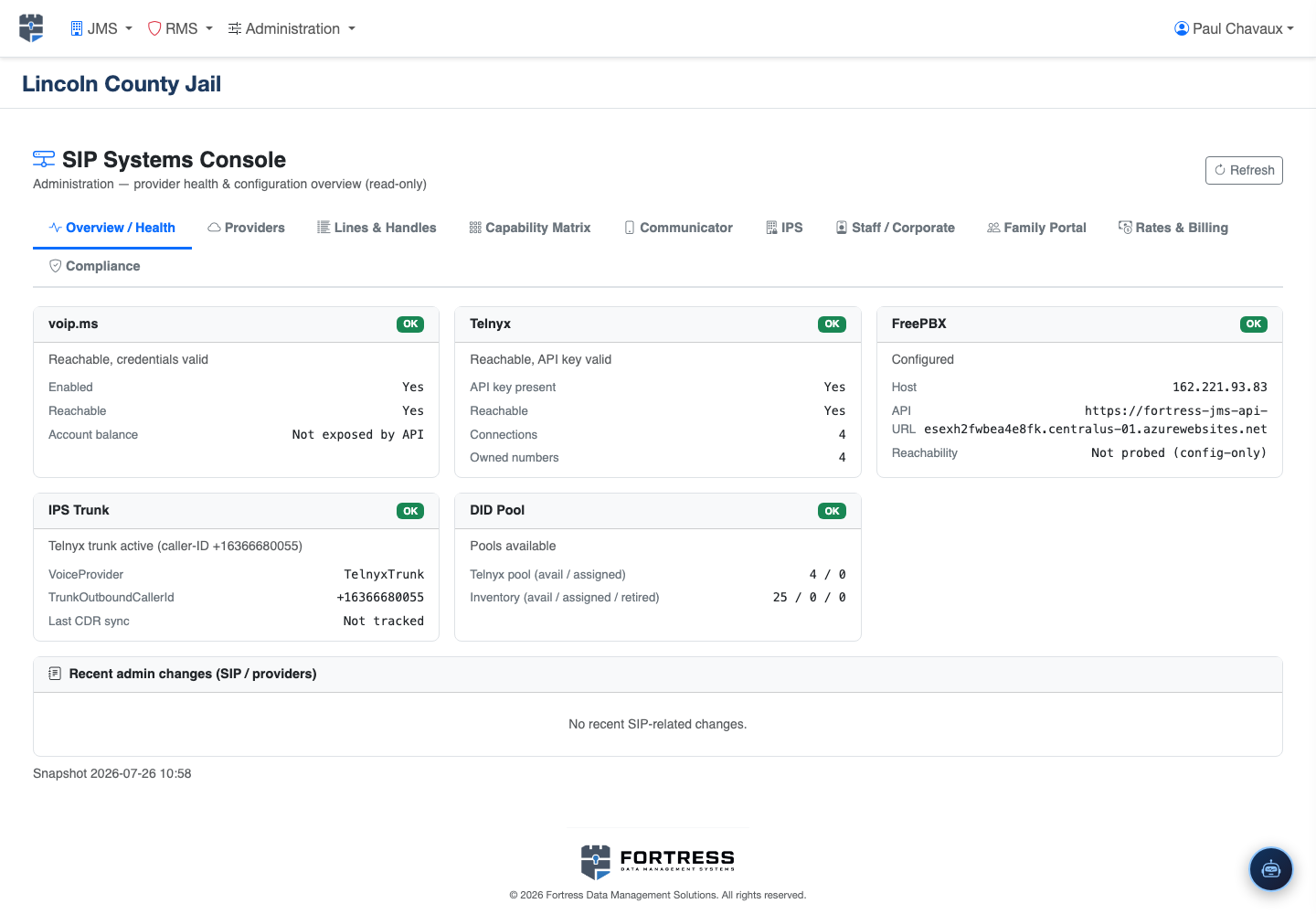
The SIP Console provides system administrators with a real-time view of all active VoIP sessions, registered extensions, and trunk line status across the facility’s inmate phone infrastructure. Administrators can monitor live calls, force-terminate sessions, troubleshoot registration failures, and validate trunk connectivity without leaving the Fortress JMS interface.
Extension Registry
Live table of all SIP extensions showing registration status, assigned inmate, and current call state.
Active Session Monitor
Real-time view of every active call with elapsed duration, caller ID, destination, and recording status.
Trunk Status Panel
Visual health indicators for all SIP trunks showing registration, active channels, and recent error codes.
Diagnostic Tools
Built-in SIP trace viewer, ping test, and extension re-registration commands for rapid troubleshooting.
Session Control
Authorized administrators can immediately terminate any active call session and lock an extension from further use.
Step-by-Step: Using the SIP Console
Open the SIP Console
Navigate to Administration → SIP Console. The console loads a live dashboard showing extension count, active sessions, and trunk health at a glance.

Monitor Active Extensions
The Extension Registry table lists every provisioned SIP extension. The Status column shows Registered (green), Offline (gray), In Call (blue), or Error (red). Click any row to see the full SIP registration details.
View Live Calls
Click the Active Sessions tab to see all calls currently in progress. Each row shows the extension number, inmate name, destination contact, elapsed time, and whether call recording is active. The table auto-refreshes every 5 seconds.
Terminate a Session
To force-end a call, click the Terminate ☒ button on any active session row. Enter your admin credentials to confirm. The call is immediately dropped and an event is written to the audit log with your officer ID and reason.
Check Trunk Health
Click the Trunks tab to view all configured SIP trunks. Each trunk card shows the current registration state, number of active channels, maximum capacity, and the most recent SIP response code. Amber or red indicators require immediate investigation.
Run a SIP Trace
For troubleshooting registration failures, select an extension and click SIP Trace. The system captures the next 60 seconds of SIP signaling for that extension and displays it in a color-coded viewer. Export the trace as a .txt file for escalation to your VoIP provider.
Force Re-Registration
If an extension shows as Offline or Error, click Re-Register to send a fresh SIP REGISTER command. Monitor the status column for transition to Registered within 30 seconds. If it fails, consult the SIP trace for the rejection cause code.
💡 Pro Tips
- Bookmark the SIP Console in your browser for instant access during shift turnover — a quick trunk health check should be part of every control room handoff procedure.
- A sudden spike in Error-state extensions usually indicates a trunk registration failure rather than individual device problems — check the Trunks tab first before troubleshooting individual phones.
- SIP trace exports are invaluable when working with your carrier on call-quality issues — capture traces during a reported problem period and attach them directly to your support ticket.