
BWC Devices & Fleet
The BWC Devices & Fleet module gives correctional administrators a centralized dashboard to manage every body-worn camera assigned to the facility. Track device assignment by officer and shift, monitor battery and storage health in real time, schedule firmware updates, and generate compliance reports — all from a single interface. Proactive fleet management ensures cameras are always operational before officers begin their tours of duty.
Device Inventory
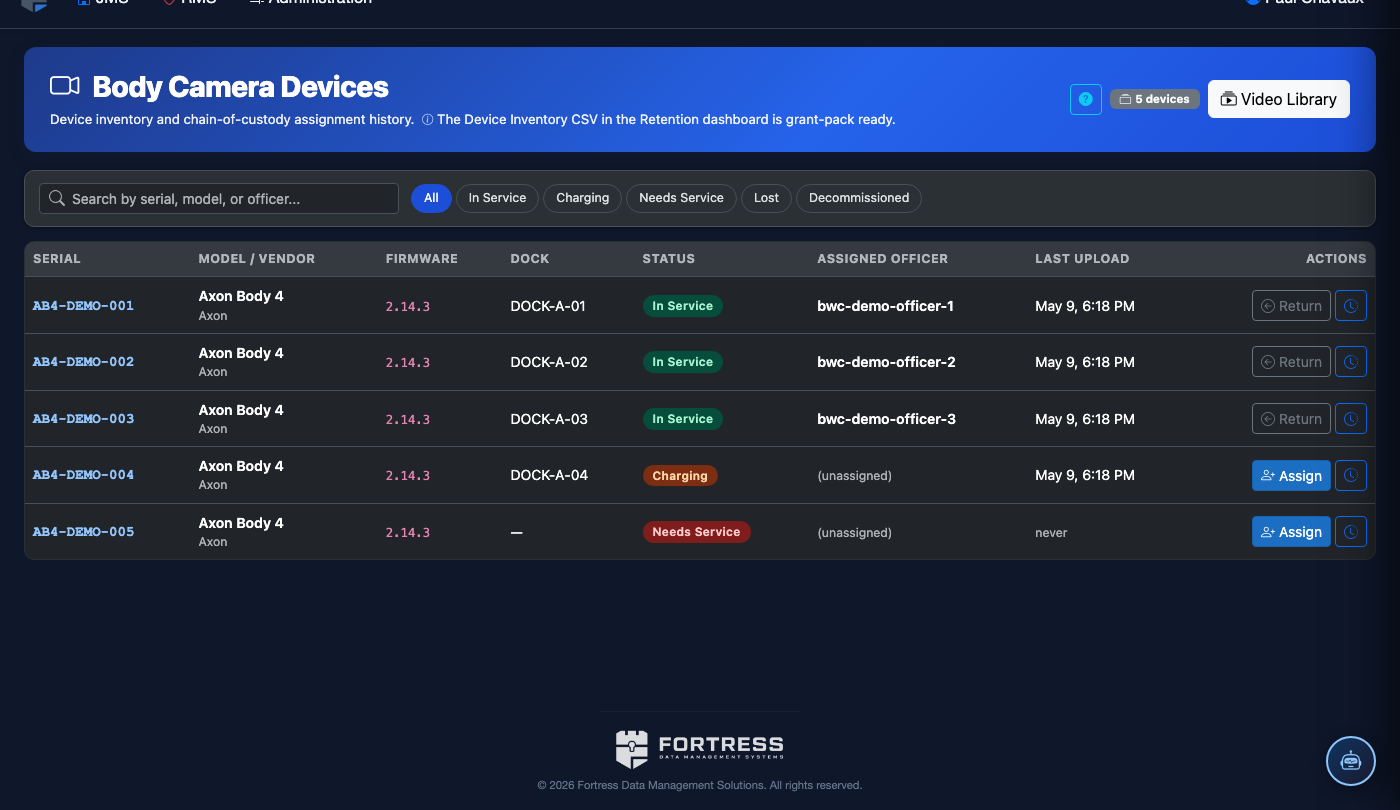
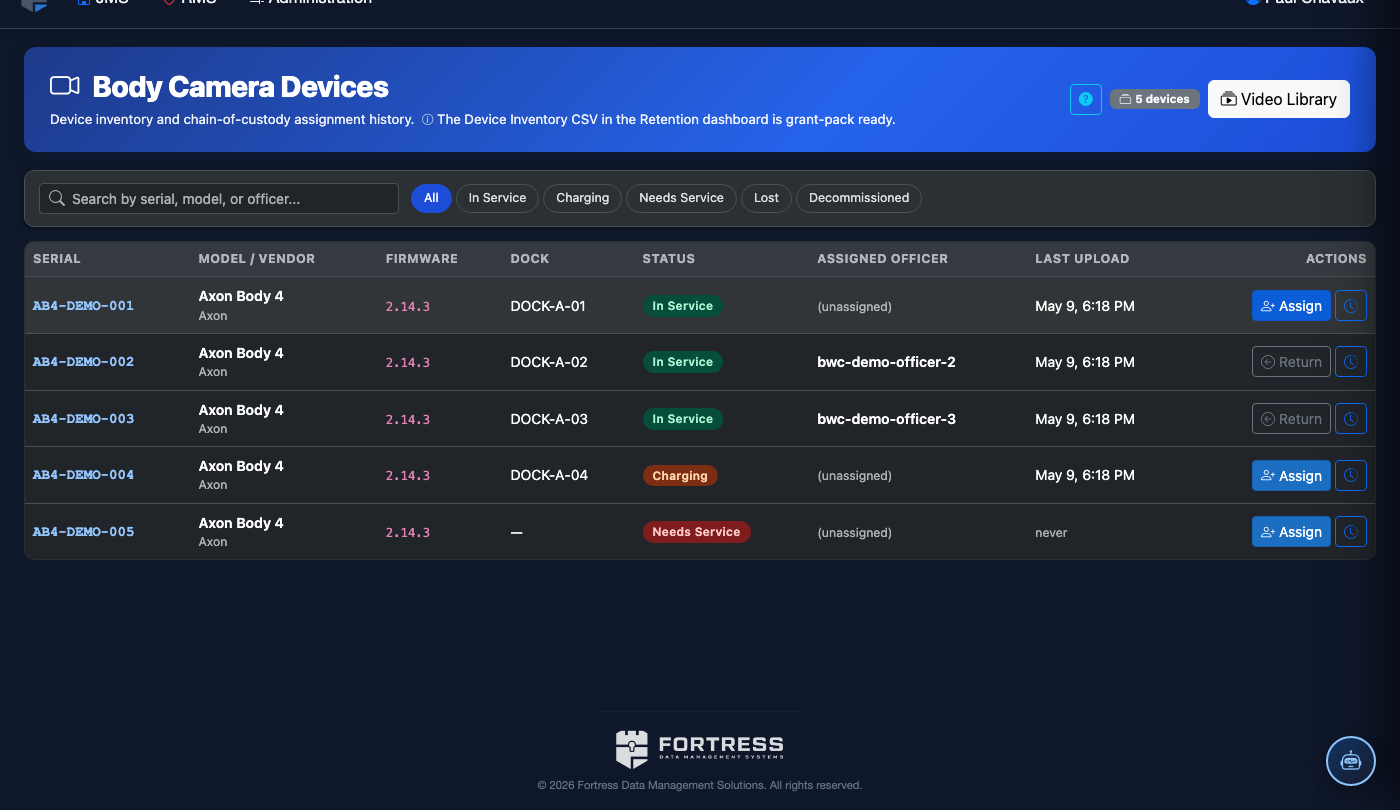
Full inventory of every BWC unit with serial number, model, firmware version, and current assignment status.
Battery & Storage Health
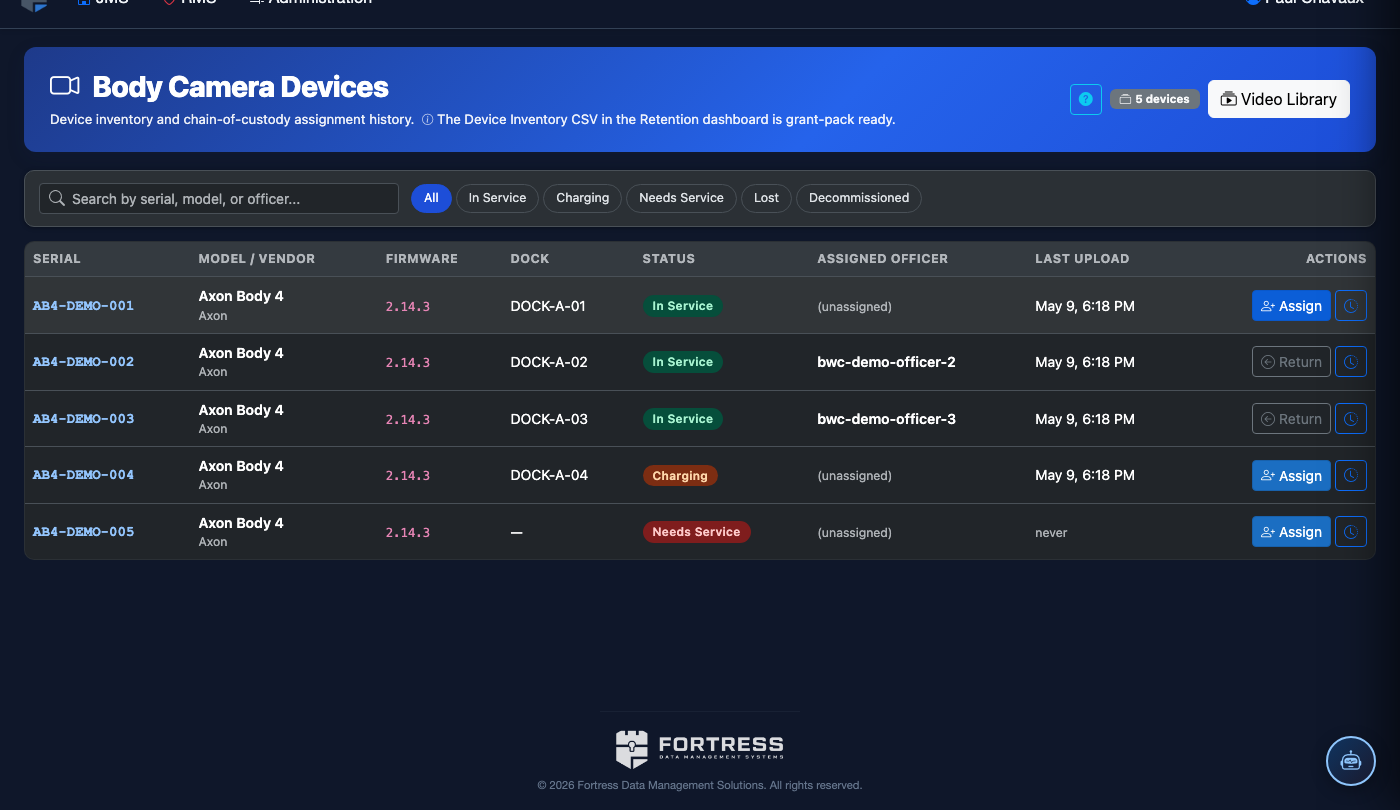
Real-time battery percentage and onboard storage capacity indicators with configurable low-threshold alerts.
Officer Assignment
Link cameras to officers and shifts, with checkout/check-in workflows and chain-of-custody documentation.
Firmware Management
Schedule and track firmware update rollouts across the entire fleet to maintain security and compliance.
Step-by-Step: Managing Your BWC Fleet
Open the Fleet Dashboard
Navigate to BWC & Video > Devices & Fleet from the main menu. The dashboard displays a summary card at the top showing total devices, devices checked out, devices charging, and devices needing attention. Red indicators highlight units requiring immediate action.
Add a New Device to the Inventory
Click Add Device in the top-right corner. Enter the Serial Number, select the Device Model from the dropdown, and enter the Purchase Date and Warranty Expiration. Scan the device QR code if your facility uses barcode-based asset management. Click Register Device to add it to the fleet.
Assign a Camera to an Officer
Select any available device from the inventory list and click Assign. Search for the officer by name or badge number, select their current Shift, and set the expected Return Time. The officer will be prompted to acknowledge receipt via their FortressDMS officer portal login, creating a digital checkout record.
Monitor Battery and Storage Status
The Health column in the device list shows color-coded indicators: green (healthy), yellow (battery below 30% or storage above 80%), red (critical). Click any device row to view the full health timeline. Use Filter by Status to isolate devices needing attention before the next shift change.
Schedule a Firmware Update
Click Firmware Management in the side panel. Available updates are listed by version with release notes. Select the devices to update using the checkboxes, then choose a Scheduled Update Window (typically during device charging/docking periods). Click Schedule Update and the system will push the firmware automatically when devices are docked.
Process a Device Check-In
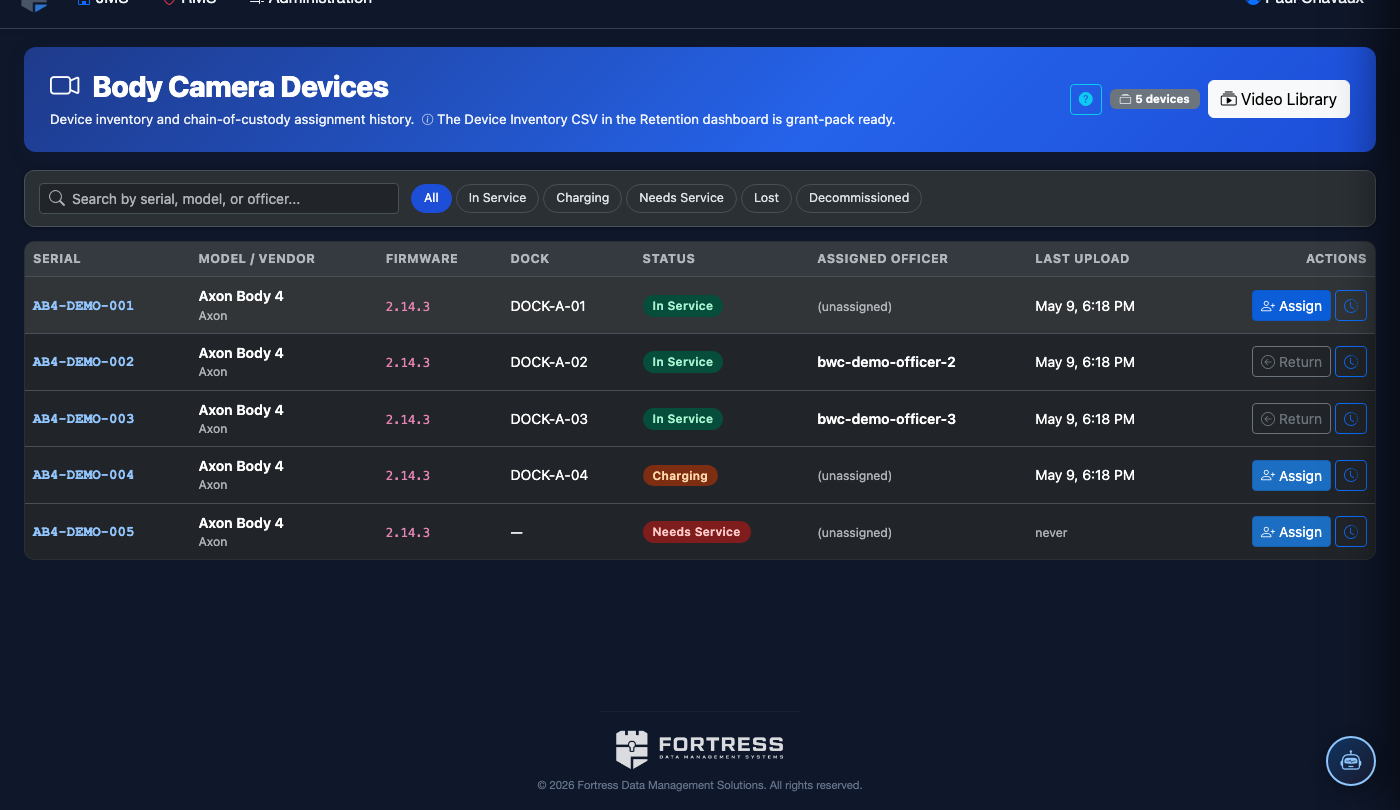
When an officer returns a camera at the end of their shift, click the device in the list and select Check In. Confirm the Physical Condition (No Damage / Minor Wear / Damage Reported) and note any issues in the comments field. The camera is marked available and footage upload begins automatically upon docking.
Generate a Fleet Compliance Report
Click Reports in the top navigation. Select Fleet Compliance and set the reporting period. The report shows activation rates by officer, any shifts where cameras were not assigned, and devices that went offline unexpectedly. Export to PDF or CSV for your agency compliance records.
💡 Pro Tips
- Configure Pre-Shift Readiness Alerts to automatically notify the shift supervisor if any assigned cameras have battery below 20% or storage above 90% an hour before shift start.
- Use the Bulk Assign feature to assign an entire roster’s cameras at once when loading a new shift — upload a CSV with badge number and device serial number columns.
- Device warranty expiration dates trigger automatic alerts 90 days before expiry, giving you time to process replacements without a gap in fleet coverage.
Mobile View — Devices
FortressDMS is fully responsive. Officers can access the Devices on a phone or tablet directly from the field — no app install required.
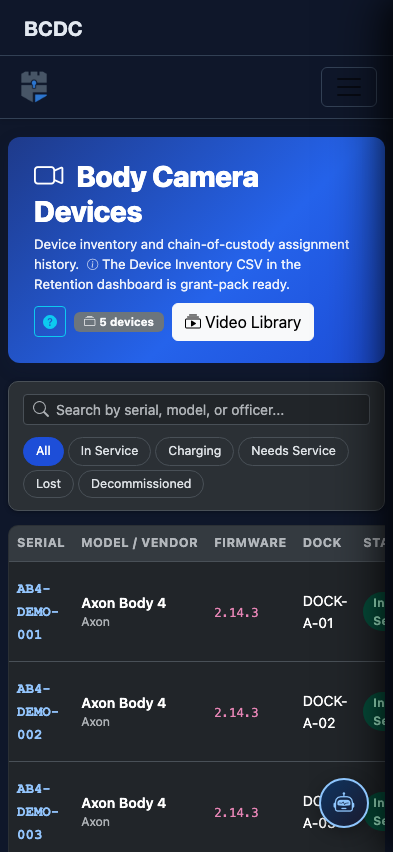
Tab view with data rows
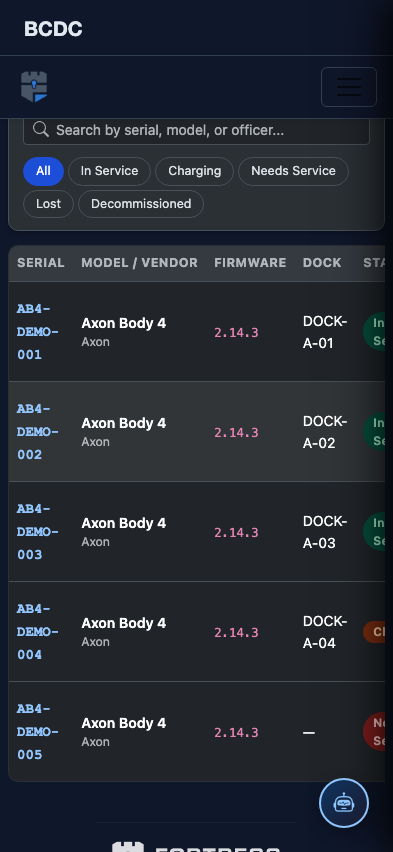
Scrolled / detail view