
Retention Dashboard
The BWC Retention Dashboard gives correctional administrators a complete view of body-worn camera footage storage usage, automated retention policy enforcement, and active legal or administrative holds. Ensure your facility meets statutory retention requirements, prevent accidental deletion of footage tied to incidents or litigation, and optimize storage costs — all from a single consolidated dashboard.
Storage Overview
Real-time storage consumption breakdown by category, tier, and projected growth trends.
Retention Policy Engine
Configure statutory retention periods by footage category; automated deletion runs only after all holds are cleared.
Active Holds Management
Track every litigation, administrative, and compliance hold with expiration dates and responsible parties.
Compliance Reporting
Generate audit-ready retention compliance reports for state inspections, accreditation, or legal discovery.
Step-by-Step: Managing BWC Retention Policies and Holds
Access the Retention Dashboard
Navigate to BWC & Video > Retention Dashboard. The landing view displays a summary of total storage used, footage pending deletion, active holds count, and a 90-day projected storage growth chart. Alerts in red indicate footage approaching its statutory deletion date with no hold in place.
Configure Retention Policies by Category
Click Policy Settings in the top navigation. Define retention periods for each footage category: Routine Patrol, Use of Force, Inmate Incident, Medical Response, and Administrative. Enter the number of days for each and click Save Policies. The system enforces these periods automatically, queuing footage for deletion after the period expires and all holds are cleared.
Place a Hold on Specific Footage
From the Active Holds tab, click New Hold. Search for the recording(s) by officer, date range, or incident number. Select the Hold Type (Litigation Hold, Administrative Hold, Grand Jury Hold), enter the Case Reference Number, the responsible attorney or administrator, and an optional Expiration Date. Click Apply Hold — the footage is immediately protected from automated deletion.
Review Footage Approaching Deletion
Click Pending Deletion in the Storage Overview tab. This list shows all footage where the retention period has expired or will expire within 30 days. Review each item and either confirm deletion is appropriate or place a hold if the footage may be needed. The system requires explicit administrator confirmation before executing any deletion batch.
Release an Expired Hold
When a legal case concludes or an administrative hold is no longer needed, navigate to the Active Holds tab, find the hold by case reference or officer, and click Release Hold. Enter the release reason and confirm. The footage returns to normal retention policy scheduling and will be queued for deletion according to its original category rules.
Generate a Retention Compliance Report
Click Reports > Retention Compliance. Choose the reporting period and select which categories to include. The report documents all footage retained, all footage deleted (with deletion reason and timestamp), and all active holds with their case references. Export to PDF for accreditation bodies or legal discovery responses.
💡 Pro Tips
- Enable Automatic Hold Detection to have the system automatically place a litigation hold on any footage linked to a booking that has an open grievance, use-of-force report, or court case in FortressDMS — preventing accidental deletion before staff manually notices.
- Set up weekly Deletion Review Digest emails so the administrator receives a list of footage expiring in the next 30 days every Monday morning — giving a consistent review cadence.
- Storage tiering moves footage older than 90 days to lower-cost cold storage automatically — holds override tiering and keep footage in accessible hot storage for rapid legal response.
Mobile View — Retention Dashboard
FortressDMS is fully responsive. Officers can access the Retention Dashboard on a phone or tablet directly from the field — no app install required.
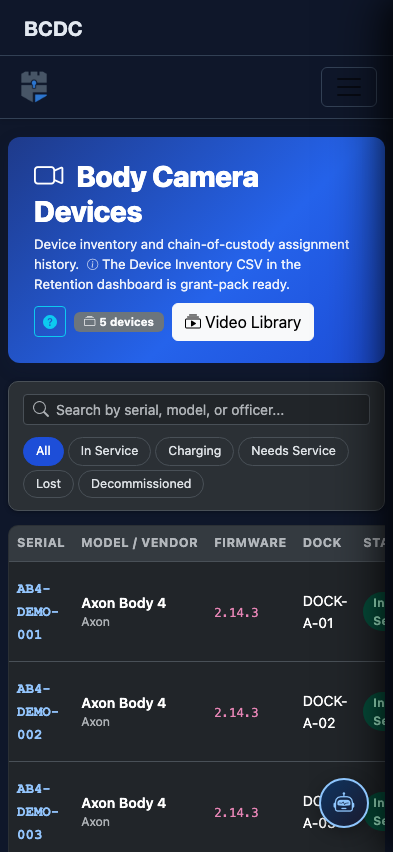
Tab view with data rows
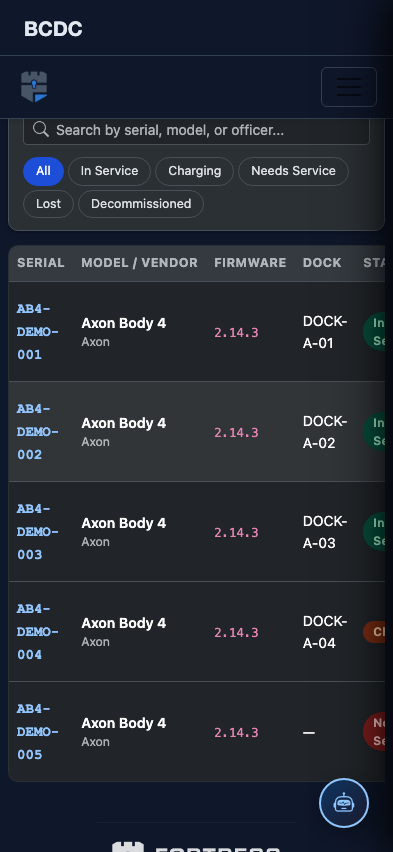
Scrolled / detail view