
Video Visitation
The Video Visitation module provides correctional facilities with a fully managed, secure platform for scheduling, hosting, and recording inmate video visits. Facility administrators can configure visit windows, approve visitor rosters, and monitor sessions in real time. All video sessions are logged and available for review, ensuring compliance with facility policy and court orders.
Scheduled Visits
Administrators set facility-wide time slots and duration limits; approved visitors self-schedule within those windows.
Visitor Approval Roster
Each inmate maintains an approved visitor list; only verified, pre-cleared individuals may join a video session.
Session Recording
All video sessions are automatically recorded and stored, with officer-controlled playback for investigations or legal holds.
Kiosk & Tablet Modes
Supports both facility-side Android kiosk tablets and remote visitor web browsers — no software installation required for visitors.
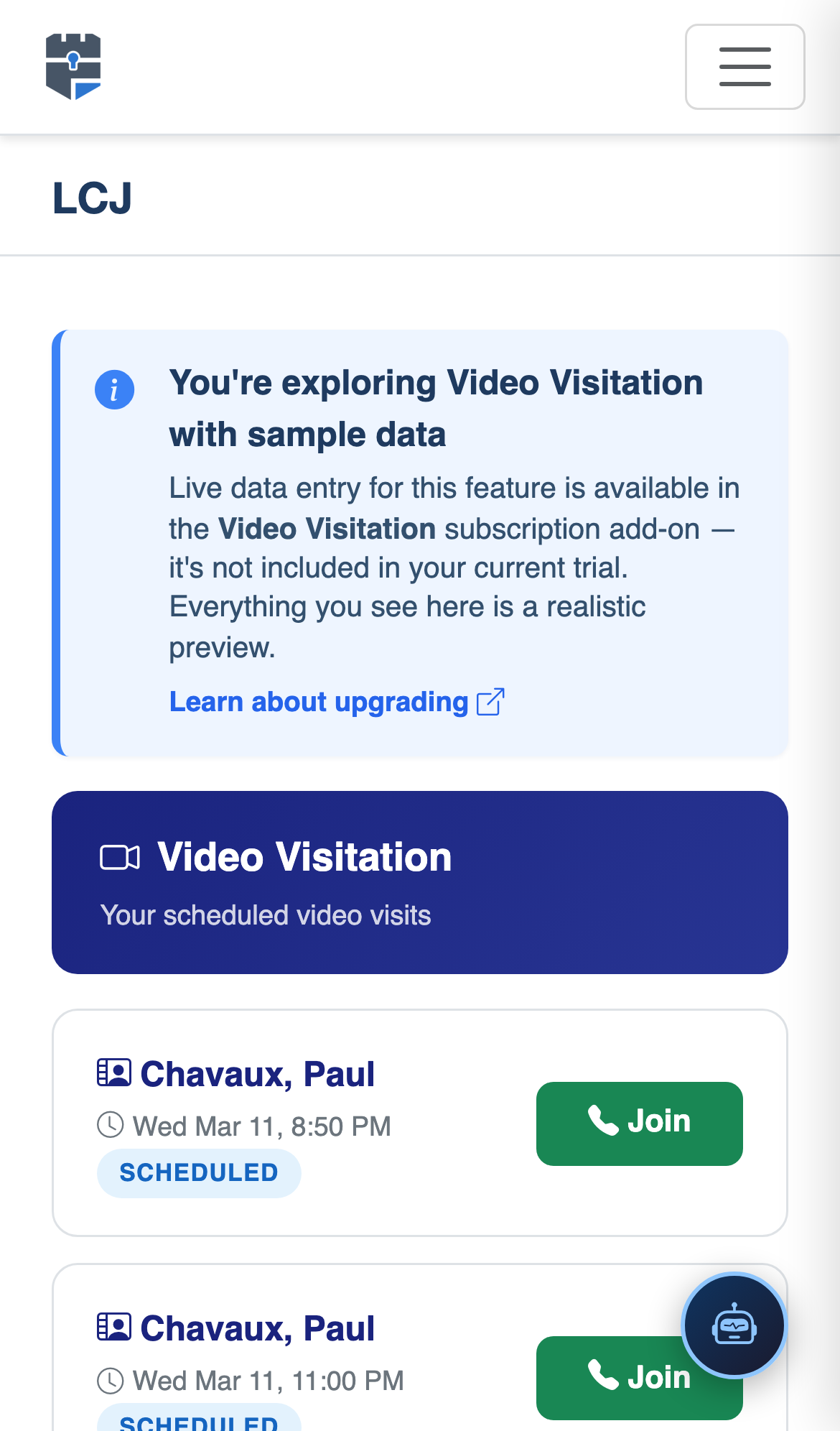
Step-by-Step: Video Visitation
Navigate to Video Visitation
From the main navigation, select IPS then click Video Visitation to open the scheduling dashboard. Ensure you have the Video Visitation Officer or Administrator role assigned in your facility profile.
Search for the Inmate
Use the Inmate Search bar to locate the inmate by booking number, last name, or facility ID. The system displays current housing unit, classification level, and any active visitation restrictions.
Review the Approved Visitor List
Open the inmate’s Visitor Roster tab to confirm the requesting visitor is on the approved list with a valid status. Visitors flagged as Pending Review or Suspended cannot join a session until cleared by a supervisor.
Schedule the Visit
Click Schedule Visit, select an available time slot from the facility calendar, choose the assigned Kiosk Terminal or Tablet, and set the session duration. The system prevents double-booking and enforces per-inmate weekly visit limits automatically.
Confirm & Notify
Click Confirm Booking to finalize the visit. The system automatically sends an SMS or email confirmation to the approved visitor with their session link, date, and time. Officers receive a shift notification for the upcoming visit.
Monitor the Live Session
At session start, the Live Monitor panel shows all active video calls facility-wide. Officers can use the Terminate Session button to immediately end any call that violates facility policy, and add a disciplinary note to the inmate’s record.
Access Session Recordings
After a session ends, navigate to Recordings and search by inmate, date range, or visitor name. Recordings can be flagged for Legal Hold, exported for court submission, or permanently deleted once the retention window expires per your facility’s records policy.
💡 Pro Tips
- Set classification-based visit limits in Facility Settings → Visitation Policy so high-risk inmates are automatically restricted to shorter or fewer weekly sessions without manual intervention.
- Use the Bulk Schedule feature during intake processing to pre-load approved visitor slots for new bookings, reducing front-desk queuing on weekends.
- Enable Recording Auto-Flag for flagged keywords so the system alerts investigators when sensitive language is detected in a session transcript.