
Open-Source Tablet Configuration
The Open-Source Tablet Configuration module gives facility IT administrators a centralized workflow for provisioning, locking, and managing Android tablets used across inmate phone services, video visitation, and kiosk applications. Using open-source MDM tooling integrated directly into FortressDMS, administrators can push configuration profiles, restrict device capabilities, and ensure tablets remain dedicated to facility-approved applications. This eliminates the cost of third-party MDM licensing while maintaining enterprise-grade device control.
Device Enrollment
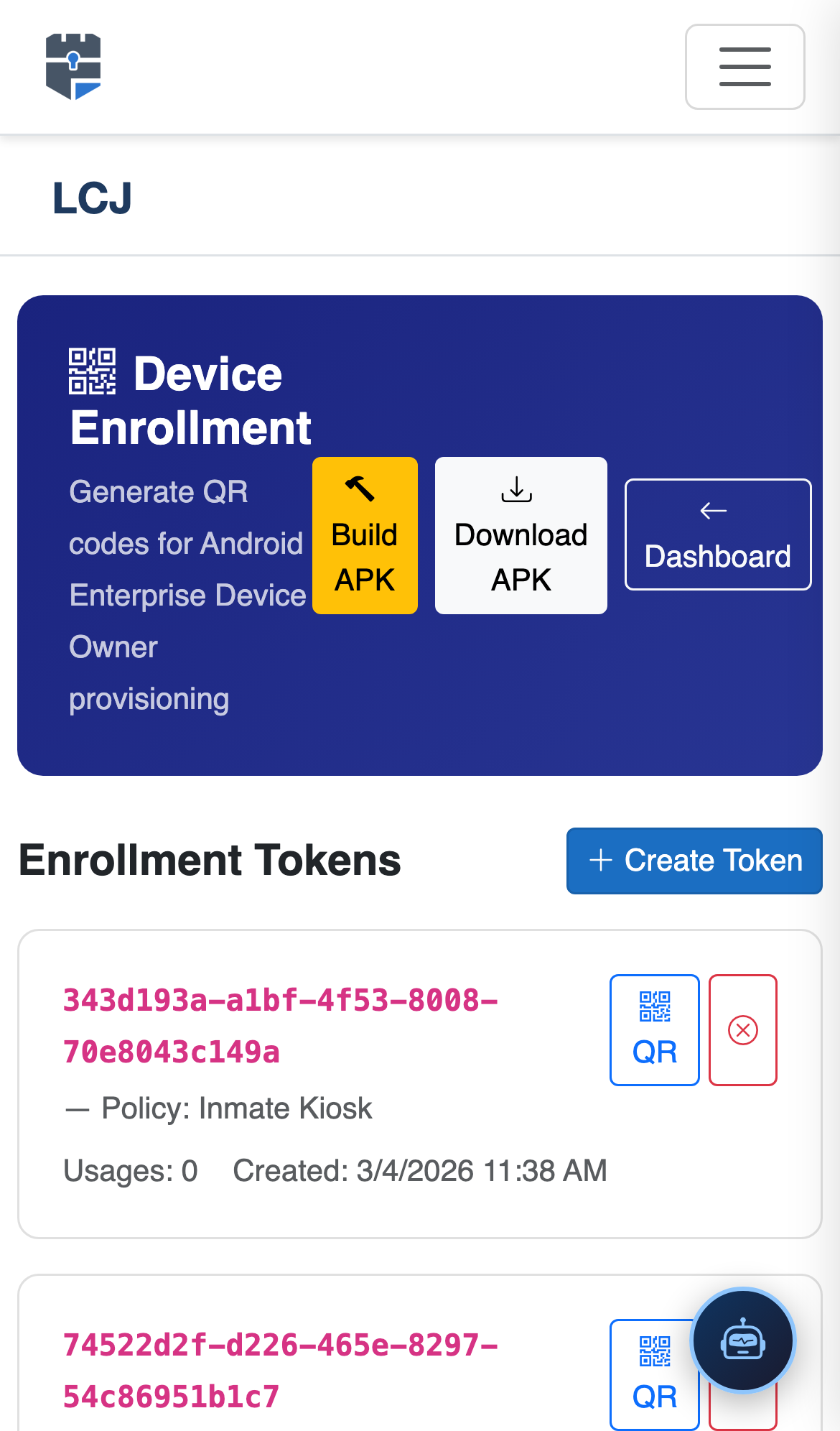
Enroll new Android tablets via QR code or manual entry directly from the Fortress admin portal.
Kiosk Lock Mode
Restrict tablets to the Fortress Facility APK only — no browser, no side-loaded apps, no settings access for inmates.
Remote Configuration Push
Push Wi-Fi credentials, app settings, and policy updates to enrolled devices without physical access to each tablet.
Device Health Dashboard
Monitor battery level, connectivity status, and last check-in time for every enrolled tablet in real time.
Step-by-Step: Open-Source Tablet Configuration
Open the MDM Configuration Panel
Navigate to IPS → Tablet Configuration in the Fortress admin menu. This panel lists all enrolled devices grouped by housing unit. Confirm you hold the IT Administrator role to access enrollment and policy controls.
Enroll a New Tablet
Click Enroll Device and choose QR Code enrollment. The portal generates a scannable provisioning QR code. On a factory-reset Android tablet, tap the setup screen six times rapidly to enter provisioning mode, then scan the QR code to begin automated enrollment.
Assign Device Profile & Housing Unit
Once enrolled, assign a Device Profile (e.g., General Population Kiosk, Medical Wing Tablet) and link it to the correct Housing Unit. Profiles define which Fortress modules the tablet displays, screen timeout rules, and whether video visitation is permitted from that device.
Enable Kiosk Lock Mode
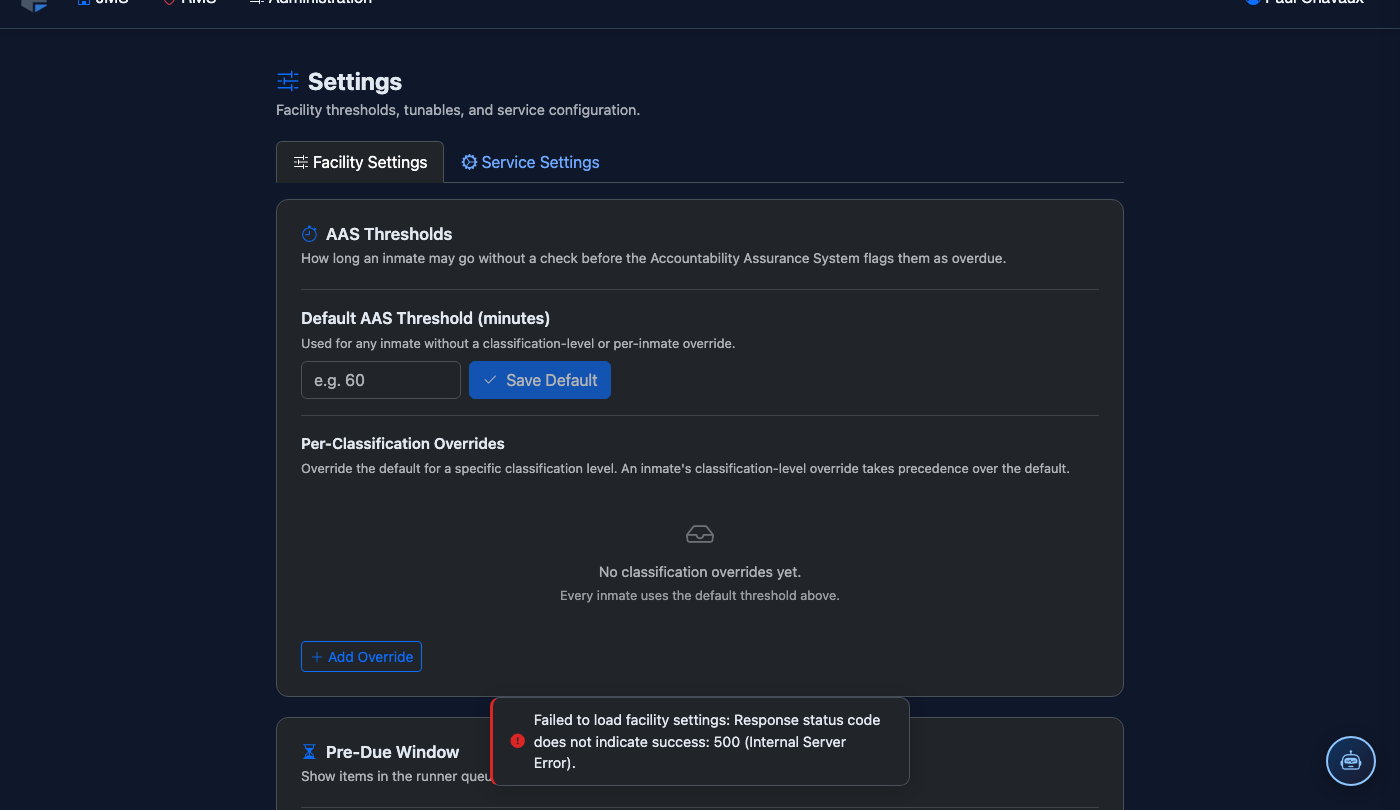
Toggle Kiosk Lock Mode to ON in the device profile. This activates Android’s Dedicated Device policy, pinning the device exclusively to the Fortress Facility APK. Inmates cannot access the home screen, pull down the notification shade, or install applications.
Push Configuration to Devices
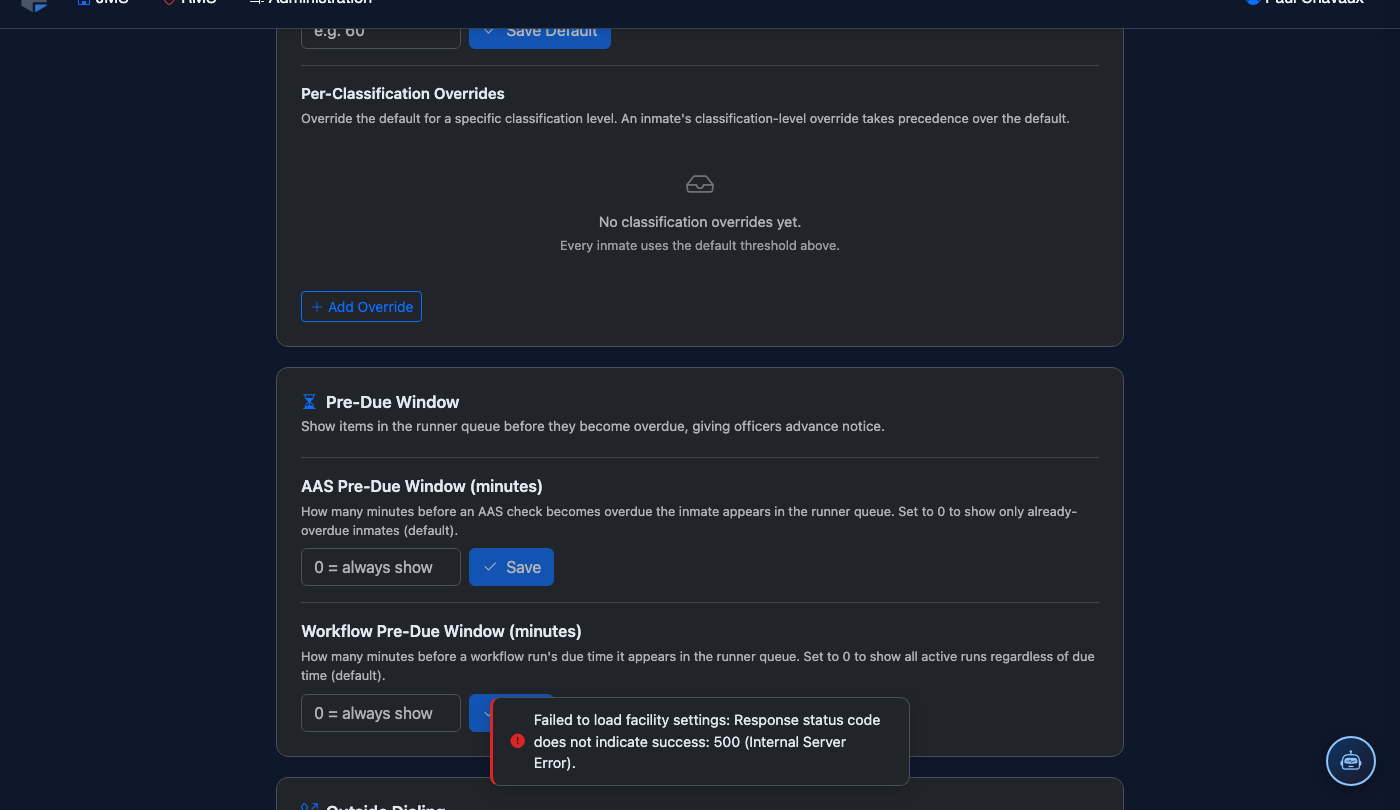
Select one or more enrolled devices and click Push Configuration. The system deploys the current profile — including Wi-Fi settings, Fortress server URL, and kiosk policy — to all selected tablets within minutes. A confirmation badge appears when each device acknowledges the update.
Monitor Device Health
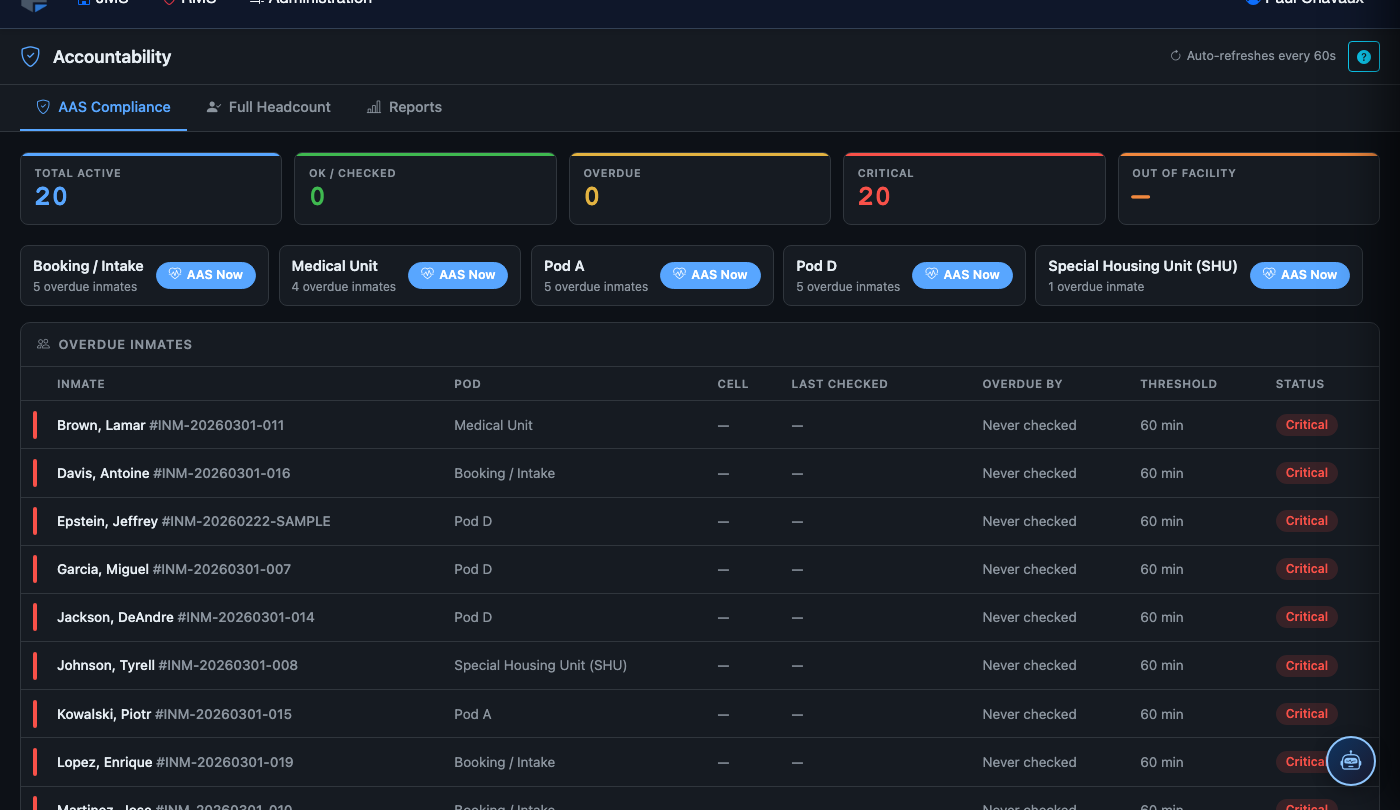
The Device Health Dashboard displays real-time battery level, last check-in timestamp, and connectivity status for every enrolled tablet. Devices that have not checked in within 30 minutes are flagged in amber; offline for over 2 hours triggers a red alert for the on-duty IT officer.
Remote Wipe a Lost or Compromised Device
If a tablet is reported missing or tampered with, select it in the device list and click Remote Wipe. Confirm the action with your administrator PIN. The device will factory reset at its next network connection, removing all inmate session data, credentials, and the Fortress APK.
💡 Pro Tips
- Create separate device profiles for general population, segregation, and medical wings — each profile can enable or disable video visitation, commissary ordering, and grievance submission independently.
- Schedule a nightly Policy Sync in Facility Settings so tablets automatically pull updated policies during low-usage overnight hours without interrupting daytime inmate sessions.
- Label physical tablets with a QR code sticker matching the Fortress device ID — officers can scan the sticker to instantly pull up the device record without searching the dashboard.