
Grievance Inbox
The Grievance Inbox is the front-line queue where all inmate grievance submissions arrive for officer and administrator review. Grievances submitted from housing unit tablets, paper intake forms scanned by staff, or verbal submissions logged by officers appear here in real time. Officers can triage, assign, and respond to grievances directly from the inbox, ensuring your facility meets required response time mandates and maintains a defensible documentation trail.
Centralized Queue
All grievance submissions from tablets, staff intake, and manual entry arrive in a single prioritized inbox for consistent triage.
Response Deadline Tracking
Color-coded deadline badges count down to required response windows, alerting supervisors before any grievance goes overdue.
Category & Priority Filters
Filter grievances by category (medical, conditions, staff conduct, classification) and urgency level to manage high-priority items first.
One-Click Resolution
Officers can record a formal response, escalate to a supervisor, or close a grievance with a documented resolution from within the inbox view.
Step-by-Step: Grievance Inbox
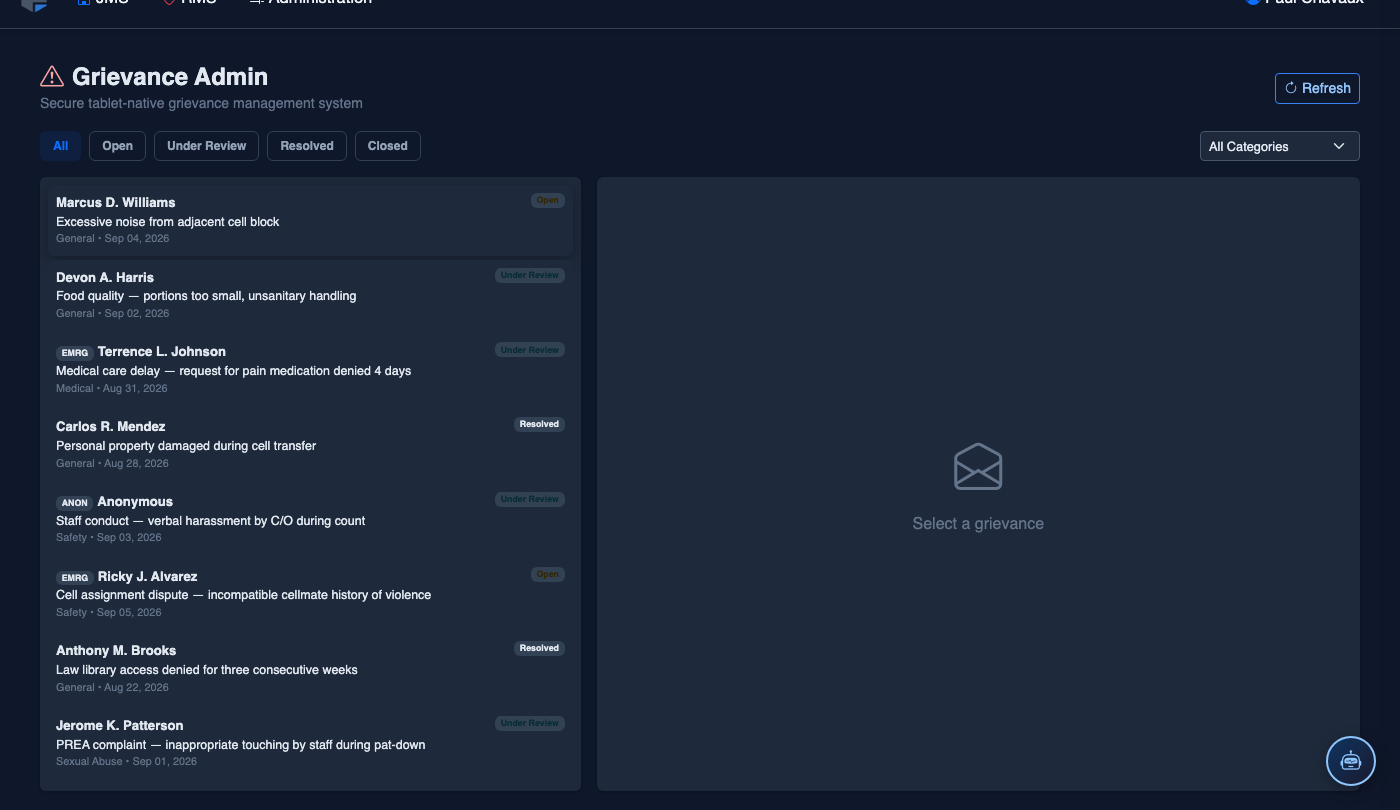
Open the Grievance Inbox
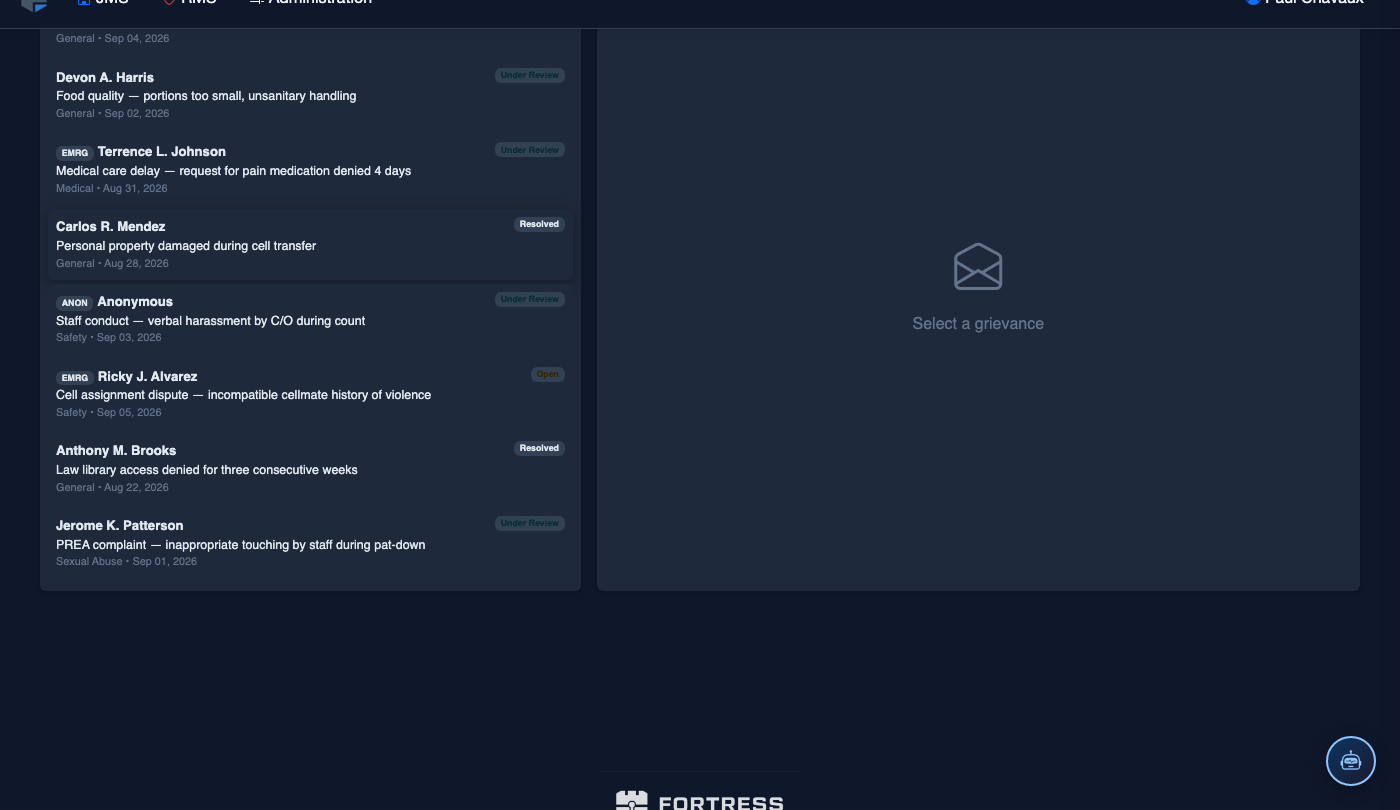
Navigate to Grievances → Inbox from the main menu. The inbox displays all open grievances sorted by submission date descending, with color-coded deadline badges: green (within deadline), amber (approaching), and red (overdue).
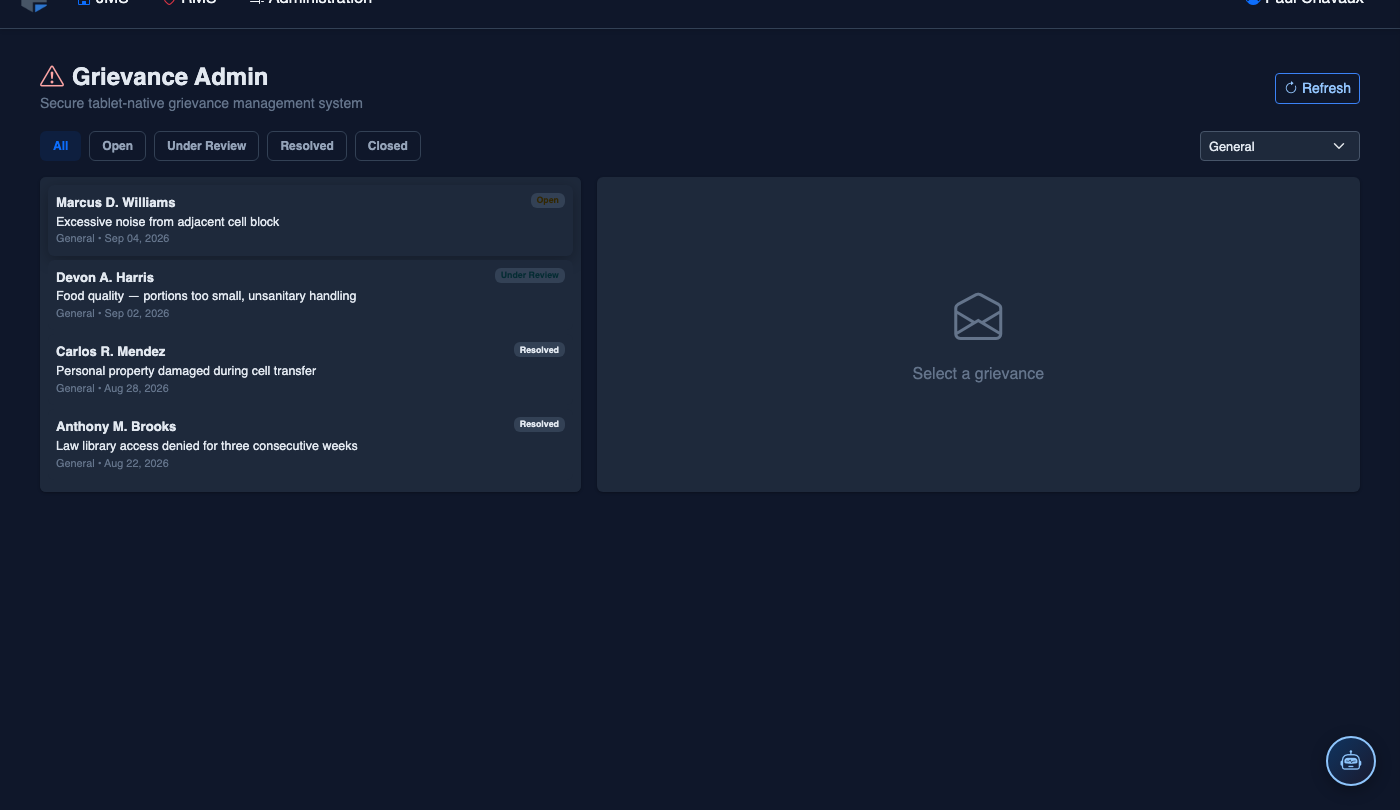
Filter and Prioritize
Use the Category dropdown to isolate grievance types (Medical, Conditions of Confinement, Staff Conduct, Classification, Other). Apply the Priority filter to show only Emergency or High grievances first. Filters stack — combine category and deadline status to build a precise triage view.
Open a Grievance Record
Click any grievance row to open the full record. The detail view shows the inmate’s name, booking number, housing unit, submission method, grievance text, and any attachments uploaded by the inmate or scanning officer. A full Activity Timeline tracks every action taken on the record.
Assign to an Officer or Unit
Click Assign and select the responsible officer or department (e.g., Medical, Classification, Internal Affairs). The assignee receives an in-app notification and the grievance moves to their personal queue. Assignment is logged in the activity timeline with a timestamp and assigning officer name.
Record a Formal Response
Click Add Response, type the official facility response in the text editor, and select the appropriate Outcome (Upheld, Denied, Partially Upheld, Referred). The response is date-stamped and attached to the grievance record. A printed copy can be generated for physical delivery to the inmate.
Escalate if Necessary
If the grievance involves a serious allegation or requires administrative review, click Escalate and select the escalation tier (Shift Supervisor, Warden, External Review). Escalated grievances are flagged with a distinct badge and removed from the standard officer queue until a supervisor takes ownership.
Close and Archive
Once the response has been delivered and any required actions completed, click Close Grievance. Closed grievances move to the archive and are searchable by the Grievance Administrator. The system automatically calculates and records the total response time for compliance reporting.
💡 Pro Tips
- Enable the Overdue Grievance Alert in Facility Settings to receive a daily digest email listing any grievances that have exceeded their response window — critical for avoiding civil liability from missed deadlines.
- Use the Bulk Assign feature during shift change to redistribute the outgoing shift’s open queue to incoming officers, ensuring no grievance sits unattended during handoff.
- For medical grievances, the system can auto-route submissions containing specific keywords directly to the Medical department queue — configure keyword routing in Grievances → Administrator → Auto-Route Rules.