
Classification & Risk
The Classification & Risk module is the backbone of safe and defensible inmate management in FortressDMS, providing structured risk scoring, automated housing recommendations, and a complete classification history for every inmate in your facility. Classification officers use validated scoring instruments to evaluate criminal history, behavioral risk factors, and institutional adjustment, translating those scores into objective custody level decisions. The module ensures every housing placement is grounded in documented risk data and supports compliance with ACA, PREA, and state standards.
Validated Scoring Instruments
Built-in, objective scoring tools evaluate criminal history, current charge severity, escape risk, and institutional behavior.
Automated Housing Recommendations
Score-driven housing level recommendations (Minimum, Medium, Maximum) surface automatically upon scoring completion.
Override Documentation
Officers can override score-based recommendations with mandatory written justification, creating a defensible audit trail.
Reclassification Scheduling
Automated alerts trigger reclassification reviews at policy-defined intervals or following significant behavioral events.
PREA Integration
PREA vulnerability and predatory risk screening is embedded in the classification workflow and linked to housing restrictions.
Facility-Wide Dashboard
A real-time dashboard shows classification distribution, overdue reviews, override rates, and population-level risk trends.
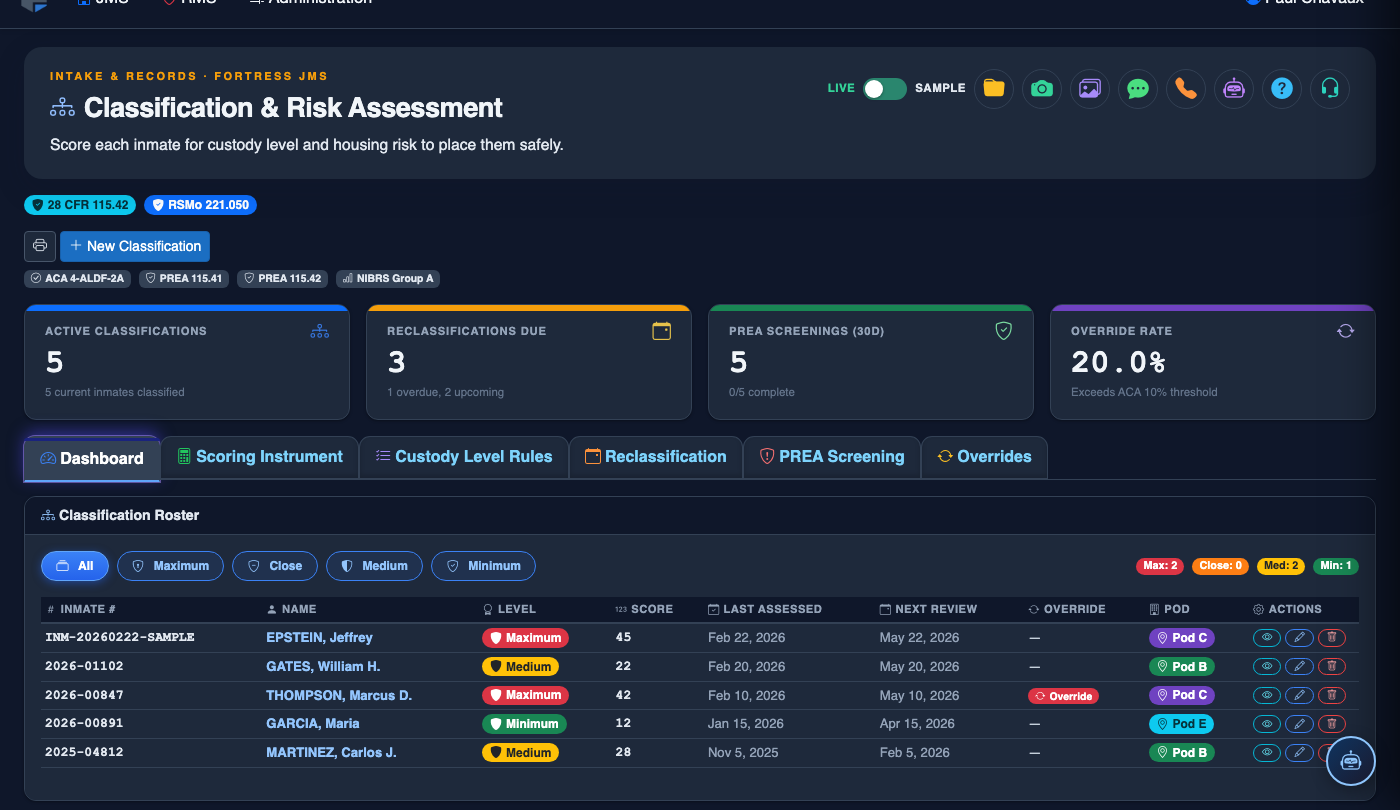
Step-by-Step: Classifying an Inmate in FortressDMS
Open the Classification & Risk Module
Select Classification & Risk from the main navigation. The Classification Dashboard loads, displaying all inmates pending initial classification, scheduled reclassification, or recent scoring activity.
Select an Inmate for Classification
Click on an inmate’s name in the Pending Classification queue, or use the search bar to find a specific inmate. The inmate’s booking information and prior classification history will load in the right panel.
Launch the Scoring Instrument
Click Begin Scoring to open the Scoring Instrument tab. The instrument presents structured questions covering Current Offense Severity, Prior Conviction History, Escape History, Disciplinary History, and PREA Risk Factors.
Complete All Scoring Sections
Answer each question using verified booking data, criminal history records, and prior institutional files. The system calculates a running Total Risk Score as you complete each section, with the score band updating in real time.
Review the Automated Recommendation
Upon completing all sections, the system displays the automated Custody Level Recommendation (Minimum, Medium, or Maximum) based on the total score. Review any flagged PREA risk factors that may impose additional housing constraints.
Accept or Override the Recommendation
Click Accept Recommendation to finalize the classification, or click Override to select a different custody level. Overrides require a mandatory written Justification and are flagged in override reports for supervisor review.
Finalize and Apply Classification
Click Save Classification. The custody level is applied to the inmate’s record, the housing assignment engine is updated with any new constraints, and the next reclassification review date is automatically scheduled per your facility’s policy intervals.
Monitor via the Classification Dashboard
Return to the Classification Dashboard to monitor facility-wide classification status, upcoming reclassification due dates, override rates by officer, and population distribution across custody levels.
💡 Pro Tips
- High override rates relative to peer facilities are a common ACA audit finding — use the dashboard’s override report monthly to identify patterns before your accreditation review.
- Initial classification should always be completed within 24 hours of booking; the Pending Classification queue sorts by booking time to make this easy to manage.
- Any significant disciplinary event (assault, contraband, escape attempt) should trigger an immediate out-of-cycle reclassification — use the manual reclassification trigger rather than waiting for the scheduled date.