
Court & Legal
The Court & Legal module centralizes all judicial scheduling, transport logistics, and legal hold management for incarcerated individuals, giving facility staff a single command center to coordinate court appearances, hearings, and attorney access. From managing the court calendar to tracking active legal holds and scheduling secure transport, this module ensures inmates appear on time, legal obligations are met, and the facility remains in compliance with court orders. Administrators, transport officers, and booking staff all rely on Court & Legal to stay ahead of court deadlines and avoid costly compliance failures.
Court Calendar
View and manage all upcoming court dates across every inmate in the facility with a color-coded, filterable calendar interface.
Hearing Schedule
Schedule, edit, and track individual hearings including arraignments, sentencing, and appeals for each inmate’s case.
Court Transport
Organize and dispatch secure transport runs for court-bound inmates, tracking vehicle assignments, departure times, and return status.
Legal Holds
Record and monitor court-ordered legal holds that prevent inmate release, with expiration tracking and automated alerts.
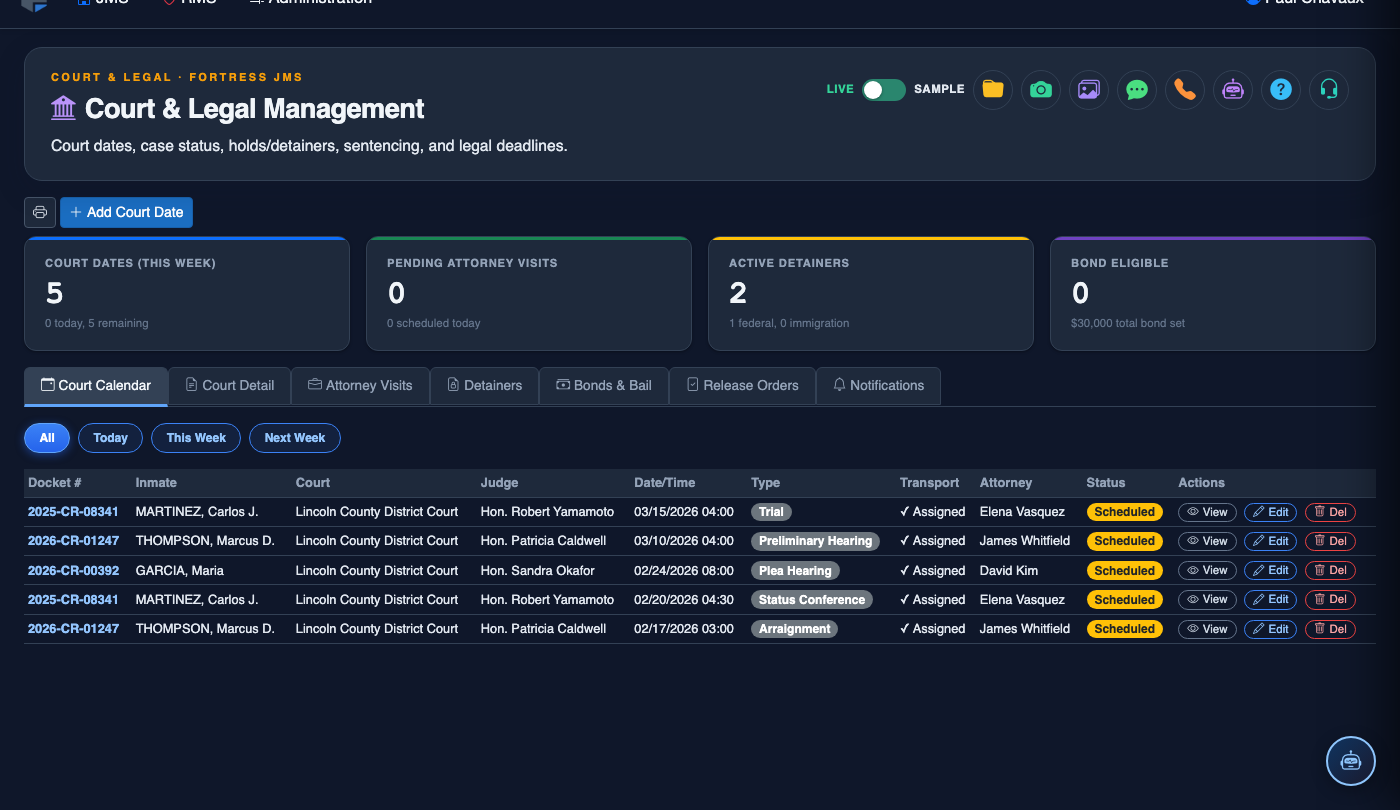
Step-by-Step: Managing Court & Legal Workflows
Open the Court & Legal Module
Navigate to Court & Legal from the main JMS navigation menu. The module opens to the Court Calendar tab, displaying today’s court dates in a day-view grid. Use the tabs at the top to switch between Calendar, Hearing Schedule, Transport, and Legal Holds.
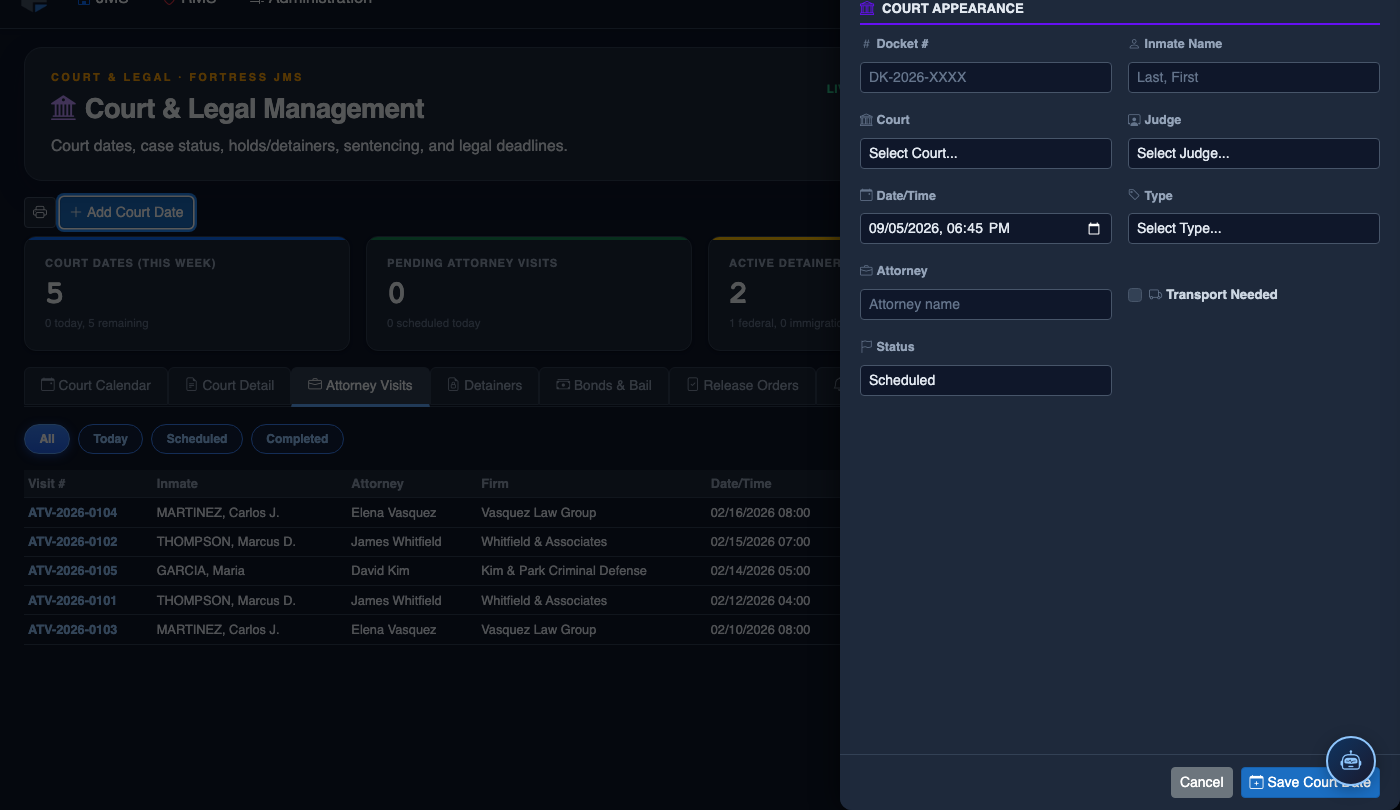
Review Today’s Court Appearances
The Court Calendar defaults to the current date, listing all inmates with scheduled court appearances. Each entry shows the Inmate Name, Booking Number, Court Name, Hearing Type, and Report Time. Color coding distinguishes transport-required appearances from video hearings.
Add or Edit a Hearing
Click Add Hearing or select an existing hearing to edit. Fill in the Court, Judge, Hearing Type (arraignment, pretrial, sentencing, appeal), Date/Time, and whether Physical Transport is required. Save to add the hearing to the calendar and trigger transport planning if applicable.
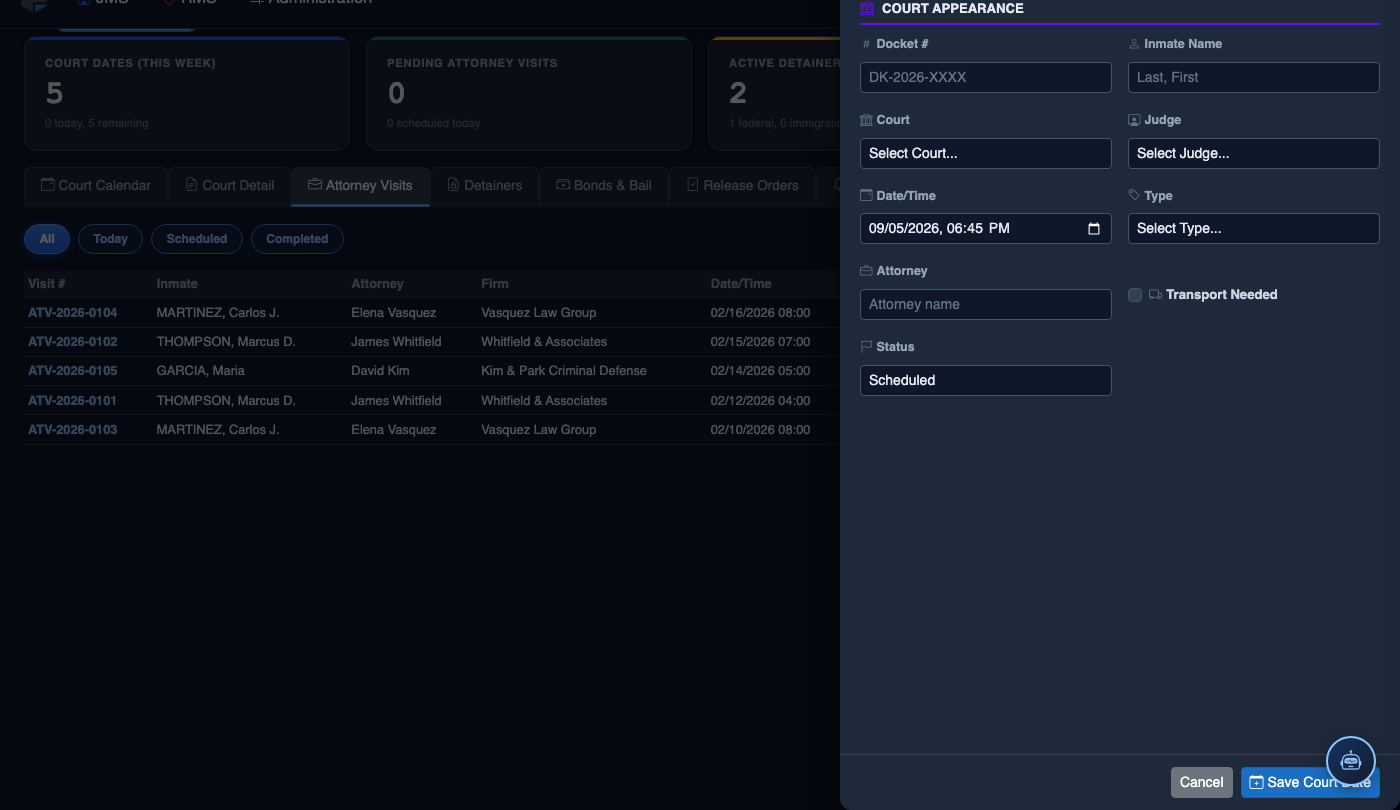
Schedule Court Transport
Switch to the Court Transport tab to create a transport run. Assign the Transport Vehicle, Lead Officer, and select all inmates for the run. Set the Departure Time and Estimated Return Time. The system groups inmates by courthouse to minimize runs and fuel costs.
Place or Review a Legal Hold
Navigate to the Legal Holds tab to add a new hold on an inmate. Enter the Issuing Court, Hold Type (federal detainer, immigration, out-of-county warrant), Issue Date, and Expiration Date if applicable. Active holds are flagged on the inmate’s profile to prevent inadvertent release.
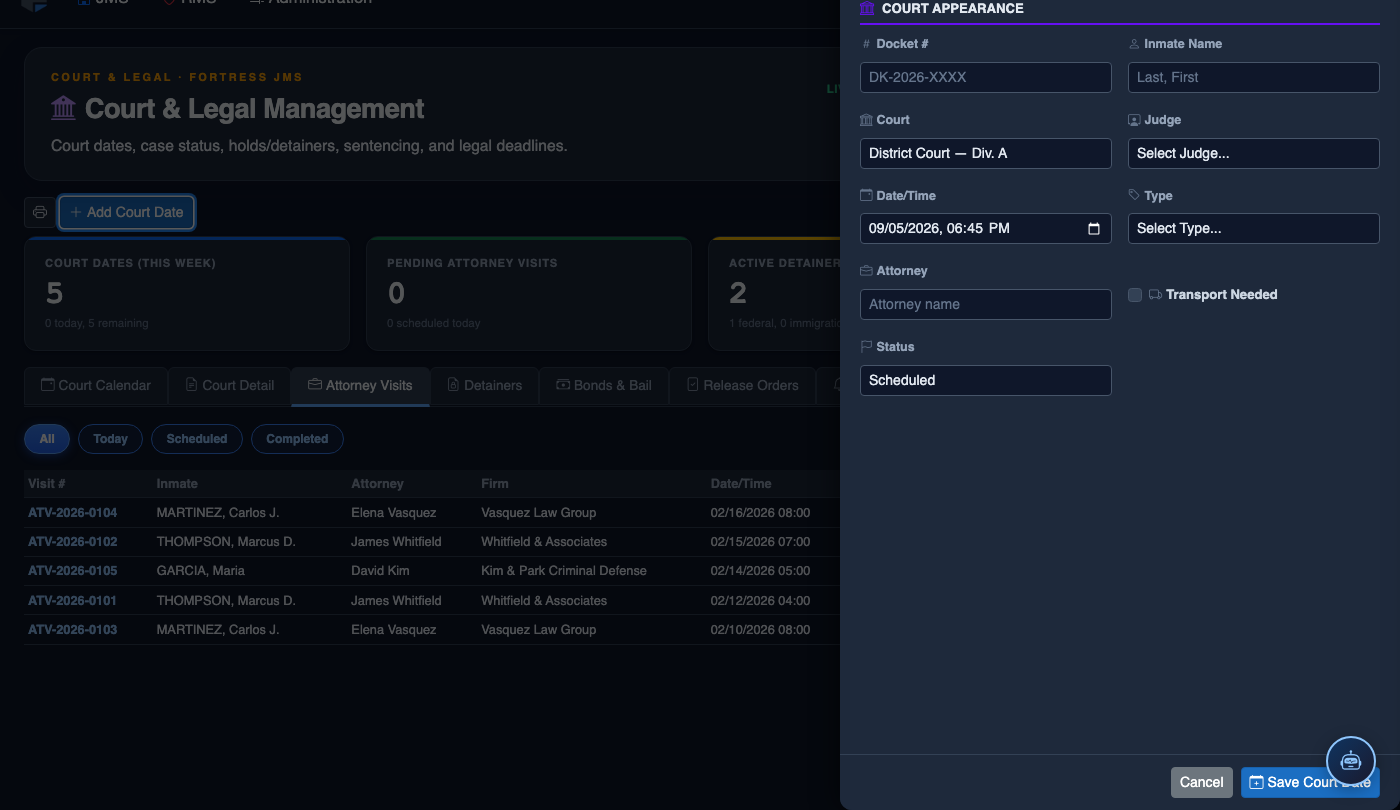
Confirm Transport Return and Update Status
When a transport run returns, open the run record and click Mark Returned. Update each inmate’s Hearing Outcome (continued, sentenced, released on bond, remanded) to keep the legal record current and trigger any downstream release or classification workflows.
Generate Court Compliance Reports
Use the Reports action within Court & Legal to export transport logs, hearing outcome summaries, and active legal hold rosters for court administrators, legal counsel, or accreditation audits.
💡 Pro Tips
- Enable daily court calendar email alerts for transport supervisors so they can staff transport runs appropriately the night before busy court days.
- Legal holds with no expiration date require manual review — set a recurring internal audit reminder to verify federal and immigration detainers are still active.
- Use the Group by Courthouse filter on the Transport tab to batch multiple inmates heading to the same location into a single run, reducing officer overtime and fuel costs.