
Disciplinary & Programs
The Disciplinary & Programs module gives correctional facility staff a unified platform for recording rule violations, conducting formal hearings, imposing and tracking sanctions, and enrolling inmates in rehabilitative programs — all within a single, auditable workflow. From the initial incident report through adjudication and program completion, every action is timestamped and linked to the inmate’s permanent record, supporting both facility policy and due-process requirements.
Incident Reporting
Document rule violations with officer narratives, witness lists, and evidence attachments in a structured incident record.
Formal Hearings
Schedule and conduct disciplinary hearings with hearing officer assignment, inmate notification, and finding documentation.
Sanctions Tracking
Impose, monitor, and automatically expire sanctions such as segregation, commissary restriction, and visitation loss.
Program Enrollment
Enroll inmates in educational, vocational, and treatment programs and track attendance, progress, and completion certificates.
Disciplinary History
Access a full chronological disciplinary record per inmate for classification reviews, parole hearings, and audits.
Due Process Alerts
Automated reminders ensure hearing notices are served within policy-mandated timeframes and no step is skipped.
Step-by-Step: Full Disciplinary Workflow
Open the Disciplinary & Programs Module
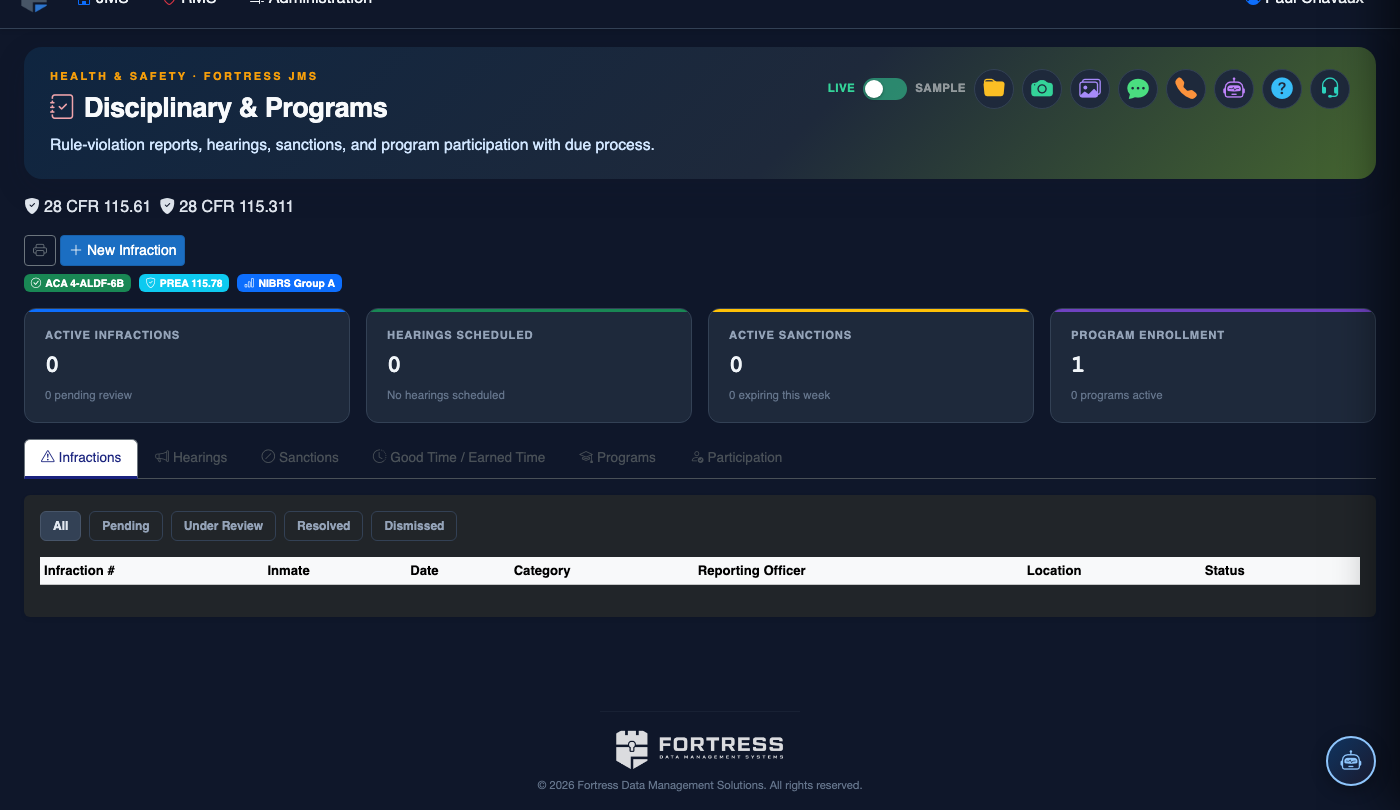
From the main navigation, click Disciplinary & Programs. The module opens on the Disciplinary Incidents tab, displaying a dashboard of recent incidents, pending hearings, and active sanctions across the facility.
File a New Disciplinary Incident
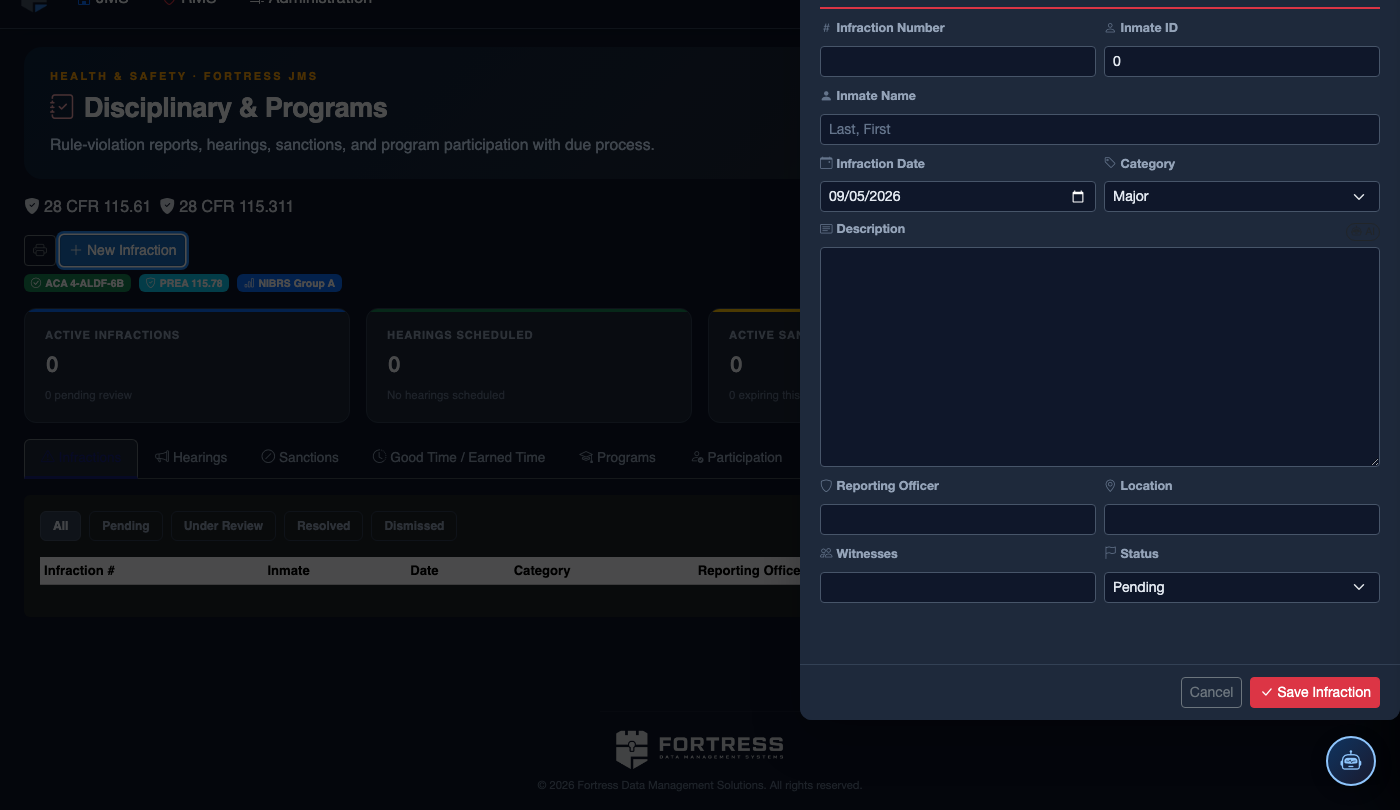
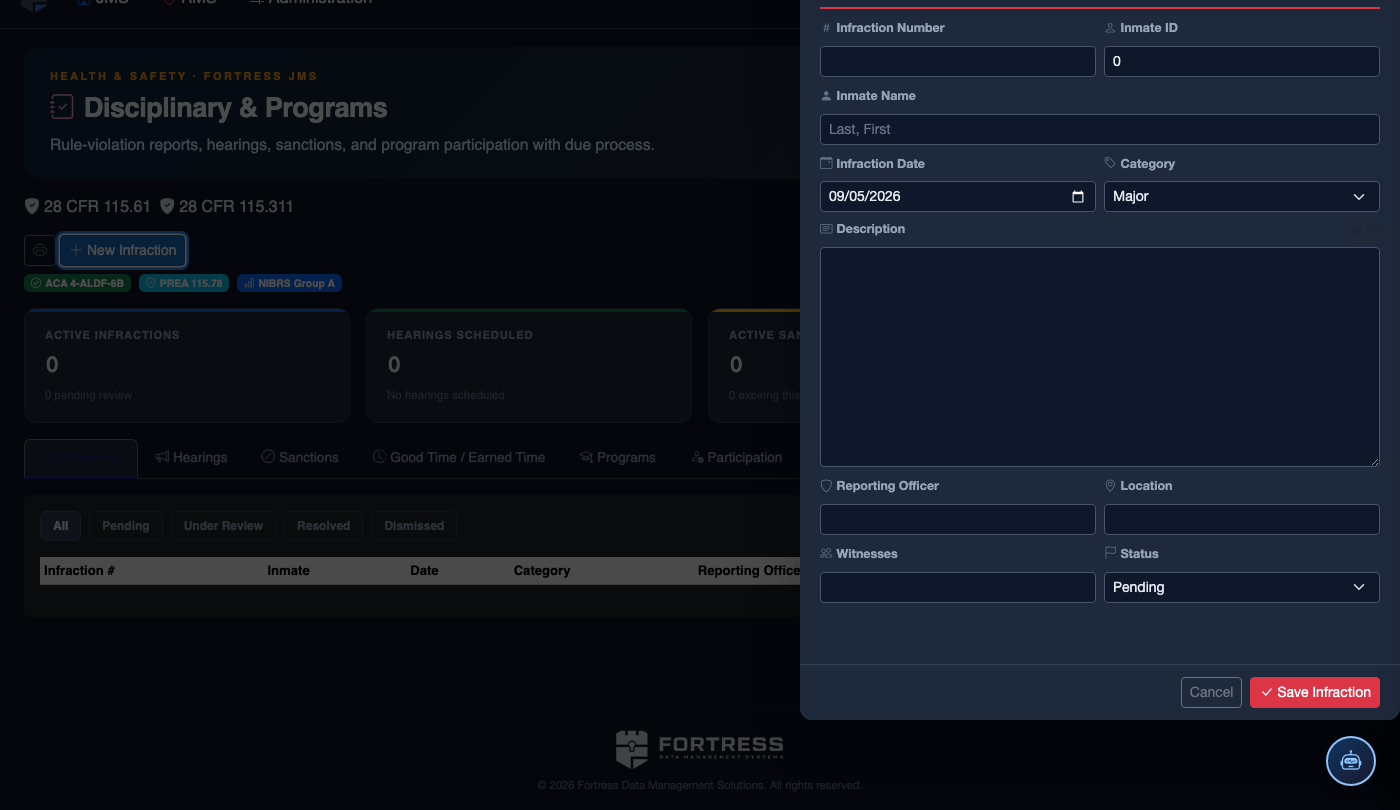
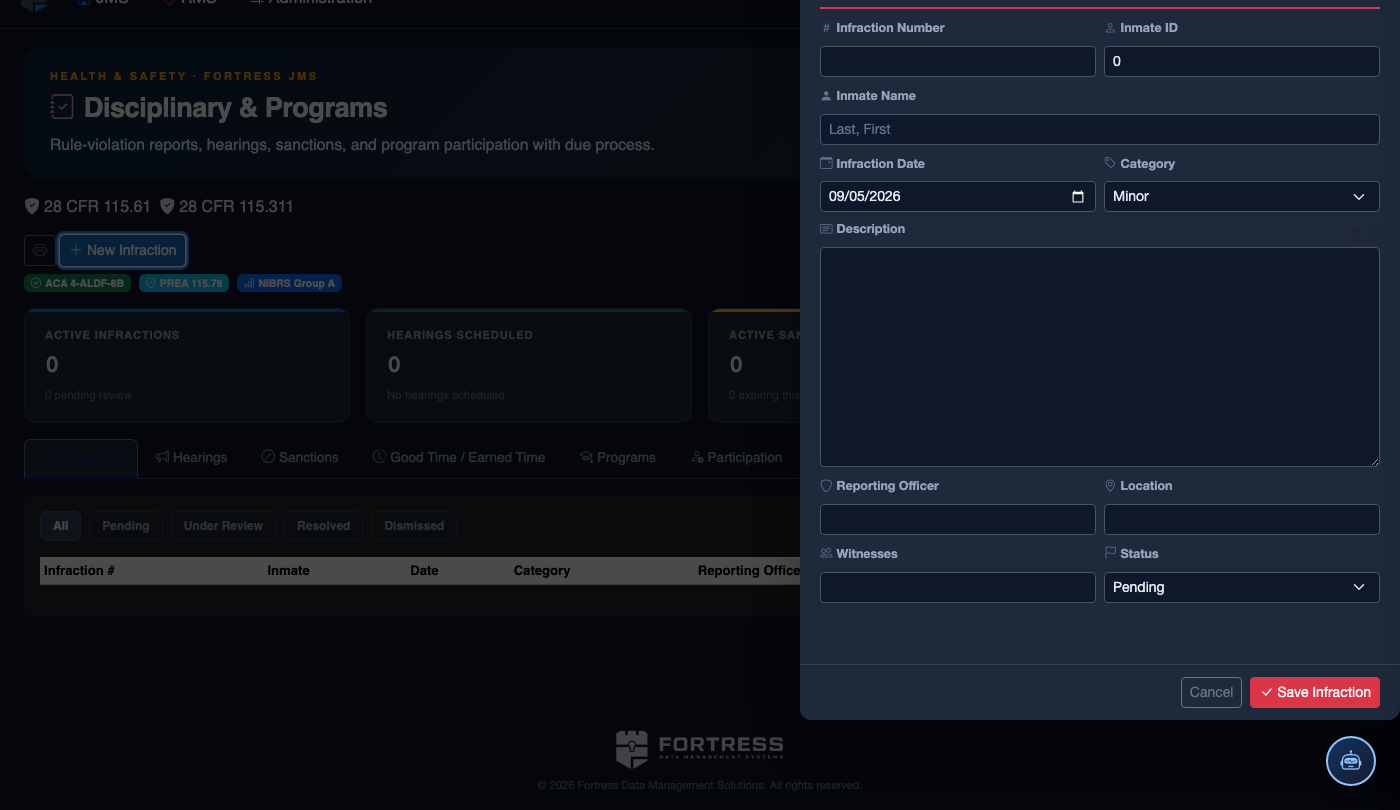
Click + New Incident on the Disciplinary Incidents tab. Search for and select the inmate involved, then choose the Violation Code from the facility rulebook. Enter the officer narrative, incident date/time, location, and any witnesses.
Serve Hearing Notice to Inmate
Once the incident is saved, the system prompts you to schedule a hearing. Set the Hearing Date (must meet your policy’s advance-notice requirement, typically 24–48 hours). Click Generate Notice to produce the inmate hearing notification form, then record the Service Date and serving officer.
Conduct the Hearing
Navigate to the Hearings & Adjudication tab and open the scheduled hearing record. Assign the Hearing Officer, record the inmate’s plea and statement, document witness testimony, and enter the officer’s rebuttal. All fields support rich text for thorough documentation.
Enter Adjudication Finding
Select the hearing outcome — Guilty, Not Guilty, or Dismissed — and enter the rationale. If guilty, the system prompts you to immediately proceed to sanction assignment in the Sanctions Management tab.
Impose and Activate Sanctions
On the Sanctions Management tab, select one or more sanction types (e.g., Administrative Segregation, Commissary Restriction, Loss of Visitation). Set start and end dates — the system will auto-expire each sanction and notify housing staff when time is served.
Enroll in Rehabilitative Programs
After adjudication, consider enrolling the inmate in a relevant program. Switch to the Program Enrollment tab, search available programs (GED, anger management, substance abuse treatment), and click Enroll. Program attendance and progress are tracked automatically against the enrollment record.
Review the Complete Disciplinary Record
Use the Disciplinary History view on any inmate record to see the full chronological log of incidents, hearings, sanctions, and program completions. Export a PDF summary for classification board reviews or attorney requests using the Export Report button.
💡 Pro Tips
- Use the Due Process Checklist on each hearing record to confirm all required steps (notice served, inmate statement offered, evidence reviewed) are documented before finalizing the finding.
- Sanctions tied to segregation automatically push a housing change request to the Classification module — no manual entry needed.
- Program completion certificates are stored in the inmate’s digital file and can be referenced during parole board hearings directly from this module.