
Release Processing
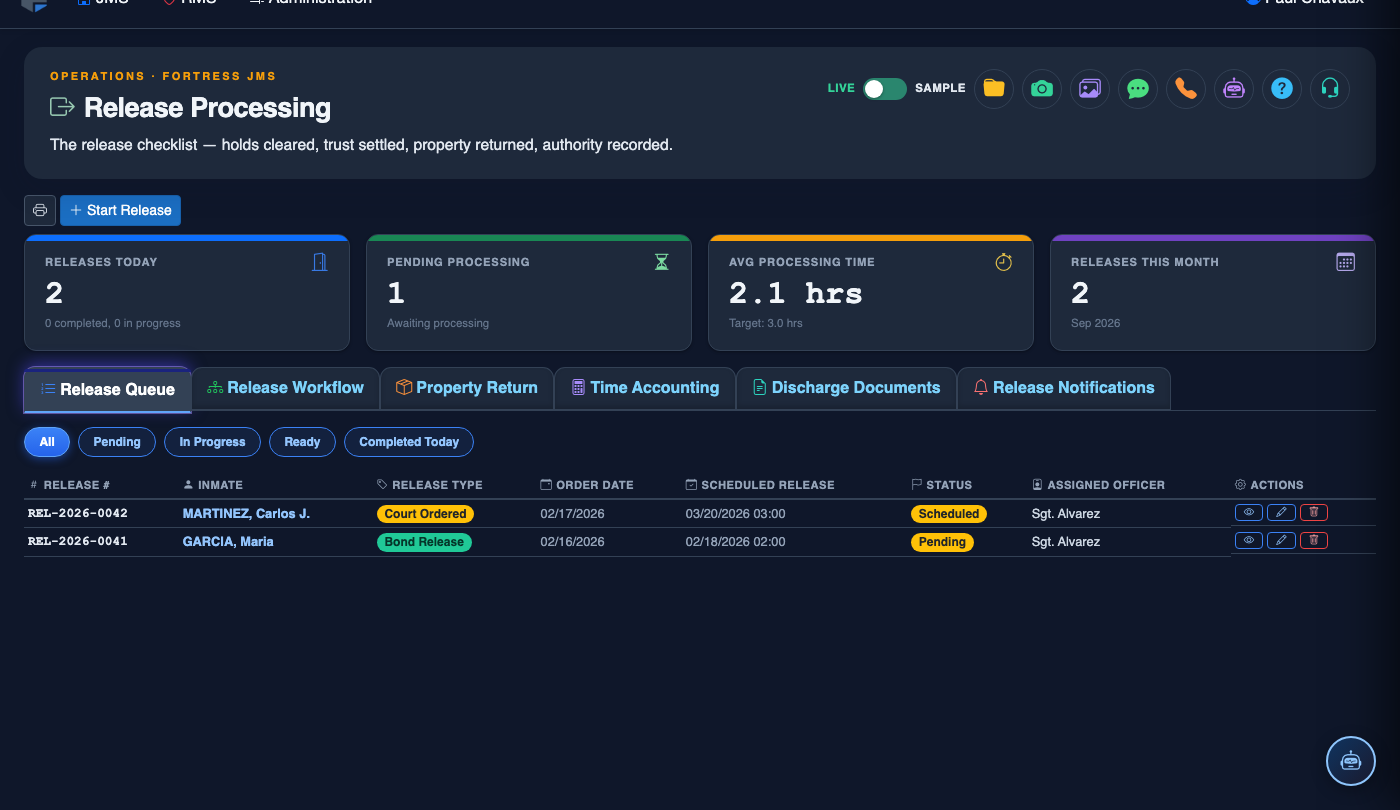
Release Processing is the central module for managing every step of an inmate’s departure from your facility — from the initial release order through property return, time accounting, and final discharge documentation. The module enforces a structured checklist-driven workflow so no release condition, detainer, or hold is overlooked before an inmate walks out the door. Staff across housing, records, property, and supervision use this module in real time to coordinate a safe, legally compliant release every time.
Release Queue
Real-time queue of all inmates pending release, sorted by scheduled release time and hold status.
Release Workflow
Step-by-step checklist ensuring all holds, warrants, and conditions are cleared before release authorization.
Property Return
Barcode-verified property inventory return with inmate signature capture at discharge.
Time Accounting
Automatic calculation of time served, good-time credits, and release date verification against court orders.
Step-by-Step: Processing an Inmate Release
Open the Release Processing Module
Navigate to Release Processing from the main JMS navigation panel. The Release Queue tab loads by default, displaying all inmates with a scheduled release date on or before today, color-coded by urgency and hold status.
Select the Inmate for Release
Click the inmate’s name or Booking Number in the queue to open their full release record. Review the Release Type (time served, bond posted, court order, etc.), the authorizing document reference, and the releasing authority name.
Run the Release Workflow Checklist
Navigate to the Release Workflow tab and work through each checklist item in sequence. The system automatically checks for active Detainers, ICE Holds, Outstanding Warrants, and Court-Ordered Conditions. Each item must be manually confirmed or resolved before the workflow advances.
Complete Property Return
Switch to the Property Return tab. The system displays every item logged at booking. Scan each item’s barcode as it is returned to the inmate and resolve any discrepancies — missing items require a supervisor override and written explanation before continuing.
Verify Time Accounting
Open the Time Accounting tab to review the system-calculated time served, including any Good-Time Credits or Jail Credit awarded by the court. Confirm the calculated release date matches the court order before proceeding to finalize.
Capture Inmate Signature
Have the inmate sign the Release Acknowledgment on the signature pad or touchscreen. This signature confirms receipt of property, knowledge of any supervision conditions, and release from custody. The signature is stored in the booking record.
Finalize and Print Release Documents
Click Finalize Release to officially discharge the inmate from the facility roster. FortressDMS automatically generates the Release Summary, updates the inmate’s status to Released, and prints any required court notification forms, supervision reporting instructions, or bond condition notices.
💡 Pro Tips
- Run the release workflow checklist at least 30 minutes before the scheduled release time — warrant and detainer checks can take time if an external database lookup is required.
- If a bond is posted after the release record is opened, use the Update Release Type button rather than creating a duplicate record to keep the audit trail clean.
- Always print the Release Summary and hand it directly to the inmate — it documents their supervision requirements and provides a point of contact if they have questions.